In this post, I will review the Wondershare Recoverit file recovery tool for Windows and Mac PC.
Wondershare Recoverit is a file recovery toolkit that has been around since 2003. It can retrieve over a thousand different file formats and file systems from a PC.
It offers you the best file recovery technology that can recover deleted, corrupted, or damaged files from deleted partitions, devices, or storage media without experiencing any technical difficulty.
Try out the free version of Wondershare Recoverit file recovery, and you will be amazed at its excellent file recovery ability.
What Are The Benefits Of Wondershare Recoverit?
It is one of the safest and most reliable data recovery tools to use
It supports over a thousand file types, including emails, various image formats, music, and video formats.
It supports all available file system technologies, including NTFS, FAT, and HFS+.
It can recover data from any type of storage media or device.
It has the highest record of successful file recovery.
File recovery with Wondershare Recoverit is a straightforward process in just three steps.
Key Features Of Wondershare Recoverit File Recovery Tool
Intuitive User Interface
Wondershare Recoverit features an intuitive user interface, making navigation easy for non-tech-savvy users. It features well-laid navigation, making it easily accessible to users, thus guaranteeing a fantastic user experience.
Recover file options
Users can use Wondershare Recoverit to recover multiple file types, including documents, web files, archives, photos, and emails, in various formats such as PNG, ZIP, WAV, and AVI. There’s no limit to the type of files you can recover.
File preview
It features a preview option that allows you to select what to recover before proceeding with the scanning and recovery process.
Recovery options
It can recover files or data from deleted, damaged partitions, corrupted storage media, devices, the deleted Recycle bin, system crashes, etc.
Compatible with all Windows and Mac versions
Wondershare Recoverit is compatible with Windows 10, 8, 7, Vista, and XP versions. It is also compatible with all Mac versions.
Deep scan technology
It has an advanced deep-scan algorithm that can scan any device type and media with a 99% success rate.
Tech Support
Wondershare Recoverit has a highly skilled and friendly tech support team to handle all issues encountered by users. Users can benefit from its rich FAQ page and LiveChat features, in addition to reaching out to the support team via dedicated helplines and Email support.
Money-back guarantee
Wondershare Recoverit offers a 7-day money-back guarantee to users who are not satisfied with its performance.
Recoverit offers users a one-month trial plan to give users a feel of the benefits of having a Recoverit file recovery toolkit on their PC.
2. Essential Plan (covers 1PC)
Monthly subscription: $45.95
Yearly Subscription: $59.95
Lifetime license: $69.95
Restore over a thousand file formats
Recover various devices
Performs deep scan and file preview
Supports all loss scenarios
Free remote technical service
3. Standard Plan (covers 1PC)
Monthly subscription: $59.95
Yearly Subscription: $69.95
Lifetime access: $79.95
All features of the Essential plan
Create bootable media
Computer crash recovery
Solve the blue screen of death
4. Advanced Plan
Monthly Subscription: $69.95
Yearly Subscription: $79.95
Lifetime license: $89.95
It covers all features of the Standard plan.
Advanced video recovery
Repair corrupt videos
Scan video fragments
Wrapping Up Wondershare Recoverit Review
Data loss cannot be ruled out in everyday living. Hence, you need Recoverit, a robust toolkit that can recover file types, including documents, photos, videos, audio files, messages, emails, and archives, in any format.
Additionally, Recoverit can resolve common PC issues, including system crashes, resolving the Blue Screen of Death, creating bootable media, and repairing corrupt videos.
Many people find it challenging to use their local cards to pay for US-based online services. If you’re facing such a problem, the good news is that you can use many virtual dollar card services.
We tested the platform to measure its features and determine its worth.
So, if you’re contemplating signing up, read on to get all the details in this StatesCard review.
What Is StatesCard?
StatesCard offers a virtual debit card solution for individuals who require a US billing address.
If you register for the tool, you can use it to pay for US digital services, like Netflix, Amazon Prime, HBO, and Disney+. From our review, the service is relatively easy to use.
To start, you’ll create an account and complete the verification process. Then, you add money to your card and are good to go. However, note that there’s a subscription fee and one-time creation fee to use the service — independent of the money you add to your card.
When you get your StatesCard, you can use it just like any other debit or credit card. It has a number, expiry date, and CVV, as is typical. However, you’ll also get a valid US address if you need to enter one while making payments.
StatesCard Virtual Card
StatesCard is a virtual US prepaid debit card that lets you make online purchases and payments, without a US credit card...Show More
StatesCard is a virtual US prepaid debit card that lets you make online purchases and payments, without a US credit card or bank account. Show Less
Benefits Of StatesCard
Here are the benefits of using StatesCard:
US billing address: Useful for subscribing to US-based services that require a US address.
Virtual card for US digital payments: Convenient for online purchases and subscriptions on US platforms.
No credit check needed: Accessible even with a limited credit history.
Mobile app management: Manage your card on the go.
Quick and easy sign-up: No credit check needed, potentially faster than traditional cards.
Multiple loading options: Load funds via debit card, bank transfer, or cryptocurrency (limited options).
Instant card issuance: Use the virtual card immediately after loading funds.
Privacy: Avoid sharing your actual card information with online merchants.
Budget control: Pre-loading limits spending and avoids overspending.
Separate finances: Use StatesCard for specific online expenses without mixing them with your main account.
How To Sign Up For StatesCard
Getting started with StatesCard is quite simple. During our testing of the service, we observed that the onboarding procedure consists of four main steps. Check them out below:
Step 1: Register an Account
The very first step is to visit the StatesCard official website to create an account with the service. You can complete this step when you visit the official website by filling out the sign-up form. However, StatesCard also allows users to register using their Google or Microsoft accounts.
Whichever option you choose, ensure that the personal details you provide are accurate and authentic. Also, you’ll need to specify your email address and password, which you’ll use to log in.
StatesCard Virtual Card
StatesCard is a virtual US prepaid debit card that lets you make online purchases and payments, without a US credit card...Show More
StatesCard is a virtual US prepaid debit card that lets you make online purchases and payments, without a US credit card or bank account. Show Less
Step 2: Verify your Identity
StatesCard’s policy requires all users to confirm their identity after signing up. In our view, it’s a precautionary measure to keep the platform safe from fraud and scams.
Also, it’s not difficult; you only have to provide a valid ID or an international passport from your country. If your ID or passport details match what you provided when registering, you’ll pass the verification procedure.
Step 3: Pay the activation fee and subscription
With verification completed, you’re one step away from getting your StatesCard. You’ll have to pay the card creation fee and the monthly subscription. The former is one-time, as you pay to activate the card.
You’ll only need to pay a creation fee again if you wish to obtain a new virtual card. Meanwhile, the subscription is recurring every month. You can pay these fees using your PayPal or debit/credit card.
Step 4: Fund your card and start using it
The last step is to fund your card. After activating a new card, it’ll be empty, with a $0.00 balance. So, adding money is necessary if you want to use it for online payments.
You can fund your account with PayPal or a bank card when paying the fees. The transaction is instant, and once the money reflects on your StatesCard virtual card, you can begin using it for online payments.
StatesCard Features
Based on our review of the service, these are the key features to expect when you sign up with StatesCard:
Virtual Card
You’ll get a virtual debit card for all US online payments. The card will work for streaming services, app stores, and other similar services. Notably, it comes with all the standard features you’ll expect from a debit card, plus a US address.
The virtual card can be easily stored and managed through the StatesCard mobile app, which is accessible on Android and iOS devices.
Multiple funding options
StatesCard allows you to fund your virtual debit card using your local card or PayPal. Hence, you get two methods to choose from, depending on which is most convenient. It’s also worth mentioning that you can use both debit and credit cards.
Transactions with the local card option might incur additional conversion fees depending on your currency and bank.
Funding through PayPal is subject to PayPal’s standard transaction fees.
Worldwide availability
You can sign up and start using StatesCard, irrespective of your location. The service supports users worldwide. It’s a significant advantage, as many similar services restrict their availability to a specific region.
Be aware that some merchants might restrict purchases based on your physical location, regardless of the card’s US billing address. Therefore, you should check StatesCard’s list of supported countries to ensure compatibility before signing up.
No hidden charges
StatesCard clearly states its costs, and there are no extra fees involved. You’ll only pay a one-time fee to create the card and a monthly subscription fee. Besides these two charges, any subsequent payment you make will be used to fund your card.
VPN support
You can use your StatesCard virtual card and a VPN without complications. This is important when making payments, so you can set your online location to the United States to avoid geo-restrictions. That’ll also ensure your IP matches the US address you get from StatesCard.
VPN is recommended for added security, but choose a reputable and reliable VPN service provider.
Zero support for money transfer services
The card you receive for StatesCard won’t work for money transfer services. For instance, you can’t add the card to your PayPal, Skrill, or Neteller accounts. You can only use the card to make payments and subscriptions.
Non-crypto access
Likewise, the card won’t work for transactions on cryptocurrency exchanges. Notably, using the card for crypto payments is against StatesCard’s terms and conditions, and your account may be penalized if detected to be involved in such.
How to Fund Your StatesCard
As explained in the previous section, adding money to your virtual card is one of the primary steps when using StatesCard. Here, we’ll go over the step-by-step procedure on how you can fund your card. Check out the steps below:
Select your preferred payment method — PayPal or bank card
Follow the onscreen instructions to complete the payment based on your selected payment method
Confirm that the money has been reflected on your card balance
Usually, when you fund your card, the amount will be reflected instantly. However, we noted that in some cases, StatesCard will carry out a manual confirmation. While that may take a little time, you won’t wait more than a few hours.
StatesCard Virtual Card
StatesCard is a virtual US prepaid debit card that lets you make online purchases and payments, without a US credit card...Show More
StatesCard is a virtual US prepaid debit card that lets you make online purchases and payments, without a US credit card or bank account. Show Less
StatesCard Supported Countries
Many people often ask, “What countries does StatesCard support?” We can confirm that the service doesn’t place any geographical restrictions on its user base. You can sign up and get a virtual card on the platform regardless of your residence.
However, it’s important to note that you get a US virtual dollar card and a US billing address. Therefore, the card will only work for US-based services, such as Hulu, Disney+, Netflix, HBO, and other similar platforms. Similarly, you can use it for online purchases on sites such as Amazon, eBay, and Walmart.
Generally, the StatesCard virtual card is supported online anywhere a dollar card works. You may be unable to use it for non-US-based online services, like those in the UK or EU. Currently, there’s no indication from StatesCard on whether the service will support other currencies — it’s doubtful that it will.
StatesCard Customer Support
From our review, we can confirm that StatesCard has a helpful customer service team. The representatives can help 24/7, but the only drawback is that they don’t work in real-time. That’s because there’s no live chat.
To reach the StatesCard support team, please submit a message via the contact form. You can access the option by clicking the question mark icon located at the bottom right of the website. Then, provide your email address and submit your message. StatesCard will reply within a few hours if it’s during the day. At night or on weekends, it may take a bit longer.
Nevertheless, there’s an alternative if you don’t want to wait for a response from the support team. On the StatesCard website, you’ll find a detailed Knowledge Base with many answers and guides. Mainly, the covered topics include:
Getting Started
Using StatesCard
Help & Troubleshooting
There are 27 articles in total, and during our testing of the platform, we found that each one is detailed. They’re also centered on key aspects you’ll likely need assistance with as a user. What more? Thanks to the search bar, finding any helpful article you want is easy.
As we mentioned earlier in this StatesCard review, there are two primary costs associated with using StatesCard: the one-time creation fee and the monthly subscription.
Check out the StatesCard pricing below:
One-time creation fee: $16.99
Monthly subscription: $3.95
So, the total cost you’ll pay to begin using the service is $20.94. Then, you fund your card and subsequently renew your subscription on a monthly basis. StatesCard doesn’t demand any extra charges besides the two listed above.
StatesCard Virtual Card
StatesCard is a virtual US prepaid debit card that lets you make online purchases and payments, without a US credit card...Show More
StatesCard is a virtual US prepaid debit card that lets you make online purchases and payments, without a US credit card or bank account. Show Less
StatesCard Pros and Cons
It’s ideal to weigh the upsides and downsides of any online service before using it. In that view, here are the pros and cons of using StatesCard:
Pros
You get a virtual debit card that works with any US-based online service. This mainly includes streaming platforms and application stores.
The virtual debit card also has an authentic US address, which you can add to your billing info.
The service is globally available, allowing you to sign up and receive a card regardless of your location.
There’s a simple one-time creation fee and a monthly subscription cost. Additionally, all you need to do is fund your card.
The card is VPN-compatible, so you can switch your virtual location to match your billing address without complications.
Cons
You can’t withdraw money you add to your card. If you want to suspend your account, you must exhaust all funds.
The card doesn’t support money transfer services and cryptocurrency exchanges. Notably, as we discovered while crafting this StatesCard review, using it for crypto payments will result in an account ban.
Here are five of the best alternatives to StatesCard, a platform for managing state-based services:
1. Square
Square offers a range of financial services, including payment processing, business loans, and online store management. It’s known for its user-friendly interface and low-cost solutions, making it a great alternative for individuals or businesses looking for an easy-to-use platform.
2. PayPal
PayPal is a popular alternative for managing payments and financial transactions across various platforms. It provides an easy way to send and receive money and offers various services like invoicing, payment processing for online businesses, and even small business loans.
3. Venmo
Owned by PayPal, Venmo is a mobile payment service that allows users to send and receive money quickly. It’s especially popular for peer-to-peer transactions but also includes features for businesses looking to accept payments through the app.
4. Revolut
Revolut is a global financial platform offering services such as currency exchange, investing, and banking. It provides a multi-currency account that can be used for international payments, making it a great option for managing state-related financial services across borders.
5. Wise (formerly TransferWise)
Wise is a financial service that offers low-cost, fast international transfers and multi-currency accounts. It’s ideal for individuals or businesses that need to manage state-based services, focusing on low fees and competitive exchange rates for global transactions.
StatesCard is a virtual debit card solution for making online payments in the US. It is designed to help people outside the US make online purchases from US merchants.
It’s not a traditional credit card but a prepaid card you fund before using. They emphasize no credit checks, instant card issuance, or US billing address.
StatesCard Virtual Card
StatesCard is a virtual US prepaid debit card that lets you make online purchases and payments, without a US credit card...Show More
StatesCard is a virtual US prepaid debit card that lets you make online purchases and payments, without a US credit card or bank account. Show Less
How do I use my StatesCard?
You use your StatesCard just like any other debit card for online transactions.
Use your StatesCard virtual card number and CVV for online purchases at US merchants, including:
Streaming services (Netflix, Hulu, Spotify)
App stores (Google Play, Apple App Store)
Online retailers (Amazon, eBay)
Many other online businesses accept US payments
How much is the monthly fee for the StatesCard?
The monthly fee for StatesCard is only $3.95. For users who frequently make small online purchases from US merchants, the convenience and security of StatesCard might justify the monthly payment. Remember that the fee could be offset by the rewards programs some US merchants offer when using a US-issued card.
What are the features of StatesCard?
Virtual debit card: You get a virtual card for online purchases at US merchants, including streaming services, app stores, etc.
Multiple funding options: You can fund your card using your local debit credit card or through PayPal.
Worldwide availability: Sign up and use StatesCard from anywhere in the world.
Transparent fees: StatesCard clearly states its costs, with a one-time card creation fee and a monthly subscription fee. No hidden charges!
VPN support: Use your card with a VPN to avoid geo-restrictions and ensure your IP matches the US billing address provided.
Yes, StatesCard is a safe and legitimate virtual debit card solution you can use.
StatesCard has the following security features:
Rigorous security standards: They state they adhere to the same standards as traditional banks.
Data encryption: They use encryption to protect your personal information.
Dispute resolution: You can dispute unauthorized charges.
Limited liability: You’re not liable for unauthorized transactions if reported promptly.
Is StatesCard Legit?
Yes, StatesCard is a legitimate virtual card service. Register with the platform and get a US virtual debit card and billing address for your online transactions. All you have to do is pay the associated fees and fund your card.
StatesCard has been around for a few years now, and during our review, we didn’t find any significant negative feedback about the service. We analyzed customers’ comments from TrustPilot.com, and the platform performed favorably, with 3.9/5 ratings.
Here are some feedback from users:
Statescard is amazing! Super convenient. I am impressed with the functionality and am so excited that their service has solved a massive problem for me. They are super transparent about how it works, pricing, etc. It couldn’t be better! Proceed with absolute confidence! — Amber Mitchell
I used it for GamePass and Microsoft as a card and billing address.No fake charges, and they are patient with charging their fees, unlike banks. Highly recommended. — Milan
I’ve been using StatesCard for almost two years for Hulu and HBO Max, and (almost) no complaints. They had some downtime when switching to Visa, but everything worked perfectly. Typically, it costs around $50 every two months. Covers both Hulu and HBO subscriptions for me. — Max Basin
Is StatesCard Worth It?
Based on our expertise, we can say yes, StatesCard is worth it. The platform requires a one-time creation fee of $ 16.99 and a monthly subscription fee of $3.95. Any additional money you pay will be used to fund your virtual card, which you’ll subsequently use.
The cost is notably affordable, as the recurring subscription is less than $5 per month. Notably, it’s cheaper than many other virtual card services. Besides the card, you also receive a valid US billing address — all for just $3.95 per month.
Final Thoughts On The StatesCard Review
We recommend StatesCard for anyone needing a virtual debit card for US-based payments.
As explained in this StatesCard review, obtaining the card is straightforward, with only four steps, and the pricing is affordable.
If you sign up and use the card according to the terms and conditions, you’ll have zero issues.
StatesCard Virtual Card
StatesCard is a virtual US prepaid debit card that lets you make online purchases and payments, without a US credit card...Show More
StatesCard is a virtual US prepaid debit card that lets you make online purchases and payments, without a US credit card or bank account. Show Less
Leave a comment below regarding this StatesCard review.
In this post, we will show you the Wondershare Dr Fone Review, a data recovery tool for Android and iOS devices.
Dr.Fone is the first Android and iOS data recovery tool developed by Wondershare in July 2017, offering a comprehensive data recovery solution for both Android and iOS devices.
Although Dr.Fone remains the best data recovery tool for Android and iOS devices, it also offers additional functionalities such as file transfer, system repair, screen unlock, and Virtual location changing.
I believe you will find Dr.Fone to be an interesting data recovery tool for both Android and iOS devices. Moreover, you can try out Dr.Fone’s trial version for a first-hand data-recovery experience.
Without further ado, let’s take a look at the Wondershare Dr. Fone review.
What Are The Benefits Of Dr.Fone Data Recovery?
You do not need to be a technician to use Dr.Fone.
You can recover lost or deleted files from your Android or iOS devices.
You can resolve common phone issues, such as file transfer, screen lock, system repair, and changing your GPS location, among others.
You can erase data permanently or perform a phone backup using Dr. Fone.
Dr.Fone’s intuitive user interface makes navigation easy for non-tech-savvy users. The tools are well-organized and easily accessible, offering users a smooth experience.
Recover file options
With Dr.Fone, there’s no limit to the type of files you can recover. You can recover contacts, SMS and WhatsApp messages, photos, videos, and documents without a sweat.
File preview
Not all lost or deleted files are useful; therefore, Dr.Fone displays a preview of the scanned files. You can select the files or data you want to recover without loading your device with junk files.
Recovery options
With Dr.Fone, you can recover files or data from your device’s internal storage, broken Android devices, and SD cards.
Compatible with over 6000 Android devices
Dr. Fone is compatible with over 6,000 smartphone devices, supporting both rooted and unrooted devices. Therefore, you can use Dr. Fone without compatibility issues, regardless of your phone brand.
Data security
Dr.Fone scans your device for recoverable data; it does not modify, log, or leak your data.
Tech Support
Dr.Fone has a highly skilled and friendly tech support team to handle all issues encountered by users. Users can benefit from Dr.Fone’s rich FAQ page and LiveChat features in addition to reaching out to the support team via dedicated helplines and Email support.
Launch Dr.Fone and select a function you want to perform, e.g., Data Recovery.
Connect your phone to your PC using a USB cable.
Enable USB debugging on your phone to allow Dr.Fone to detect your device.
Select the file type you want to recover from your phone, e.g., contacts, messages, photos, etc., and click next to continue.
Select a scan type from the pop-up window that appears on your PC screen. You can select ‘Standard’ or ‘Advanced’ mode. Standard mode is faster, but Advanced mode performs a more thorough and comprehensive scan of your device.
Click the ‘Start’ icon to start scanning your device for lost or deleted files.
After scanning, Dr.Fone will display all recovered file types, including available and deleted files, in a new window.
Enable the ‘Only Display deleted items’ option to view only deleted files, select the files you want to recover, choose a storage location, and click on ‘Recover.’
Now, for this Wondershare Dr. Fone review, let’s take a look at its pricing plans.
Wondershare Dr.Fone Pricing Plans
This Wondershare Dr Fone review is incomplete without showing you its pricing plans.
Dr.Fone has two separate pricing plans for both Android and iOS devices.
Here is the pricing plan for Android devices
Lifetime plan: $49.95. This plan includes various features, such as data recovery, phone unlocking, and system repair.
Here is the pricing plan for iOS devices
Lifetime plan: $69.95. This plan covers data recovery, system repair, phone unlocking, and more.
Data loss due to deletion, faulty devices, broken screens, data corruption, and other causes is a common occurrence with no means of data recovery.
Thankfully, with Dr.Fone, you can recover lost files and data, such as contacts, SMS and WhatsApp messages, photos, music, videos, and documents, from damaged or faulty devices.
Additionally, you can perform various repair and recovery functions, such as fixing black screens, resolving rooting errors, and addressing system crashes, with Dr.Fone. This makes Dr.Fone a must-have recovery tool for your Android and iOS devices.
In this uVPN review, I will answer the question – is uVPN safe to use?
There are currently several VPN providers in the cybersecurity market, and the number of VPN users is increasing daily.
Amid all these, uVPN, a VPN service by Brocode Limited, is trying to make a name for itself. Although it has been around since 2015, it lacks the prestige that other VPN providers have.
However, when choosing a VPN service, focusing on its features, not just its appearance, is essential.
If you consider using uVPN, you will undoubtedly want to know if it is safe. We will address this in our uVPN review, examining its pricing, features, alternatives, pros, and cons.
Is uVPN Safe To Use?
Without much ado, yes, uVPN is safe to use. It provides data security and privacy for users by ensuring they remain anonymous online.
UVPN utilizes modern IKEv2 and OpenVPN protocols, combined with the latest AES-256 encryption technology, to provide a secure VPN network.
uVPN has a no-logs policy based in Hong Kong, a country not a member of the Five, Nine, and 14 Eyes alliances that collectively share surveillance data. So, uVPN can truly uphold its no-logs policy.
Major cybersecurity companies do not assign specific features to different plans, but rather, the plans provide the same features, and the duration of the plans is the deciding factor.
However, uVPN pricing is based on the number of devices it will be used to protect, and this determines the number of streaming servers and countries that can be accessed. But like other VPN providers, the longer the plan you subscribe to, the more you save.
uVPN has three pricing plans: Basic, Optimal, and Premium. They all come with a 7-day free trial. The optimal and premium plans include ultra-fast servers and 24/7 live chat customer support, while the basic plan includes high-speed servers and ticket-based customer support.
Basic (1 Month)
2 devices – $2.99
5 devices – $5.49
10 devices – $8.99
Optimal (6 Months)
2 devices – $19.99
Five devices – $29.99
Ten devices – $34.99
Premium (1 Year)
2 devices – $34.99
5 devices – $39.99
10 devices – $44.99
Best uVPN Alternatives
1. CyberGhost VPN
This uVPN alternative simultaneously protects up to 7 devices and costs $12.99 per month. CyberGhost has over 9000 servers in 90 countries and is based in Romania.
84% OFF
CyberGhost VPN
CyberGhost VPN is a VPN service provider with more than 9,000 VPN servers spread in over 90 countries. Complete privacy...Show More
CyberGhost VPN is a VPN service provider with more than 9,000 VPN servers spread in over 90 countries. Complete privacy protection for up to 7 devices! Show Less
This uVPN replacement can protect an unlimited number of devices simultaneously and costs $12.95 per month. Surfshark VPN has over 4500 servers located in 100 countries and is based in the Netherlands.
84% OFF
Surfshark
Surfshark is an award-winning VPN service for keeping your digital life secure. Surfshark VPN has servers located in...Show More
Surfshark is an award-winning VPN service for keeping your digital life secure. Surfshark VPN has servers located in more than 60 countries worldwide. Show Less
Among this list of the best uVPN alternatives, we have IPVanish, a VPN service provider that can protect an unlimited number of devices simultaneously, and costs $10.99 for its monthly plan. IPVanish has over 1,900 servers in over 75 locations and is based in the United States.
Visit the uVPN Download Page and select the device or browser on which you want the app to be downloaded.
Download and install the app on the device by following the instructions.
Locate and open the app on your device after installation and select the free trial by clicking on START WITH A 7-DAY FREE TRIAL.
Choose and subscribe to a plan. Your account won’t be charged till the free trial is over.
How to Delete uVPN Account
To delete your uVPN account, contact the support service on the uVPN Help Page and request for account deletion.
Is uVPN Worth It?
Yes, uVPN is worth it. It is excellent for bypassing geo-restricted and unblocking content anonymously from anywhere. It provides IP addresses that hide your IP address, encrypts your data, and manages traffic.
Furthermore, it eliminates ISP throttling, authorities’ internet control, stream buffering, and library limitations.
Wrapping Up The uVPN Review
In this uVPN review, we answer the question: Is uVPN safe to use? Additionally, we have showcased its features, pricing, top uVPN alternatives, and pros and cons.
A VPN is good for protecting your online identity, but using a reputable VPN service makes it even better. uVPN protects users’ online IDs, but when it comes to unique and sophisticated features, it doesn’t stand out when deciding on a VPN service.
If you’re working remotely or want to access the internet securely, a virtual private network (VPN) is your best bet.
A VPN is a great way to protect your personal information from potential hackers and bypass any restrictions imposed by your internet service provider.
Note: Please note that WeVPN is no longer active and cannot be used. If you are looking for a VPN provider, I recommend that you consider other options such as NordVPN, ExpressVPN, or Surfshark.
Best WeVPN Alternatives
Here are the best alternatives to WeVPN:
PureVPN
PureVPN is one of the best VPN service providers with presence across 150 countries in the world. An industry VPN leader...Show More
PureVPN is one of the best VPN service providers with presence across 150 countries in the world. An industry VPN leader with more than 6,500 optimized VPN servers. Show Less
CyberGhost VPN
CyberGhost VPN is a VPN service provider with more than 9,000 VPN servers spread in over 90 countries. Complete privacy...Show More
CyberGhost VPN is a VPN service provider with more than 9,000 VPN servers spread in over 90 countries. Complete privacy protection for up to 7 devices! Show Less
TunnelBear VPN
TunnelBear is a VPN service provider that provides you with privacy, security, and anonymity advantages. It has VPN...Show More
TunnelBear is a VPN service provider that provides you with privacy, security, and anonymity advantages. It has VPN servers in more than 46 countries worldwide. Show Less
Surfshark
Surfshark is an award-winning VPN service for keeping your digital life secure. Surfshark VPN has servers located in...Show More
Surfshark is an award-winning VPN service for keeping your digital life secure. Surfshark VPN has servers located in more than 60 countries worldwide. Show Less
Private Internet Access
Private Internet Access uses world-class next-gen servers for a secure and reliable VPN connection, any day, anywhere.
Private Internet Access uses world-class next-gen servers for a secure and reliable VPN connection, any day, anywhere. Show Less
FastVPN (fka Namecheap VPN)
FastVPN (fka Namecheap VPN) is a secure, ultra-reliable VPN service solution for online anonymity. A fast and affordable...Show More
FastVPN (fka Namecheap VPN) is a secure, ultra-reliable VPN service solution for online anonymity. A fast and affordable VPN for everyone! Show Less
Panda Security
Panda VPN is a fast, secure VPN service facilitated by Panda Security. It has more than 1,000 servers in 20+ countries.
Panda VPN is a fast, secure VPN service facilitated by Panda Security. It has more than 1,000 servers in 20+ countries. Show Less
NordVPN
The best VPN service for total safety and freedom.
The best VPN service for total safety and freedom. Show Less
ProtonVPN
A swiss VPN service that goes the extra mile to balance speed with privacy protection.
A swiss VPN service that goes the extra mile to balance speed with privacy protection. Show Less
ExpressVPN
A dependable VPN service that works on all devices and platforms.
A dependable VPN service that works on all devices and platforms. Show Less
TorGuard VPN
The best VPN service for torrenting safely and anonymously.
The best VPN service for torrenting safely and anonymously. Show Less
VuzeVPN
VuzeVPN offers you unlimited and unrestricted VPN service.
VuzeVPN offers you unlimited and unrestricted VPN service. Show Less
VeePN
VeePN is a virtual private network (VPN) service that provides online privacy and security by encrypting internet...Show More
VeePN is a virtual private network (VPN) service that provides online privacy and security by encrypting internet traffic and hiding the user's IP address. Show Less
HideMe VPN
HideMe VPN is your ultimate online privacy solution, providing secure and anonymous browsing while protecting your data...Show More
HideMe VPN is your ultimate online privacy solution, providing secure and anonymous browsing while protecting your data from prying eyes, so you can browse the internet with confidence and freedom. Show Less
ZoogVPN
ZoogVPN is the complete and trusted all-in-one VPN service that protects your sensitive personal and financial...Show More
ZoogVPN is the complete and trusted all-in-one VPN service that protects your sensitive personal and financial information online. Show Less
HideMyName VPN
Protect your online privacy and anonymity with HideMyName VPN, a secure and affordable service that offers robust...Show More
Protect your online privacy and anonymity with HideMyName VPN, a secure and affordable service that offers robust encryption, multiple server locations, and a variety of privacy-enhancing features. Show Less
Witopia VPN
Witopia VPN lets you shield your privacy and unlock the world's internet with military-grade encryption and borderless...Show More
Witopia VPN lets you shield your privacy and unlock the world's internet with military-grade encryption and borderless access. Show Less
FastestVPN
FastestVPN offers budget-friendly, secure connections with unlimited data and a focus on fast speeds, ideal for...Show More
FastestVPN offers budget-friendly, secure connections with unlimited data and a focus on fast speeds, ideal for streaming and everyday browsing. Show Less
ExtremeVPN
ExtremeVPN is a VPN service that offers fast speeds, strong encryption, and a no-logs policy to keep your online...Show More
ExtremeVPN is a VPN service that offers fast speeds, strong encryption, and a no-logs policy to keep your online activity private. Show Less
iProVPN
iProVPN is a VPN service with a focus on security and affordability, offering basic features to secure your connection...Show More
iProVPN is a VPN service with a focus on security and affordability, offering basic features to secure your connection and unblock streaming content. Show Less
Well, hang on! You will surely find out in this old WeVPN review.
What Was WeVPN?
WeVPN was a VPN service provider launched in March 2020. This VPN featured groundbreaking technologies, including WireGuard VPN protocol, RAM-only servers, Smart DNS technologies to guarantee fast internet speed, and a true ‘no-log’ policy.
WeVPN was a virtual private network (VPN) service that allowed users to unblock sites and apps that were blocked or unavailable in their location.
With WeVPN, you could spoof your digital location and gain access to sites or services that were geographically blocked.
Whether you want to watch your favorite shows while traveling abroad, access social media wherever you go, or keep your personal information secure while browsing the internet, WeVPN can help you do so.
==>> WeVPN shut down in April 2023 due to “unforeseen financial difficulties.”
WeVPN, a mid-sized VPN provider, shut down in April 2023 due to “unforeseen financial difficulties.” The company has been in operation for over two years and has established a reputation for its affordable pricing and reliable performance.
However, it was unable to compete with larger and more established VPN providers, struggling to raise funding.
Why Did WeVPN Shut Down?
There are several reasons why WeVPN may have shut down. One possibility is that the company was too small to compete with larger VPN providers. These larger providers have more resources to invest in marketing and development and can offer lower prices due to economies of scale.
Another possibility is that WeVPN may not have raised sufficient funding to continue operations. The VPN market is becoming increasingly competitive, and new providers must invest heavily to remain competitive.
WeVPN may have struggled to attract investors or may not have raised enough money to meet its needs.
Finally, it is also possible that WeVPN was shut down due to changes in the overall VPN market. There has been a growing trend toward consolidation in the VPN industry in recent years, with larger providers acquiring smaller ones. This trend may have made it difficult for WeVPN to survive as a standalone company.
WeVPN customers who still had active subscriptions during the shutdown were offered free subscriptions to Windscribe, another VPN provider. Windscribe is a reputable company with a good track record, so this was a good outcome for WeVPN customers.
However, if you are a WeVPN customer and did not accept Windscribe’s offer, you may want to consider several other VPN providers.
For only$2.59 per month, getting started was as easy as pie! WeVPN has simplified its startup process, making it possible for all users to get started without needing any third-party or remote assistance. The steps below will get you started quickly.
Click here to get the best WeVPN plan.
Continue to the payment page.
Create an account and choose a payment method.
Download and run the WeVPN client, then log in with your username and password.
WeVPN Key Features
Intuitive user interface
WeVPN offers captivating features with a simple user interface that makes it easy to navigate its features, similar to other top VPN providers. With WeVPN, you have a big centrally placed auto-connect button that connects you to the fastest server. This menu iconprovides access to VPN features, a current location drop-down button, IP address bars, download and upload speeds, and duration information.
WeVPN’s user interface is quite basic: it lacks some features but is simple enough to make navigating around its features a child’s play.
VPN protocols
WeVPN essentially supports three VPN protocols: WireGuard, OpenVPN, and IKEv2. It is rather impressive to note that WeVPN supports WireGuard, the newest VPN protocol that many VPN providers do not support.
WireGuard VPN is the fastest VPN protocol available, although the OpenVPN protocol also remains the industry standard for balancing speed and security.
In summary, the three VPN protocols supported by WeVPN are the top choice VPN protocols in terms of speed and security.
Encryption technology
WeVPN protocol uses AES-256-bit military-grade encryption technology—the industry’s highest encryption technology—to encrypt users’ inbound and outbound data traffic. This encryption technology renders VPN-encrypted data traffic impervious to interception and decryption by unauthorized third parties, even when connected to unsecured public networks.
WeVPN had over 100 servers in more than 48 locations worldwide, including three locations in Africa, a rare feat. Interestingly, all WeVPN servers are optimized for streaming and P2P; hence, users can enjoy fast streaming and torrenting services.
Simultaneous device connections
WeVPN allowed up to 10 devices to connect to a single VPN account, regardless of device type or OS. This exceeds the number of devices permitted by some top VPN providers; kudos to WeVPN.
No-logs policy
WeVPN operates a strict ‘no-logs’ policy. Also, all its servers use RAM-disk server technology (servers with no permanent storage devices); hence, all data held on the RAM is wiped off at each server reboot. Also, it was headquartered in the British Virgin Islands, a country independent of 5-9-14 data retention policies. All these make WeVPN a true ‘no-logs’ VPN provider.
Kill Switch
WeVPN’s Kill Switch technology performed well, instantly cutting off the internet connection. From close observations, immediately after the VPN connection tripped off, its auto feature automatically reconnected to the internet once the VPN connection was re-established. I am glad WeVPN’s Kill Switch works fine in all our tests.
WeBlocker (WeVPN’s Ad Blocker)
WeBlocker outrightly blocked out 2/3 of ads; this is cool but not necessarily impressive compared to top VPN providers. Therefore, I think it would be splendid for WeVPN to improve its Ad Blocker.
SmartDNS
WeVPN’s SmartDNS allows you to access censored websites and geo-blocked streaming platforms without needing to install the WeVPN client. However, WeVPN stores your IP address while using this service. Hence, this feature is unpopular amongst users who prioritize privacy over streaming or downloading.
For this WeVPN review, we tested it based on different criteria.
Speed and Performance Test
Although WeVPN had a limited number of servers, they were optimized for speed and performance. My speed test result came out particularly impressive; the UK server I tested had a whooping 135Mbps download speed, while servers in the US and Australia recorded 103Mbps and 78Mbps download speeds, respectively, which was decent and consistent enough for downloading, streaming, torrenting, and gaming.
Streaming Test
Surprisingly, WeVPN was blocked on Netflix in the US, Australia, and Canada. It could not unlock HBO Max. However, WeVPN unblocked many other streaming sites, including ESPN, Disney+, YouTube, Peacock TV, BBC iPlayer, ESPN, Sky Go, and ITV Hub.
DNS, IPV, and WebRTC leak tests
In all the tests we ran on WeVPN, we did not detect DNS, IPV6, and webRTC leaks. This made WeVPN a reliable VPN that can protect your online identity.
WeVPN Apps
WeVPN supported more devices and OS types than a new VPN would. Device types and OS supported included:
Windows OS
Mac OS
Chrome OS
Linux (beta)
Android OS
iOS
Fire OS
Huawei
Fire TV
Android TV
Web browser Extensions
Chrome
Firefox
Edge browsers
WeVPN Customer Service and Resources
From our WeVPN review, I can say that WeVPN has a rich and well-categorized knowledge base and FAQ page that addresses users’ issues and inquiries. It also had a 24/7 live chat feature where you could easily reach out to a support member, as well as a support form.
However, the response was slow, taking about 4-6 hours to get a response via email. In general, WeVPN had impressive customer support services, but it needed to include phone and email support to give users more options.
Note: WeVPN is no longer active.
WeVPN Pricing
WeVPNoffers flexible and affordable pricing, providing users with access to VPN services for as low as $2.59 per month for the biannual plan, payable in a one-time sum of $69.95, renewable after expiration.
Other plans include:
1-Year Plan: $4.16 per month, billed at $49.95 per year
1 Month’s Plan: $9.95
WeVPN offers a 30-daymoney-back guarantee for its one and two-year plans.
Is WeVPN Safe?
As you can see from our WeVPN review, WeVPN was a 100 percent safe VPN service. It features various data safety and security measures that ensure your data and devices remain safe and protected, even when connected to unsecured networks.
WeVPN Review: Frequently Asked Questions
Is there a safe VPN?
No VPN is foolproof, but several reputable providers offer strong security features. Look for providers with:
Strong Encryption: AES-256 is the industry standard for secure encryption.
No-Logs Policy: A true no-logs policy ensures that the VPN doesn’t store user data, such as browsing history or activity logs.
Independent Audits: Regularly audited VPNs provide transparency and increase trust.
Do VPN providers keep logs?
Some VPN providers keep logs, while others adhere to strict no-logs policies. Be sure to research a VPN’s logging policy before subscribing.
What are the best WeVPN replacements?
Here are some alternatives to consider, depending on your priorities:
Strong Security & Privacy: ExpressVPNand NordVPN(both have proven no-logs policies and excellent security features).
Budget-Friendly: ProtonVPN(offers a free tier with limited features; paid plans provide more options). However, free VPNs often come with limitations on data usage, speed, or server locations.
Ease of Use: Surfshark(user-friendly interface, good for beginners).
Is Windscribe VPN reliable?
Windscribe offers a free tier with limited data and server options. Their paid plans are reliable, but the features may not be as extensive as those of some premium VPNs.
Is Windscribe VPN free?
Windscribe has a free tier with limitations (10GB data/month, limited server locations). Their paid plans offer more features and data allowance.
Is Windscribe better than WeVPN?
It depends on your needs. Here’s a comparison:
Security: Windscribe offers strong encryption and a no-logs policy, similar to WeVPN. However, Windscribe has been audited by a third-party security firm, which can provide some users with additional peace of mind.
Features: Windscribe’s free tier is attractive, but its paid plans may offer fewer features than WeVPN (e.g., simultaneous connections).
Speed: Performance can vary depending on location and server load—research user reviews for both providers to understand their speeds in your region.
A Final Word On The WeVPN Review
I would commend WeVPN for its affordability, but it does not work in China. It has proven difficult to unlock Netflix, and its WeBlock ad blocker does not seem to work well either.
Nevertheless, it offers great download, streaming, and torrenting speeds; plus, it can unblock numerous streaming platforms, including Netflix Japan and Netflix in other locations.
Editor’s Note:
The closure of WeVPN was a blow to its customers, but several other reputable VPN providers are available to take its place. If you are looking for a new VPN provider, I recommend checking out our list of the best VPN services to help you make an informed decision.
In this uMobix review, I will talk about its features, pros and cons, and the best uMobix alternatives.
Parents cant really monitor what their kids are doing online; hence, modern parents rely on tracking apps to keep an eye on their children’s activities online.
There are many child-tracking apps that will help parents keep an eye on their child’s online activities. However, uMobix stands out as a preferred mobile child-tracking app. With uMobix, you can monitor your child’s phone right from your dashboard.
As a parent, I have spent time testing this app; hence, this uMobix review will cover everything you need to know about uMobix, my preferred parental monitoring app.
What Is uMobix?
uMobixis a parental control app for Android and iOS devices that lets you keep an eye on your Kid(s).
With uMobix, you can monitor your Kid’s calls, read incoming and outgoing mails, delete unwanted apps, regulate screen time, monitor his/her location in real time, and do much more.
uMobix is an innovative parental control app that works on both Android and iOS devices. With this app, parents can keep a close eye on their kids’ online activity.
This app allows you to monitor your child’s activity across multiple social media and communication platforms, including WhatsApp, Snapchat, Instagram, and others. It can also be used to block inappropriate websites, limit screen time, and even set up a safe zone.
The app is incredibly easy to use. Once it’s installed on the device, you can remotely monitor your child’s activities from any device with an internet connection.
You’ll receive notifications when your child visits a restricted website or exceeds their daily screen time limit. You can also set up daily, weekly, or monthly reports so you can keep track of their activity over time.
What makes uMobix stand out from other parental control apps is its advanced features. With this app, you can set up a keyword filter to block messages containing specific keywords from reaching your child’s device.
You can also set up geofencing to receive an alert if your child enters or leaves a specific area.
Overall, uMobix is an excellent parental control app that provides parents with the peace of mind they need regarding their kids’ online activity. With its advanced features and user-friendly interface, it’s an excellent choice for monitoring your child’s activity.
uMobix
uMobix is a phone monitoring app offering features like call tracking, text message spying, and GPS location, raising...Show More
uMobix is a phone monitoring app offering features like call tracking, text message spying, and GPS location, raising privacy concerns despite aiming to help parents monitor children's online activity. Show Less
Installing uMobix for Android and iOS devices requires different approaches. However, you need to create a uMobix account by subscribing to a uMobix plan.
In the process, you will have to specify your Kid’s device type (Android or iOS). After completing your account setup, you will receive your uMobix login details via the registered email address.
Installing on iPhone
Installing uMobix on your Kid’s iPhone does not require you to have physical access to the iPhone; if you have chosen iPhone during your account setup, all you need to do is provide your Kid’s iCloud credentials for remote installation, and uMobix will be remotely installed on your Kid’s iOS device; All other settings will be done from your uMobix subscription account.
Installing uMobix on an iPhone is a fairly straightforward process, but it does require a few steps.
Here’s a breakdown of how to do it:
Before you begin:
It is important to note that installing uMobix on an iPhone requires a jailbroken device. If your iPhone is not jailbroken, you will not be able to install uMobix.
You will also need physical access to the iPhone you want to monitor.
Make sure you have a uMobix subscription.
Here are the steps on how to install uMobix on an iPhone:
1. Back up the iPhone
Before you begin, it is important to back up the iPhone in case anything goes wrong during the installation process. You can back up the iPhone to iCloud or iTunes.
2. Purchase a uMobix plan
Go to the official uMobix website. Once you have backed up the iPhone, you will need to purchase a uMobix subscription. There are various plans available, allowing you to select one that suits your needs.
uMobix
uMobix is a phone monitoring app offering features like call tracking, text message spying, and GPS location, raising...Show More
uMobix is a phone monitoring app offering features like call tracking, text message spying, and GPS location, raising privacy concerns despite aiming to help parents monitor children's online activity. Show Less
3. Download the uMobix app
Once you have purchased a subscription, you will need to download the uMobix app to your iPhone. You can do this by logging in to your uMobix account and clicking on the “Download” button.
4. Install the uMobix app
Once the app has been downloaded, you will need to install it on the iPhone. To do this, open the app and follow the on-screen instructions.
5. Verify your device
Once the app is installed, you will need to verify your device. You can do this by entering your uMobix account credentials.
6. Choose the device you want to monitor
If you have multiple devices associated with your uMobix account, you will need to choose the device you want to monitor.
7. Start monitoring
Once you have chosen the device you want to monitor, you can start monitoring it. You can do this by logging in to your uMobix account and clicking on the “Monitor” button.
Here are some additional tips for installing uMobix on an iPhone:
Make sure you are using a trusted source to download the uMobix app.
Do not install uMobix on a device that you do not own or have permission to monitor.
Be aware that installing uMobix may void the warranty on your iPhone.
Installing uMobix on Android devices
Installing uMobix on your Kid’s Android device requires physical access to the device. After gaining access to your Kid’s device, go to the device’s settings, click on ‘Security,’ and toggle on the ‘Install App from untrusted sources’ button, head back to the Google Play store, download, and install uMobix on your Kid’s Android device. Remember to revert the device back to its default security state.
Select the uMobix plan that best suits your needs and complete the purchase.
You’ll receive an email with your login and password.
uMobix
uMobix is a phone monitoring app offering features like call tracking, text message spying, and GPS location, raising...Show More
uMobix is a phone monitoring app offering features like call tracking, text message spying, and GPS location, raising privacy concerns despite aiming to help parents monitor children's online activity. Show Less
2. Download the uMobix APK file
Log in to your uMobix account on your computer.
In the control panel, navigate to the “Downloads” section.
Click on the “Download APK” button.
Save the APK file to a location where you can easily access it on your Android phone.
3. Enable Unknown Sources
Open the Settings app on your Android phone.
Scroll down and tap on “Security”.
Find the option for “Unknown Sources” and enable it.
This will allow you to install apps from sources other than the Google Play Store.
4. Install the uMobix APK file
Open a file manager app on your Android phone.
Locate the uMobix APK file that you downloaded earlier.
Tap on the APK file to start the installation process.
Follow the on-screen instructions to complete the installation.
5. Launch the uMobix app:
Open the app drawer on your Android phone.
Locate the uMobix app and tap it to launch.
Enter your uMobix login credentials and tap on “Sign In”.
6. Grant permission
uMobix will request permission to access various features on your phone, such as contacts, messages, and location.
Tap on “Allow” to grant each permission.
7. Start monitoring
Once you’ve granted all the necessary permissions, you can start monitoring the Android phone.
You can do this by tapping on the “Start Monitoring” button in the uMobix app.
After completing the installation process, log in to your uMobix account on your Kid’s Android device and grant permissions, such as permitting uMobix’s key logger, screen recording, call log, and location monitoring features.
A unique feature of uMobix is its stealth mode; after installation,uMobix deletes its app icon from your Kid’s device desktop, disguises itself with the name ‘Play Services,’ and uses an icon similar to Google’s Play Services to prevent detection.
A screencast icon is displayed at the top-right of the screen while uMobix is active; this can be a source of concern if your Child is tech-savvy and you haven’t discussed the option of monitoring them at the onset.
Installing the uMobix parental control app by following the installation guide is a straightforward process that can be completed in under 5 minutes without any assistance. I was impressed by how easy it was; I love it, and I think you would too.
uMobix has a user-friendly interface with well-laid icons for easy monitoring and parental control. Key information, such as your Kid’s location and places visited, is given priority display at the top of your dashboard because of its importance in locating your Kid’s whereabouts.
More information, like frequently called numbers, last contacts added, frequently used apps, and screen time, becomes visible as you scroll down.
Browser History
The browser history section provides access to websites visited by your children. Under this setting, you can blacklist any visited site you consider unhealthy for your Kid.
Keylogger
uMobix’s keylogger remotely logs texts from your Kid’s device and the app from which the texts are sent. This lets you monitor text messages sent via SMS, email, WhatsApp, Facebook, and other platforms.
WiFi Monitor
The WiFi feature lets you monitor the WiFi networks your Kid connects to right from your dashboard and gives you the option of remotely blocking any unsecured WiFi network in your Kid’s WiFi connection list.
Video Call Tracking
uMobix’s video call tracking records ongoing video calls on your Kid’s device by taking screenshots and screen recordings. These screenshots are stored in the video monitoring folder on the left side of your dashboard.
Social Apps Tracking
uMobix tracks your Kid’s activities on social media platforms like Facebook, Instagram, YouTube, Twitter, Tinder, etc., by logging messages sent, viewed profiles, comments made, people followed, pages liked, etc.
Application Activity
Here, you can view all installed apps with the option of disabling or uninstalling any app you consider unhealthy or harmful right from your dashboard.
It is worth noting that uMobix works only when the internet is turned on on your Kid’s device; hence, you cannot monitor your Kid using uMobix if their device’s internet connection is turned off.
Overall, I was impressed with the fact that I can monitor my Kid closely with the uMobix parental control app and the amount of information it is logging from my Kid’s device while working on this uMobix review.
Above all, I can tell exactly where my Kid is, places visited, websites visited, and apps presently in use; that’s a lot more information than I thought I would get.
You will need to provide your email address and choose the type of device you want to monitor to view available subscription packages.
uMobix
uMobix is a phone monitoring app offering features like call tracking, text message spying, and GPS location, raising...Show More
uMobix is a phone monitoring app offering features like call tracking, text message spying, and GPS location, raising privacy concerns despite aiming to help parents monitor children's online activity. Show Less
uMobix Pros and Cons
Pros
Fast and simple setup
User-friendly interface
customizable reporting
remote installation for iOS devices
flexible management
affordable plans
LiveChat support available
Excellent demo
Cons
No free plan
Does not have a call-recording features
A subscription is valid for only one device; therefore, you will need multiple subscriptions for each additional device.
How To Deactivate uMobix
When it’s time to stop monitoring your Kid, deactivating uMobix on your Kid’s device wouldn’t be a big deal.
The following steps will guide you through the process of deactivating uMobix.
Go to ‘Settings’>>> ‘Accessibilbility >>> ‘Downloaded apps’>>> Play services
Toggle on the ‘Stop tracking’ option to deactivate uMobix.
On your dashboard, go to settings, tap on your name icon at the top-right of your screen and select ‘Unlink’ to unlink your Kid’s device.
Kaspersky Safe Kid is a worthy uMobix alternative known for its reliability. Aside from monitoring your child’s online activities, you can blacklist apps, websites, and unhealthy search requests, as well as manage your Kid’s screen time and battery.
However, It does not provide as much coverage as uMobix in terms of monitoring your Kid’s activities on social media platforms.
Kaspersky Safe Kids
Kaspersky Safe Kids is a parental control app that helps parents monitor and control their child's online activity...Show More
Kaspersky Safe Kids is a parental control app that helps parents monitor and control their child's online activity, including web browsing, app usage, and location tracking. Show Less
One of the best uMobix alternatives is the Wondershare FamiSafe app.
In addition to other parental control features that let you monitor your Kid’s activities online, you can view your Kid’s present location and places he/she has visited and even set up a geofence to alert you if your child is going out of the geofenced area.
However, FamiSafe offers more expensive plans and pricing than uMobix.
FamiSafe
This is one of the most reliable parental control apps for controlling screen time, regulating content, and tracking...Show More
This is one of the most reliable parental control apps for controlling screen time, regulating content, and tracking your kids' location in real-time. Show Less
ESET Parental Control comes as a package in the ESET antivirus suite. Like uMobix, it monitors your Kid’s online activities, geolocation, and the content your Kid is viewing on his/her device. Like uMobix, ESET parental control is affordable and easy to set up.
However, unlike uMobix, it doesn’t offer much social media coverage; hence, it is not easy to monitor your Kid’s social activities using ESET Parental Control.
ESET Parental Control
This parental monitoring app allows you to monitor and control your kids' online activity find their location in...Show More
This parental monitoring app allows you to monitor and control your kids' online activity find their location in real-time, and set screentime limits for gaming and other activities. Show Less
Qustodio is a highly customizable parental control app that supports several platforms, including Mac and Windows OS.
Unlike uMobix, Qustodio offers more flexible subscription plans and packages. Not to mention, it offers similar social media tracking functionalities when compared with uMobix.
uMobix Review: FAQs
Is uMobix safe?
Yes, uMobix is a safe parental control app. It’s designed to help parents monitor and control their children’s online activity, ensuring that they’re not exposed to any inappropriate content or potential online predators.
To ensure a safe environment, the app has several layers of security built-in. All data is encrypted and stored securely, allowing only the parent to access it. The app also uses two-factor authentication to prevent unauthorized access.
Additionally, uMobix prevents children from downloading potentially hazardous apps or accessing inappropriate websites. It also allows parents to block certain websites and apps, as well as set a time limit on how long their children can use certain apps or websites.
Overall, uMobix is a safe and secure parental control app that can help parents keep their children safe from potential online dangers.
Is uMobix legit?
Yes, uMobix is a legit app and website. It’s owned by ERSTEN GROUP LTD, located in London, United Kingdom, so you can be sure you’re dealing with a reputable company.
uMobix is a cell phone and tablet spyware designed for parental control. It allows parents to monitor their children’s online activities, including calls, messages, browsing history, and more.
It’s especially useful for parents of children under 18, as it helps them monitor their kids’ online activities and ensure their safety.
Overall, uMobix is a legitimate app and website that provides parents with peace of mind when it comes to monitoring their children’s online activities.
Is uMobix genuine?
Yes, uMobix is genuine! uMobix is a cell phone and tablet spyware designed for parental control, so you can trust that it will do what it claims.
It allows parents to monitor their children’s online activities on their devices, including text messages, calls, emails, and other app usage.
It is designed to be user-friendly and easy to use. It can be installed quickly and remotely on any iOS or Android device, making it even easier to monitor your child’s activity.
It also features an intuitive dashboard that allows parents to view the activity of all their monitored devices in one place.
uMobix also offers a range of safety features, including the ability to block inappropriate websites and apps, set time limits for app usage, and track the device’s location in real-time.
It also features automatic alerts for suspicious activity, allowing you to stay informed about your child’s online activities.
Nevertheless, uMobix is a reliable and trustworthy spyware designed specifically for parental control. It is a great way to ensure that your child is safe while using their device.
uMobix
uMobix is a phone monitoring app offering features like call tracking, text message spying, and GPS location, raising...Show More
uMobix is a phone monitoring app offering features like call tracking, text message spying, and GPS location, raising privacy concerns despite aiming to help parents monitor children's online activity. Show Less
Is uMobix any good?
Yes, uMobix is a good parental control app. It offers a wide range of features to help parents keep their children safe online.
However, if you’re looking for other options, there are some great alternatives to uMobix.
Kaspersky Safe Kids is a top choice, as it provides more detailed reports on your child’s activities.
FamiSafe and ESET Parental Control are two more excellent uMobix alternatives that offer similar features to uMobix.
Qustodio is another excellent parental control app that offers many of the same features as uMobix, including the ability to monitor your child’s activities and block inappropriate content.
Ultimately, the best parental control app for you will depend on your own needs and preferences.
All of the apps mentioned above are good options, so it’s worth doing some research to find the one that best fits your needs.
Is uMobix undetectable?
Yes, uMobix is an undetectable parental control app! uMobix is designed to be undetectable so that kids won’t even know they’re being monitored.
It also runs in the background, so there won’t be any visible signs that it’s installed on the device. The app is completely hidden from view, so your child won’t be able to find it or disable it.
uMobix also offers a range of features that enhance its power. It allows you to block or restrict specific apps or websites, set time limits for device use, and monitor text messages and other forms of communication.
You can even track your child’s location and set up geofences to receive notifications when they reach specific locations.
All in all, uMobix is one of the most powerful and effective parental control apps available, and it’s completely undetectable.
What is uMobix?
uMobix is a mobile phone monitoring software that allows users to track and monitor the activities of a target device, such as a child’s or employee’s phone. It offers features like call tracking, text message monitoring, GPS location tracking, social media activity monitoring, and more. It is often used for parental control or employee monitoring.
Is uMobix legal to use?
uMobix is legal to use as long as you have the consent of the person whose device you are monitoring, such as a child or employee. Using it without consent, for example, to monitor someone without their knowledge, may violate privacy laws depending on the jurisdiction. It is important to check local laws before using such software.
How does uMobix work?
uMobix works by installing a monitoring app on the target device. Once installed, the app runs in the background and collects data, including call logs, messages, GPS locations, and app usage. This information is then sent to the user’s uMobix account, where it can be accessed remotely through a web-based dashboard. The software is compatible with both Android and iOS devices.
A Final Word On The uMobix Review
To wrap up this uMobix review, I will say that uMobix gives you complete control over your kids’ online activities and monitors your kids’ location in real time.
However, I would like to see uMobix add more features, introduce more flexible plans, and support more devices from a single account for parents with multiple children.
In my observation, uMobix performed excellently, with all features working perfectly. Therefore, I will recommend uMobix Parental Control as one of the best parental control apps for keeping an eye on your Kid.
uMobix is a phone monitoring app offering features like call tracking, text message spying, and GPS location, raising...Show More
uMobix is a phone monitoring app offering features like call tracking, text message spying, and GPS location, raising privacy concerns despite aiming to help parents monitor children's online activity. Show Less
Is the award-winning TotalAV really worth your buck? No worries, you will find out in this detailed TotalAV review.
TotalAV is an antivirus software that provides users with comprehensive protection against malware, viruses, and spyware. The software aims to protect your system at all times with minimal impact on performance and disk usage by using minimal CPU and RAM for scanning.
With this comprehensive virus protection, you can rest assured knowing that your files are safe from harmful threats.
What Is TotalAV Antivirus?
TotalAV is a popular and affordable antivirus tool that offers protection against malware such as viruses, backdoors, rootkits, spyware, Trojans, ransomware, etc., using advanced AI, Machine Language, and other advanced processes to protect, detect, and remove malware.
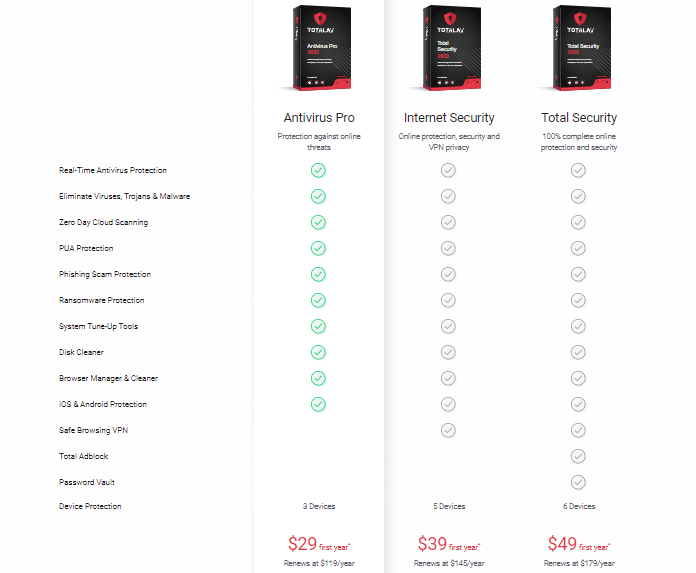
In addition, TotalAV’s premium suite includes Real-time antivirus monitoring, phishing protection, cloud-updated virus database, VPN, Remote Firewall, Password Manager, and other tools that expand TotalAV’s functionality beyond malware detection and removal.
Make a Payment for the TotalAV license key using PayPal or any other acceptable method of payment.
Download and run the TotalAV antivirus client on your device.
Sign in to your TotalAV account to activate the premium version of TotalAV.
For this TotalAV review, let’s take a quick look at its major features.
TotalAV Key Features
User-friendly Interface and Ease of Setup
Setting up and getting started with TotalAV is quite fast and simple—you’ll probably finish setting it up in under 4 minutes. The interface boasts a splendid design, being quite intuitive with all features well-laid out for easy navigation.
Essential tools, such as Malware protection, Internet Security, System optimizer, Password Manager, User Profile, and Settings, will be clearly displayed on the left side of your dashboard.
Clicking on each icon will promptly display its embedded features and other functionalities.
Overall, TotalAV has an intuitive interface that makes navigating all its features and functionalities a smooth walk, even for less tech-savvy users.
TotalAV Antivirus Engine
TotalAVessentially has a robust anti-malware engine with four scan options:
Quick Scan:Contains the file registry and other locations where malware can be found.
System Scan: Performs a complete system scan for malware detection.
Smart Scan: Scans the system for malware, trackers, and junk files.
Custom Scan: Lets you scan a specific location, folder, file, temporary or permanent storage device.
It essentially allows you to put the TotalAV Antivirus Engine to the test: our malware tests, performed on Windows, Mac, Android, and iOS devices, yielded impressive results.
In general, TotalAV has undoubtedly achieved a 100% detection rate so far; it has successfully detected all viruses, worms, backdoors, rootkits, Trojans, ransomware, keyloggers, and spyware downloaded without any false positives.
Now, that’s particularly impressive, isn’t it?
TotalAV Real-time Protection
TotalAV’s Real-time Protection tool runs in the background, analyzing programs and scanning downloads for malware. I was rather impressed byits spectacular real-time protection as it spontaneously detected and quarantined the malicious file I downloaded before I ran it.
Additionally, it alerted me immediately after I attempted to extract infected files from a downloaded compressed folder.
Ransomware can undoubtedly be a real pain; surprisingly, TotalAV’s real-time protection detected my ransomware simulator’s file encryption process and prevented the simulator from encrypting and locking any files on my PC in no time.
Another thing I consider impressive is its real-time protection feature; it’s a top-notch feature that puts TotalAV at par with top antivirus suites.
Phishing Scam Protection (Anti-phishing)
Phishing scams are a common means of collecting vital details, such as personal identifying information, passwords, credit card numbers, and other financial information, from unsuspecting internet users.
Users are often directed to duplicate websites (phishing sites) via phishing links in their email, web chats, or SMS, where data is maliciously harvested as users enter their login details, credit card PINs, etc., on such fake websites.
TotalAV’s Phishing Scam protection typically blacklists phishing sites, utilizing its AI-based system to detect potentially harmful sites.
In addition, TotalAV has the ability to block all tested phishing sites, which can be downloaded for free. Users may also appreciate its exceptional phishing scam protection feature, making it a highly sought-after antivirus, similar to other top antivirus program suites.
Safe Browsing VPN
Although TotalAV’s VPN may not compare well with top VPN providers in terms of speed and added features, it does offer decent internet speed that makes streaming excellent.
With TotalAV’s VPN, you can watch Netflix US, Disney+, ESPN, HBO Max, Hulu, Peacock TV, and other popular streaming platforms, and also enjoy P2P support for fast torrenting. This essentially makes TotalAV Antivirus VPN stand out among other antivirus programs with VPN features.
Password Manager
Although TotalAV’s Password Manager may not compare favorably with other standalone password managers due to its lack of essential features, it excels in basic functionalities, such as generating strong passwords, storing, and auto-filling saved login details.
Nevertheless, realizing that TotalAV does not have a Password Manager for its mobile version can be a significant disappointment for users, as more than half of total internet users access the internet from their mobile devices.
TotalAV’s system tune-up tool is one of the most remarkablesystem optimizer tools that one could think of. It has more features than some top antivirus software. The system tune-up includes the following:
Startup Manager: This feature allows you to manage programs that automatically start when you boot up your PC.
Application Uninstaller: This frees up more space by uninstalling old or unused programs on your PC.
Browser Cleanup: This tool helps you keep your browsing private by cleaning out all tracking cookies and other digital footprints that can be used to serve you tailored-made ads.
Junk Cleaner: TotalAV’s junk cleaner removes files left behind after uninstalling or updating a program.
Duplicate File Finder: This tool frees up additional space on your PC by finding and deleting all duplicate files.
TotalAV’s System Tune-up tool effectively boosts users’ PC performance by speeding up boot time, removing unwanted programs, and freeing up valuable disk space on the user’s PC.
A user need not worry about browsing in incognito or private mode since TotalAV’s Browser does a cleanup of all tracking cookies and other information collected and stored on the browser for advertising purposes.
As I evaluated in this TotalAV review, TotalAV is available as an app on the following OS platforms:
Windows OS
Mac OS
Android
iOS
TotalAV is well-optimized for mobile devices with features like Malware scanning and app locker uniquely customized for Android devices only—while device tracking runs on iOS only.
Other desktop features run extremely well on mobile devices except for Password Manager, which is not available for TotalAV’s mobile version.
TotalAV Customer Service
Available Customer support includes:
24/7 dedicated helpline
Email support
Live chat
TotalAV is reputed to have a fast response time on its live chat and helpline, while its email support has the slowest response time. A user would have to wait approximately 24 hours to receive a response from them via email.
For this TotalAV review, we contacted their support team through various channels. I would say that TotalAV’s customer support deserves an ‘A’ rating for its fast, friendly, and professional response times and support services.
TotalAV is considered one of the most affordable and yet robust antivirus suites, starting at $29 per year for a single license. However, it’s apparentlynot particularly notable that most of TotalAV’s features are not bundled together.
While you’re at the payment stage, you may encounter several pop-ups asking you to add more features at a cost; you will even receive a pop-up for an antivirus eBook at a startling cost.
TotalAV antivirus is 100 percent safe. We can confidently say that TotalAV is a safe and reliable antivirus software. It is a great choice for anyone seeking comprehensive protection against online threats, including viruses, malware, spyware, and phishing attacks.TotalAV is also easy to use and has a wide range of features to keep your devices safe.
Additionally, TotalAV is compatible with both Windows and Mac devices. TotalAV is a reliable and trusted antivirus software that has been tested and verified by independent labs.
Its great features, which include an AV scan engine, VPN Password Manager, Phishing Scam Protection, System Tune-up, etc., protect you from malware; optimize your PC, and make your digital devices safe on the internet.
Is TotalAV Legit?
TotalAV is a legit software company that offers a variety of computer security products. The company’s primary product is its antivirus software, designed to protect users’ computers from malware, viruses, and other online threats.
TotalAV also offers a variety of other security products, including a password manager, a web browser extension, and a mobile app. The company has a strong reputation and is recognized for its exceptional customer service. Also, it is the best antivirus for 2023.
Is TotalAV a good antivirus?
Overall, TotalAV is a good antivirus that offers basic protection against malware and online threats. It consistently performs well in independent tests, receiving high scores for malware detection and removal. Additionally, TotalAV offers a user-friendly interface and a wide range of features, including:
Real-time threat protection
Anti-phishing
Ransomware protection
Web filtering
VPN (in higher-tier plans)
Password manager (in higher-tier plans)
PC optimization tools
However, it’s important to note that TotalAV has some disadvantages. The free version is limited in features and functionality, and the paid plans can be expensive compared to competitors. Additionally, TotalAV’s customer support has been criticized for being slow and unresponsive.
How do I install and use TotalAV?
Installing and using TotalAV is easy. Simply download the software from the TotalAV website and follow the on-screen instructions. Once installed, you can launch the software and start scanning your device for threats. The software also includes a user-friendly interface that makes it easy to manage your security settings.
Is TotalAV worth the money?
TotalAV is worth the money. If you’re looking for a basic antivirus program with good malware detection and a user-friendly interface, TotalAV is a good option.
However, if you require advanced features such as a VPN or password manager, or if you need to protect multiple devices, you may find better value with other antivirus programs.
Here are some additional factors to consider when deciding whether TotalAV is right for you:
Your budget: TotalAV is more expensive than some other antivirus programs, but it is still relatively affordable.
The features you need: If you require advanced features like a VPN or password manager, you will need to upgrade to a higher-tier plan.
The number of devices you need to protect: TotalAV offers plans that cover different numbers of devices.
Your technical expertise: TotalAV is easy to use, but if you are not comfortable with technology, you may want to choose a program with more customer support options.
Ultimately, the decision of whether to purchase TotalAV is yours.
A Final Word On The TotalAV Review
To wrap up this Total AV review, I would like to say that the TotalAV Antivirus suite is an excellent choice for both home users and office environments.
Its intuitive user interface, impressive malware detection rate, real-time system protection, password manager, fantastic web security, and data privacy protection feature make it all especially exciting.
Here is the Surfshark Search Review. Read on to learn more.
If you want to find out what you don’t know, you most likely pull out your phone and type a question on Google. It could be something as simple as the definition of a word or as complex as the solution to a physics question.
Google records approximately 9 billion daily searches, which translates to an average of 100,000 searches per second. Mind-blowing! Not to mention, there are other search engines that internet users also use.
But are you safe when you search Google or other search engines? That’s debatable. What isn’t debatable is that Google shows results based on your digital footprints. For instance, what shows up when you search Google in the US will differ from what shows up in the UK for the same keyword.
Surkshark provides a search solution that ensures you get organic results irrespective of your location. But we tried the tool and found that it does much more. We’ll be uncovering it all in this Surfshark Search Review.
What Is Surfshark Search?
Surfshark Search is a native search engine launched as a safe alternative to Google, Yahoo, Bing, and other popular search engines. So, it doesn’t require any particular usage skill. Load the search page, type in what you’re looking for, and hit the “Go” button.
Surfshark Search’s primary approach is to allow you to browse without monitoring your entries. In a way, the solution is similar to browsing in incognito mode on popular browsers.
However, the difference is that while incognito mode doesn’t keep logs, it still shows subjective search results. Meanwhile, with Surfshark Search, you can get actual organic results, no matter where you’re browsing from.
Surfshark One
Surfshark One is a cybersecurity bundle that provides users with Surfshark VPN, Alert, Search, and Antivirus that...Show More
Surfshark One is a cybersecurity bundle that provides users with Surfshark VPN, Alert, Search, and Antivirus that combines security, privacy, and convenience into one powerful package. Surfshark is an award-winning VPN service for keeping your digital life secure. Show Less
How Does Surfshark Search Ensure You Can Scout the Web More Securely?
First, the solution doesn’t track your browsing log. This contrasts with the giant search engine Google, which logs every activity you do on the platform. Want proof? Visit Google My Activity.
We did an experiment. We searched the words “business performance,” “how to buy a car,” and “how to play soccer” on Google, respectively.
Here’s the entry on Google My Activity:
With Surfshark Search, the above isn’t possible. You alone will know what you look for on the web, no one else.
By extension, via blocking trackers, Surfshark Search helps avoid targeted ads. Have you ever wondered why, after Googling an item or service, you keep seeing ads about it on other platforms? That’s targeted ads at work. And it happens because advertisers can access your browsing logs through search engines.
So, how does Surfshark Search ensure secure web searching is straightforward? The tool prevents tracking, allowing for more private online scouting and eliminating targeted ads.
Features of Surfshark Search
When you sign up for Surfshark Search, you get access to the following features:
Intuitive Search Dashboard
Below is a screenshot of what you get when you launch the Surfshark Search tool:
Clearly, the webpage isn’t complex in any way. And with the unfussy background, it’s arguable that Surfshark Search is more intuitive than Google, Yahoo, and Bing.
Consider Yahoo; here’s a screenshot of the search engine’s homepage:
At a glance, it’s easy to see how the featured news and ads take away the focus from the search bar. Surfshark Search throws all these out the window for a minimalist user interface.
Subsequently, as you enter keywords and search, the results are also easy to navigate:
You can switch between Web, Image, and Video results.
Zero Ads
As the previous Yahoo homepage shows, search engines do feature ads. Even Google shows adverts via sponsored search results.
For illustration, here are the top results when you search the keyword “real estate company” on Google:
Both are sponsored results. The search engine only places them at the top because the companies paid. And, with such results, Google influences your decision.
On the contrary, Surfshark Search supports zero ads. You can depend on the tool to deliver accurate organic results, and it’s up to you to click on any that meets your interest.
Surfshark One
Surfshark One is a cybersecurity bundle that provides users with Surfshark VPN, Alert, Search, and Antivirus that...Show More
Surfshark One is a cybersecurity bundle that provides users with Surfshark VPN, Alert, Search, and Antivirus that combines security, privacy, and convenience into one powerful package. Surfshark is an award-winning VPN service for keeping your digital life secure. Show Less
Region Swap
Indeed, you get organic search results from Surfshark Search. Results that don’t depend on your location. However, if you still want to make your search region-specific, the tool supports this option.
By default, the setting is “All regions:”
So, as you browse, Surfshark Search takes no account of where you’re browsing from. When you click on the dropdown button beside “All regions,” you get this:
You’ll find some of the world’s most popular countries on the list. Select any, and you’ll get results particular to the region.
It’s important to note that Surfshark Search still doesn’t read your true location. The native results will solely depend on the country you select. In that case, if you need results that reflect your original location, you’ll have to choose your country.
Integration With Surfshark One
Surfshark Search is a standalone solution. But you can’t purchase just it. The tool comes as a part of Surfshark One — a complete package of cybersecurity tools:
As the above image shows, when you pay for Surfshark One to get the search solution, you also get a VPN, Antivirus, and an Alert tool. You can utilize these additional tools to further enhance your online privacy. And, since they’re all in the same suite, Surfshark Search connects seamlessly with them.
Let’s have a rundown of each:
VPN
The Surfshark VPN allows you to bypass internet restrictions and browse the internet freely. It includes over 4,500 servers in more than 100 countries, providing you with thousands of IP address options. A notable highlight is that the VPN is lightweight. So, when you activate it, it won’t slow down your device. In addition, you can use it on an unlimited number of devices.
Antivirus
Surfshark Antivirus keeps viruses and malware far from your devices. It offers real-time protection, along with scheduled and manual scans, which can be fully customized. Additionally, Surfshark Antivirus offers webcam protection. This ensures no unauthorized file or program can hijack your device’s camera.
Alert
Surfshark Alert is the tool you need to protect your data from breaches. It’s highly dependable for online identity protection, securing your email, password, credit card, and ID details. If any of these details leak on the web, Surfshark will instantly alert you. That way, you can take quick action to avoid any potential damage.
Customer Service
Surfshark offers reliable support for all Users. You can either use the live chat option or send an email to reach a team member. Live chat is more recommended, as it’s faster. You get instant responses, compared to emails that can take one or more hours.
Alternatively, visit the Help Center as I did for this Surfshark Search review:
The Surfshark Help Center is comprehensive, covering topics related to using the Search solution and other tools within the Surfshark One package. If you encounter any issues using the platform, you can easily find a solution among the extensive articles.
In addition, there are set-up guides that walk you through the process of launching each Surfshark tool. With all these, getting lost as a Surfshark Search user is impossible.
Since Surfshark Search is part of the One package, you must get the complete suite to access the tool.
In that view, below are the available pricing plans:
1 Month Plan: $14.99 per month
12 Months Plan: $3.07 per month (plus 4 free months)
24 Months Plan: $2.69 per month (plus 4 free months)
You can save up to 80% on the monthly plan by opting for the annual plan. Even better, the discount is 82% with the two-year plan.
Notably, you get a 30-day money-back guarantee, irrespective of your chosen pricing plan.
Surfshark One
Surfshark One is a cybersecurity bundle that provides users with Surfshark VPN, Alert, Search, and Antivirus that...Show More
Surfshark One is a cybersecurity bundle that provides users with Surfshark VPN, Alert, Search, and Antivirus that combines security, privacy, and convenience into one powerful package. Surfshark is an award-winning VPN service for keeping your digital life secure. Show Less
Is Surfshark Search Worth the Money?
Life without search engines is hard to imagine at the moment. Google, Bing, and Yahoo make it easy to find almost anything by simply typing a few words and hitting the enter button.
So, why should you pay to get the same thing with Surfshark Search? Is the tool worth the money?
Well, from our review, the answer is yes. Surfshark Search indeed offers an avenue to scout the web, just like Google and others. But it’s worth spending on because it’s safer and secure.
As you can see from this Surfshark Search review, Surfshark Search won’t track your browsing history or collect cookies for advertisers. The tool also won’t tailor your search results to a particular region. Instead, it lets you pick any location you want.
Regarding the cost, Surfshark Search isn’t particularly expensive. You can save significantly with the 12 or 24-month plan. And don’t forget that you’re not just getting Surfshark Search, but also other programs in the Surfshark One suite. With all these, we conclude that Surfshark Search is worth the money.
Surfshark One
Surfshark One is a cybersecurity bundle that provides users with Surfshark VPN, Alert, Search, and Antivirus that...Show More
Surfshark One is a cybersecurity bundle that provides users with Surfshark VPN, Alert, Search, and Antivirus that combines security, privacy, and convenience into one powerful package. Surfshark is an award-winning VPN service for keeping your digital life secure. Show Less
Surkshark Search Pros
Intuitive interface
True organic search
Region swapping
Blocks trackers
Displays zero ads
Surfshark Search Cons
Can only be purchased with the Surfshark One package
Only accessible via the web
Conclusion
With Surfshark Search, scouting the web for information is a whole new – and better – experience.
No longer will you deal with trackers monitoring your every activity or limited results due to your region. Not to mention, the Search tool is simple to use, with a clean interface that is free from ads.
Leave a comment below regarding this Surfshark Search review.
Surfshark One
Surfshark One is a cybersecurity bundle that provides users with Surfshark VPN, Alert, Search, and Antivirus that...Show More
Surfshark One is a cybersecurity bundle that provides users with Surfshark VPN, Alert, Search, and Antivirus that combines security, privacy, and convenience into one powerful package. Surfshark is an award-winning VPN service for keeping your digital life secure. Show Less
Surfshark is very popular for its VPN and is very particular about people’s privacy. To help customers delete their data from various online databases and regain control over who has access to their data, Surfshark has created a new privacy tool called Incogni.
So, what exactly is Incogni? How does it work? How do you get started? Is it safe? Well, these questions and more will be answered in today’s Incogni review.
If you don’t miss out on any detail, read till the end.
What Is Incogni?
Incogni is a privacy tool developed by the R&D team at the cybersecurity company Surfshark. It aims to secure the digital lives of people and enhance their privacy.
As a personal information removal service, Incogni helps customers send official data removal requests to data brokers periodically upon request. The request process can be followed by users through an online dashboard.
They will get to know how many companies were contacted, which company is in the process of deleting the data, and which companies have agreed to delete it.
Incogni is a Surfshark tool, but it’s different from the popular Surfshark VPN. You can’t log in to an Incogni account with a Surfshark VPN account and vice versa.
Incogni
Incogni wipes off your personal information from data brokers.
Incogni wipes off your personal information from data brokers. Show Less
Once you’ve registered by filling out a contact form, signing an authorization form, and confirming your email, the Incogni team, using your details, contacts data brokers.
Then Incogni predicts which data broker will have your data using an algorithm and then, on your behalf, sends requests that they delete your personal data from their databases.
After the request has been sent, it then reports the responses of the data brokers, but can’t validate that your data has been removed.
However, the requests are made in accordance with the General Data Protection Regulation (GDPR), the California Consumer Privacy Act (CCPA), and PIPEDA in Canada. which come with massive fines when flaunted.
These data removal requests will be sent as often as required. During the process of writing this Incogni review, we observed that Incogni can only send these requests to 66+ people search sites and more than 270 major data brokers, with plans to increase this number in the future.
Notably, Incogni covers the following data broker types:
Financial information data brokers
Risk mitigation data brokers;
Marketing data brokers;
Recruitment data brokers;
People search sites.
Incogni
Incogni wipes off your personal information from data brokers.
Incogni wipes off your personal information from data brokers. Show Less
Click on Sign Up and on the redirected page, enter your email address and password to create an Incogni account.
Open the mailbox of the email address you provided. Follow the link from Incogni in the email to confirm your email address.
Ensure to click on the ‘Verify email’ option in your mailbox.
Now, enter your first name, middle name, and surname. This will provide Incogni with your personal information.
Next, enter your home address.
Sign the authorization form and sign directly on the form. This grants Incogni the limited power to make data removal requests in your name.
Select your preferred Incogni pricing plan, whether a monthly or annual subscription. Then make the payment.
Wait for the payment to be verified.
Once the payment is confirmed, you are all set.
Incogni
Incogni wipes off your personal information from data brokers.
Incogni wipes off your personal information from data brokers. Show Less
Incogni Features
Easy to Set up
The process of getting started with Incogni is straightforward. In fact, for this Incogni review, I was able to set up my Incogni account within 5 minutes and authorized Incogni to remove my personal information from public data broker platforms.
First, you’ll create an account using your email. The website will prompt you to enter a password, which you will then repeat for confirmation. Afterward, you click the continue button.
Note that you can only complete this quick registration process if you’re in a supported country. As you’ll find out later on, Incogni is only available in select countries.
To complete your registration, Incogni will send a verification email to your inbox. All you have to do is open the mail and click on the verification link. Once the link loads, you’ll receive a message confirming that your account is verified.
Then, you have to complete the remaining registration steps. This includes entering your name and other details, which the tool will use to find your data across the web.
Intuitive Dashboard
One of the first things you’ll notice after creating your Incogni account is the intuitive dashboard. Thanks to this, you can start using the tool immediately without needing extensive training.
From the dashboard, you get an overview of your data removal requests.
The top section of the dashboard displays three sections: Requests Sent, In Progress, and Completed. Already, you can deduce what these sections represent.
The Requests Sent section displays all data brokers for which Incogni has sent data removal requests for action.
Meanwhile, the “In Progress” section displays data removal requests that are currently being processed.
The Completed section displays all successful data removal requests, along with the associated data brokers.
Furthermore, the dashboard supports a detailed view. When you switch to the detailed view, you get a more in-depth overview of your data removals.
In particular, you get details of the data brokers, including what type of data they collect and your request status with each one.
Notably, the detailed view provides a data sensitivity rating for each broker.
The Incogni online dashboard can be accessed from any device, be it a mobile device or a desktop, and on any browser.
At the time of composing this Incogni review, we confirmed that supported web browsers include Chrome, Edge, and Firefox. All that would be required is your email address and password to log in.
However, note that Incogni doesn’t have a downloadable application. In other words, you can only use the tool via a web browser. There are no Android or iOS applications to install on your mobile phone.
Nevertheless, the Incogni dashboard is optimized for mobile and desktop browsers. It adjusts to fit the screen on any device.
Privacy Recovery
Data brokers are constantly monitoring and collecting as much personal data as possible. They also don’t mind because they know going through the process of reclaiming your data is long and stress-free.
Additionally, Incogni helps you to recover your privacy and ensures that these data brokers delete your data from their database. This is typical since Incogni is powered by Surfshark, a privacy-focused company.
Incogni starts recovering your privacy from Day 1 after you register. After supplying your personal details, the tool sends all data to the data brokers it connects to for identification.
You should start getting responses from the data brokers. Typically, the data brokers will identify your data on their website and start the removal process. Complete data removal will take around one month with Incogni.
That’s not all. Incogni also sends you weekly update reports, keeping you informed on the progress of your removal requests.
Automation
Imagine sitting in front of a computer all day, messaging data brokers one after another to request the removal of your data. You can define that with one word: Stress.
You don’t have to manually send official data removal requests by using Incogni. Thankfully, Incogni will send data removal requests on your behalf to data brokers that hold your personal data after you complete the authorization form.
After you finish setting up your account and supplying your personal data, such as name, email address, date of birth, and home address. Then, you can shut down your computer and do other things.
Incogni will automatically contact the data brokers, track the removals, and notify you when it’s completed. You’ll get emails from time to time, updating you on the status of your data removals.
Furthermore, Incogni performs regular rechecks. If a data broker deleted your information from their website, it doesn’t mean they won’t upload it again.
Therefore, Incogni automatically rechecks the data broker websites periodically to ensure your data isn’t re-uploaded.
Response Tracking
Users have the opportunity to track the response and know which company has been contacted, which has complied with the request, which is still in progress, and which was rejected.
The response is displayed in the dashboard as “All”, “Completed”, “In Progress”, and “Rejected”. Incogni also ensures that status summaries are sent periodically to users via email.
Most data brokers delay in handling data removal requests. This is usually because they receive numerous requests to handle. However, other data brokers are simply slow and unwilling to remove data on their websites.
Nevertheless, the data rights protocol demands that data brokers respond to removal requests within forty-five days. Therefore, Incogni will follow up on the requests until a response is received. If there’s none, the tool will issue a re-request.
Incogni Apps & Extensions
We discovered that Incogni doesn’t have any apps or extensions during this Incogni review.
However, users can monitor the progress of the data removal requests through an online dashboard. Additionally, Incogni also sends status summaries to users via email frequently.
If you have any questions regarding this data protection service or if you need to send your feedback, you can reach Surfshark support via email at any time.
In fact, for this Incogni review, we sent inquiries at different times and got a response from their customer support team almost immediately.
There is also a Help Center where you can find answers to common questions. The FAQ section is also full of detailed questions and answers.
Incogni Pricing
Incogni offers subscription-only plans—no free tier—with both monthly and annual options:
Family (up to 5 people): $16.49/month billed yearly ($197.88/year)
Family Unlimited: $29.99/month billed yearly ($359.88/year)
🌍 EU, UK & Canada
Although countries vary slightly, the Standard annual plan remains around €7.29/month, £6.49/month, or CAD $ 10.49/month when billed annually, matching the US$8.29 equivalent.
Monthly pricing is generally twice the annual rate (USD equivalent). Exact amounts in local currencies may vary slightly due to VAT and exchange rates.
General Features
Cancel anytime
30-day money‑back guarantee on all plans
Incogni
Incogni wipes off your personal information from data brokers.
Incogni wipes off your personal information from data brokers. Show Less
Incogni Review: Which Incogni Pricing Plan Should You Go For?
You’ll agree that you’ll save money by paying for Incogni annually rather than paying monthly. Therefore, the annual pricing plan is ideal for subscription. But it’s not only because it helps you save money.
It’s ideal to pay annually because most data removal requests take more than a month to complete.
As mentioned earlier, data brokers are mandated by protocol to reply within forty-five days. If your subscription expires before you receive a response, your data will remain on the broker’s website.
Furthermore, after a data broker removes your data, it’s still possible for them to reupload it. This is why Incogni performs regular checks to confirm your data isn’t back on their sites.
Incogni can only perform these routine checks for your data if you have an active subscription.
Therefore, you need a subscription that runs for months if you want to take full advantage of Incogni services.
At $16.58 monthly, it would be expensive to pay for Incogni month after month. On the other hand, the annual plan costs $8.29 per month, which is 50% off the monthly plan.
Incogni
Incogni wipes off your personal information from data brokers.
Incogni wipes off your personal information from data brokers. Show Less
Can You Cancel Your Incogni Subscription?
One of the benefits of an Incogni subscription is that you can cancel it at any time. By default, the subscription will automatically renew.
However, canceling subscriptions is more advisable for monthly than annual subscriptions. If you cancel your annual subscription, you may be at a loss.
Annual subscriptions are charged at once. Incogni Standard Plan annual subscription costs $8.29 per month, which means you’ll pay $99.48 at once for twelve months on a monthly plan.
If you cancel your subscription before the twelve months are complete, you won’t get a refund. Thus, you’ll be at a loss.
For example, suppose you cancel your subscription after five months. In that case, you’ve only used $32.45 worth of your subscription. You’ll be out $41.45, which is a significant amount.
If you must cancel your annual subscription, do so towards the eleventh or twelfth month. That way, you get more value for your money.
Canceling your Incogni subscription is easy, although it’s a manual process. You have to message the Incogni support team via email at support@incogni.com. In your message, state your intent — to cancel your subscription.
You should receive a response within twenty-four hours after sending the email. The support team will walk you through a straightforward process to finalize your subscription cancellation.
To remove your data from data broker websites, Incogni requires you to provide some information. Hence, you may wonder if the platform stores your data. The answer is yes.
Incogni does store your data, but at no risk to you. In addition, you can request removal at any time.
Incogni collects three types of data from you. It collects your device information, personal data, and account information. The most sensitive of the three is personal data.
However, note that Incogni only requests your personal data so it can identify it on data broker websites. In other words, without knowing your data, there’s no way the tool can remove it on broker websites.
Before Incogni begins scanning data broker websites with your data, you typically need to sign an authorization form. Hence, the platform isn’t taking your data without your consent. This proves that the platform is legal.
In some cases, you may need to provide further information. This is typical if Incogni finds your information on websites that contain more than regular data. Once again, it’s up to you to decide if you want to share this information or not.
Furthermore, be rest assured that Incogni won’t sell your data to third parties. It’s ironic, even, considering the platform offers a service to remove your data from third-party platforms.
As hinted earlier in this Incogni review, you can request the removal of your data at any time. Usually, this is when you cancel your subscription.
Incogni will delete all personal information you provide once you cancel your subscription. You can re-enter them if you resubscribe in the future.
Incogni
Incogni wipes off your personal information from data brokers.
Incogni wipes off your personal information from data brokers. Show Less
It is available for the US, EU, UK, and Switzerland
Sends official removal requests on users’ behalf to data broker companies
Supports data removal results for over 250 data brokers
Supports over 65 people search sites
Responses can be tracked
30-day money-back guarantee
Subscription can be canceled at any time
Repeats removal requests.
Incogni Cons
No free version
You can not access your Surfshark VPN account from Incogni and vice versa. Although they are from the same company; they are two systems that are not linked together.
Incogni Review: Frequently Asked Questions
What Are Data Brokers?
Data brokers are companies that collect and sell information about individuals, including health history and credit scores. This data is usually collected from public sources, such as the internet or websites that you access, which have been affected by data breaches.
In essence, data brokers collect data from public records, online activity, and social media profiles. Some of the information they collect includes:
name
address
phone number
email addresses
social media profiles
your interests
buying history, etc.
In fact, they may even have access to your medical records.
Your personal data is valuable to data brokers as it can be used to target advertising campaigns at you and create a detailed picture of your life. This can lead to a feeling of being followed and monitored by companies, as well as concerns about privacy.
However, Incogni can help you send official data removal requests to these data brokers, helping you keep your personal information safe.
What Are People Search Sites?
People search sites are online platforms or databases that allow users to find information about other individuals based on their name, location, phone number, or other identifying information.
These sites aggregate public records, social media profiles, and other online information to provide a comprehensive profile of the person being searched. Examples of popular people search sites include Spokeo, Whitepages, and Intelius.
Is Incogni Safe?
Incogni is a safe privacy tool in the cybersecurity market that is completely legitimate. Several companies collect, aggregate, and trade the personal data of online users without their consent or knowledge.
Incogni makes these companies remove people’s data from their online databases. Your data in the hands of data brokers is what poses the risk. It’s already out there, and Incogni only helps you delete it, without retaining any of its own data.
Is Incogni Legit?
Although Incogni is a new privacy tool in the cybersecurity market, it is a legitimate platform. It helps customers retrieve their personal data from the hands of brokers.
It’s a tool from Surfshark, a leading cybersecurity company renowned for its high-quality VPN. The new Incogni tool further reinforces the company’s commitment to maintaining user privacy.
Is Incogni Free?
Incogni is not free but is based on monthly or annual subscriptions. The platform offers a specialized service that is expensive to maintain.
As a result, the service can not be free. Nevertheless, users can also opt out of their subscription at any time. Upon purchase, they can try the privacy tool out for 30 days and receive a refund if they don’t like it.
What Regions Is Incogni Available In?
Currently, Incogni is available to residents of the following regions:
United States (all 50 states)
Canada
United Kingdom (including the Isle of Man)
Switzerland, Norway, Iceland, Liechtenstein
European Union countries: Austria, Belgium, Bulgaria, Croatia, Cyprus, Czechia, Denmark, Estonia, Finland, France, Germany, Greece, Hungary, Ireland, Italy, Latvia, Lithuania, Luxembourg, Malta, Netherlands, Poland, Portugal, Romania, Slovakia, Slovenia, Spain, and Sweden.
Nevertheless, Incogni can only legally operate on behalf of individuals protected by data privacy laws such as GDPR, UK GDPR, CCPA, PIPEDA, and other similar regulations.
As part of the CR Digital Lab Initiative, Incogni collaborates with multiple organizations to develop a standardized Data Rights Protocol, helping to represent and enforce individuals’ data rights across supported regions.
Is Incogni Worth It?
Incogni is a relatively affordable service, as you pay less around $8 per month with the annual plan. With its features, you get value for your money.
It’ll take you days to remove your data from around fifty to a hundred data brokers. Meanwhile, Incogni works with several data brokers. If you attempt to remove your data from up to 250 data brokers manually, it could take years.
Aside from saving you time, Incogni is efficient. You have a higher chance of successfully removing your data from broker websites with the service than on your own.
Is Incogni Expensive?
No, Incogni is not expensive. It is actually quite affordable, with plans starting from $8.29/month. This is lower than many similar privacy products on the market, making Surfshark Incogni one of the best value options available.
Here is a table of Incogni’s pricing plans, showing both monthly and annual options:
Plan
Monthly Price
Annual Price (Billed Annually)
Standard (Individual)
$16.58/month
$8.29/month → $99.48/year
Unlimited (Individual)
–
$14.99/month → $179.88/year
Family (Up to 5 users)
$32.98/month
$16.49/month → $197.88/year
Family Unlimited
–
$29.99/month → $359.88/year
💡 All plans include a 30-day money-back guarantee and can be canceled anytime.
As you can see, the yearly plan is much more affordable than the monthly plan. This is because you are essentially getting a 50% discount by paying for the year upfront.
If you are looking for a privacy tool that is affordable and effective, then Incogni is a great option. It is a trusted service that is backed by Surfshark, a reputable cybersecurity company.
Here are some of the benefits of using Incogni:
It can help you remove your personal data from over 180 data brokers.
It is easy to use and set up.
It is affordable.
It is backed by a reputable company.
If you are concerned about your online privacy, then Incogni is a great way to protect yourself as you can see from this Incogni review. It is an affordable and effective tool that can help you remove your personal data from data brokers.
Incogni
Incogni wipes off your personal information from data brokers.
Incogni wipes off your personal information from data brokers. Show Less
What Are The Best Incogni Alternatives?
There are tools similar to Incogni. How does this Surfshark tool compare to them? Find out in this section as we look at the three best Incogni alternatives:
DeleteMe is one of the most popular online data removal tools. The platform works to remove your personal data from Google and many other data broker websites.
How DeleteMe works isn’t much different from how Incogni works. First, you submit your information, then the tool searches for your data on Google and data broker websites. If found, it begins the removal process.
Afterward, DeleteMe continues to scan and detect your data throughout the year. If your data reappears on data broker websites, it’ll identify and remove it.
DeleteMe has been in the industry for close to eight years. As a result, they are more than capable of handling your data removal requests. Additionally, the platform features a top-notch support team that you can rely on for any issues you may encounter.
However, you’ll spend more with DeleteMe than with Incogni. DeleteMe costs $10.75 per month with the annual plan, while Incogni costs less than $6 per month. Additionally, DeleteMe does not offer a monthly plan.
2. Privacy Bee
Privacy Bee does more than simply remove your data from broker websites. The tool monitors your sensitive data on the internet 24/7. It works with tens of thousands of data broker websites to identify your data.
Privacy Bee will ensure every data broker featuring your data removes it. The tool takes the extra step of relying on the law to address stubborn data brokers.
The Privacy Bee dashboard is straightforward, making it easy to use. However, Privacy Bee is relatively expensive to use if you are on a budget, as evident in this Incogni review. The platform costs $197 per year, which is almost three times the cost of Incogni.
Like the previous alternative, you don’t have the option to pay per month.
3. OneRep
OneRep is another simple alternative to Incogni. Like Incogni, it removes your data from data brokers who sell your data to third parties.
OneRep compares to Incogni in terms of pricing, as it costs only $8.33 per month. There are family plans and business plans that can help you save money.
However, the platform doesn’t remove your data from many websites like Incogni. With Incogni, you can remove your data from over 4,000 data broker websites. Meanwhile, OneRep only removes your data from around 150 websites.
Wrapping Up The Incogni Review
Incogni by Surfshark is a personal information removal service that sends data removal requests to several data brokers simultaneously, reporting on their responses.
It’s a new tool that is safe and legit, but it is not free. While it has pros and cons, it is, overall, an excellent data privacy tool.
Nevertheless, I will recommend that you get Incogni because it is affordable, user-friendly, privacy-centric, and effective for removing your personal information from data broker websites.
What do you think about this Incogni review?
Incogni
Incogni wipes off your personal information from data brokers.
Incogni wipes off your personal information from data brokers. Show Less


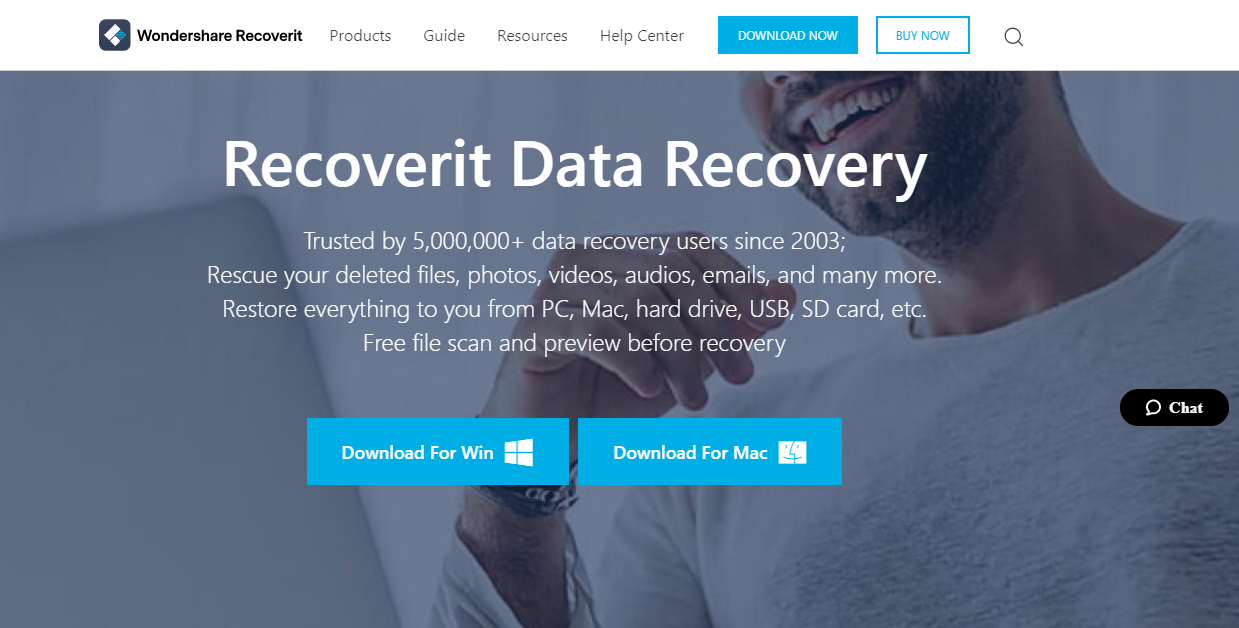
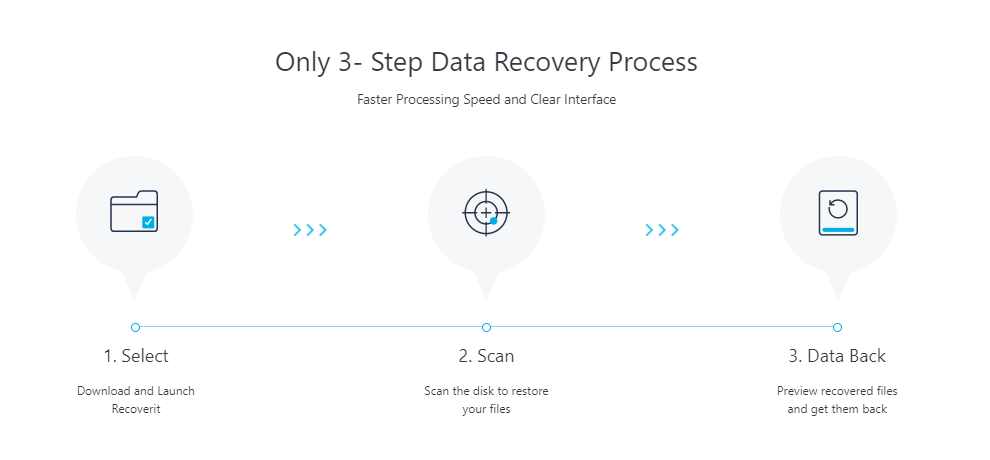


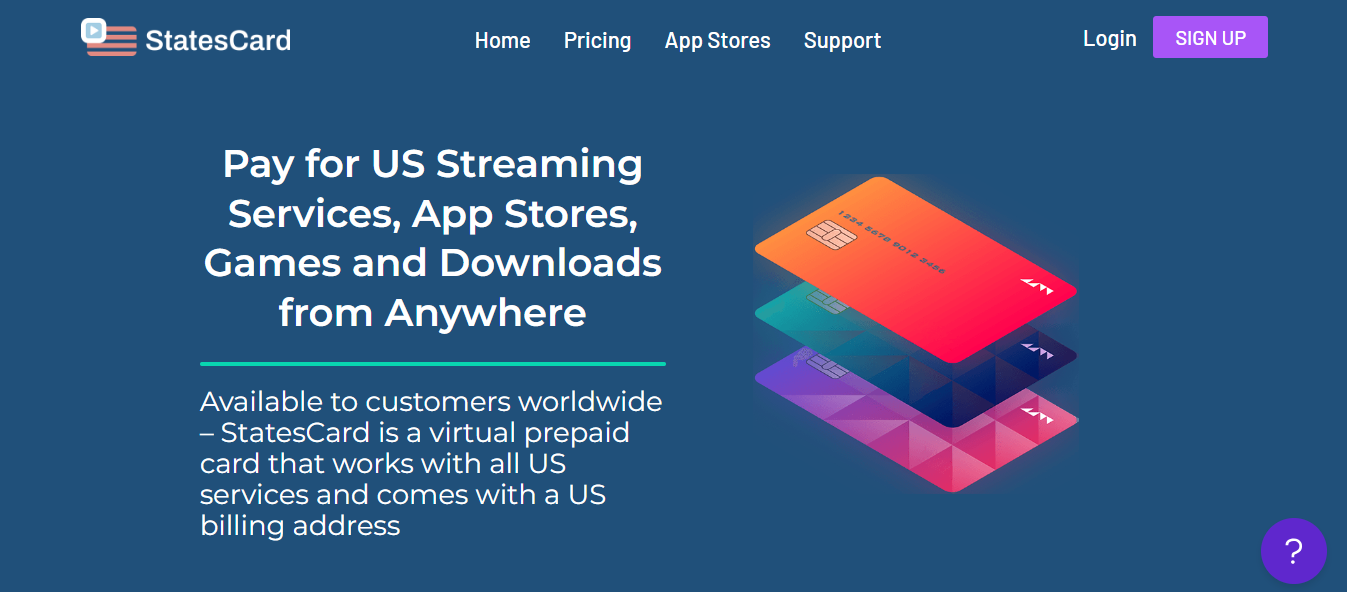
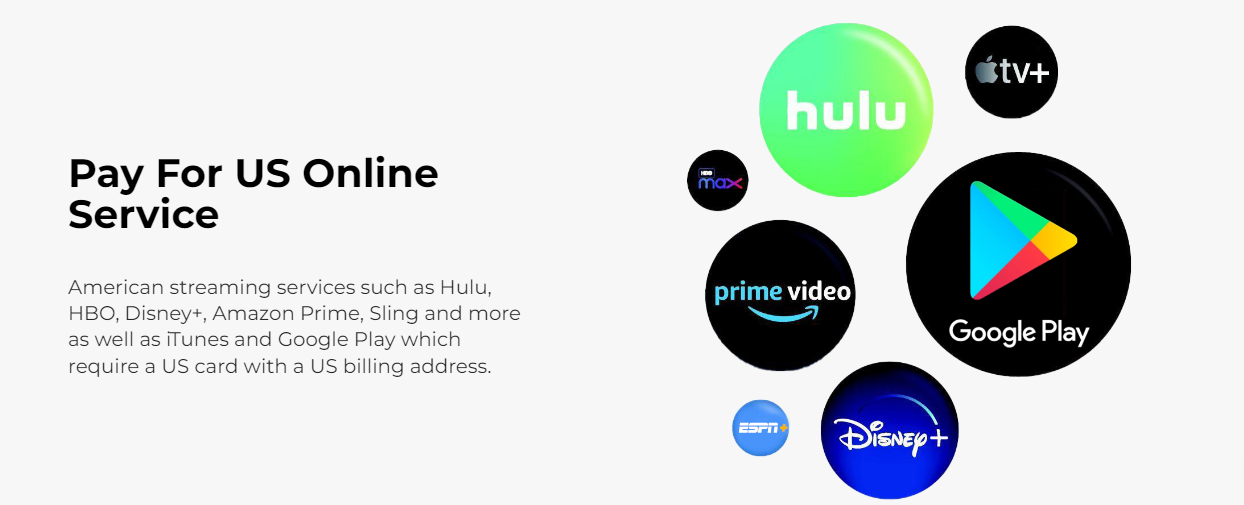
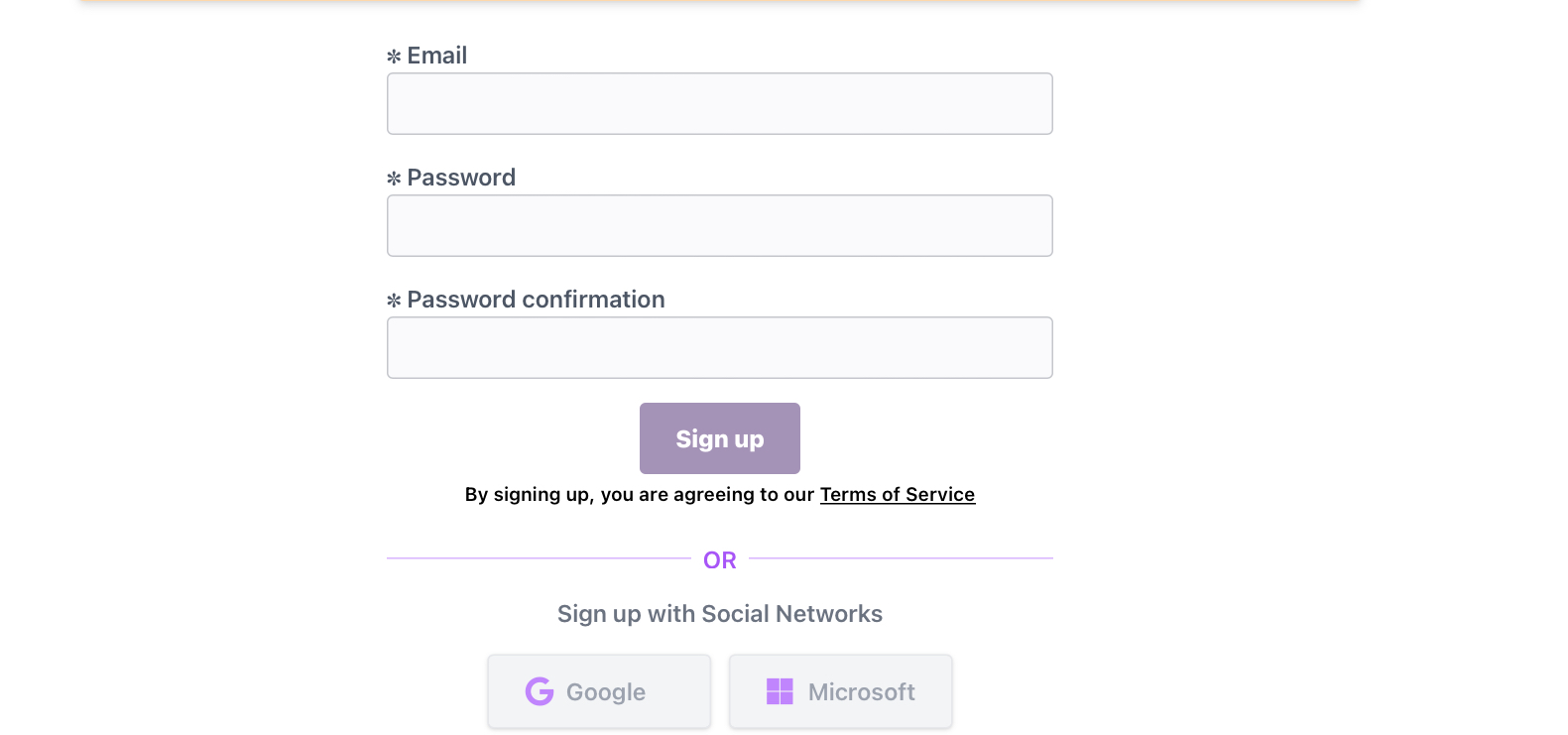
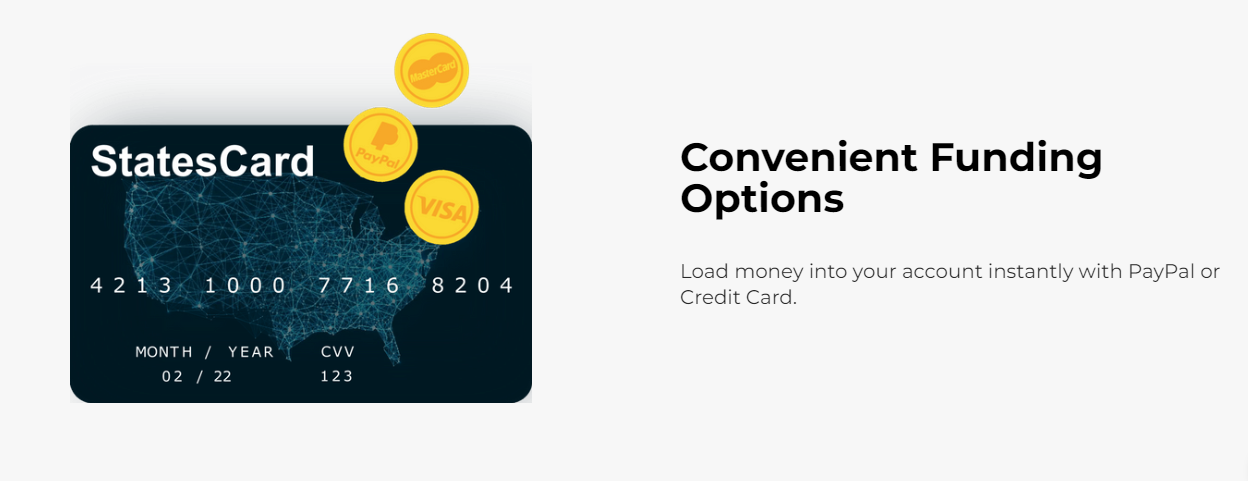
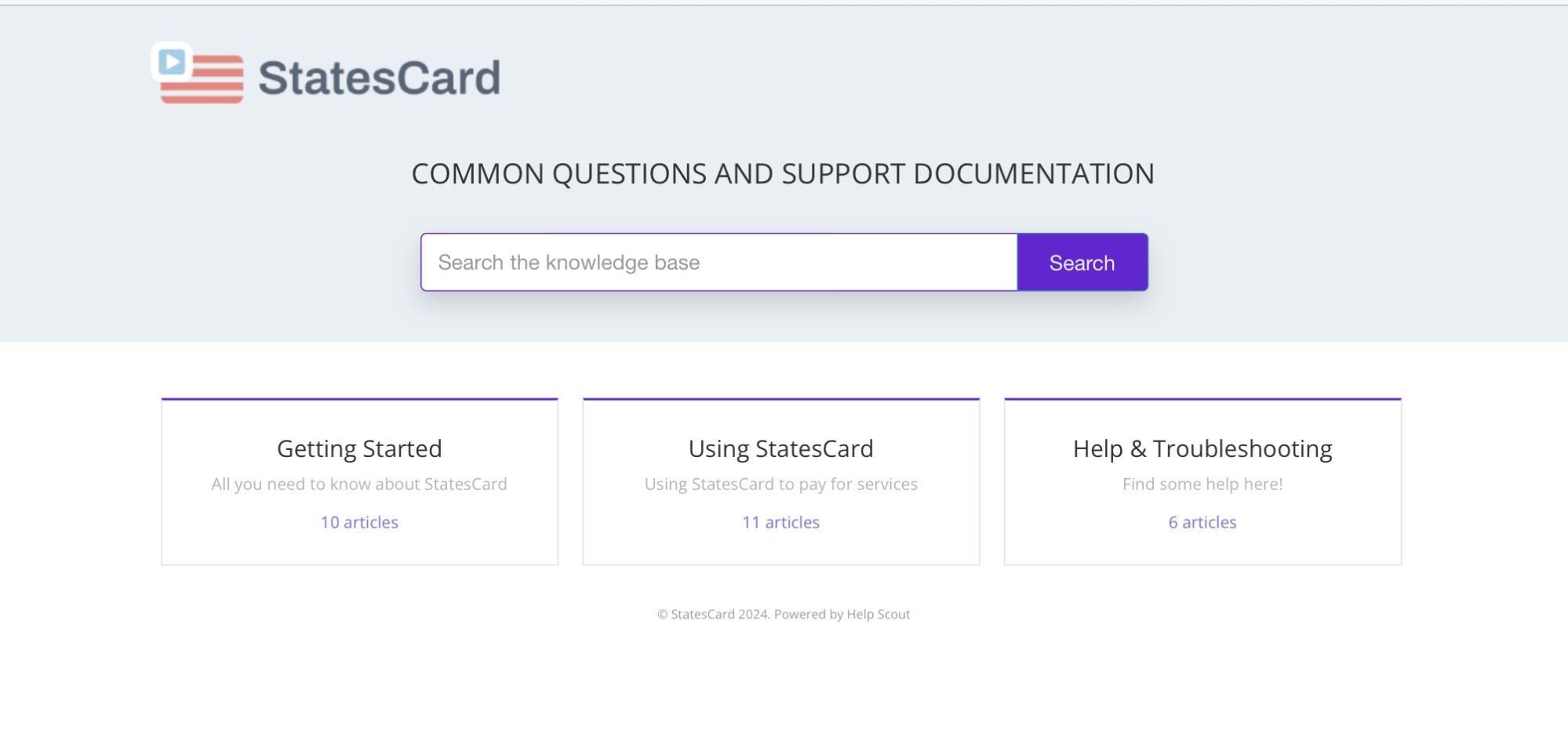
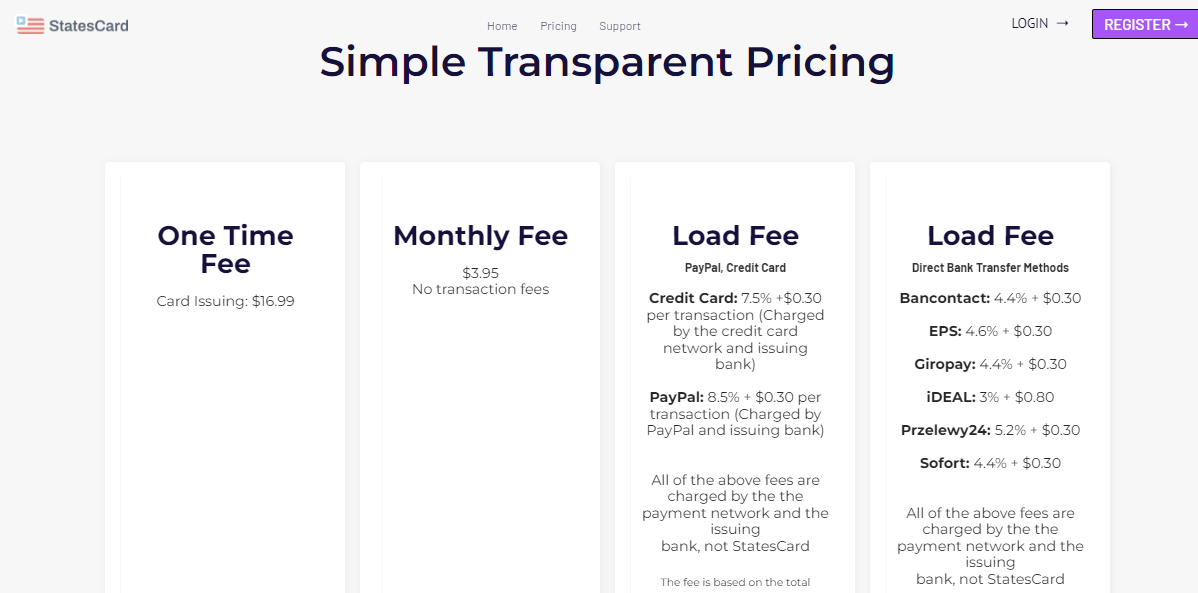
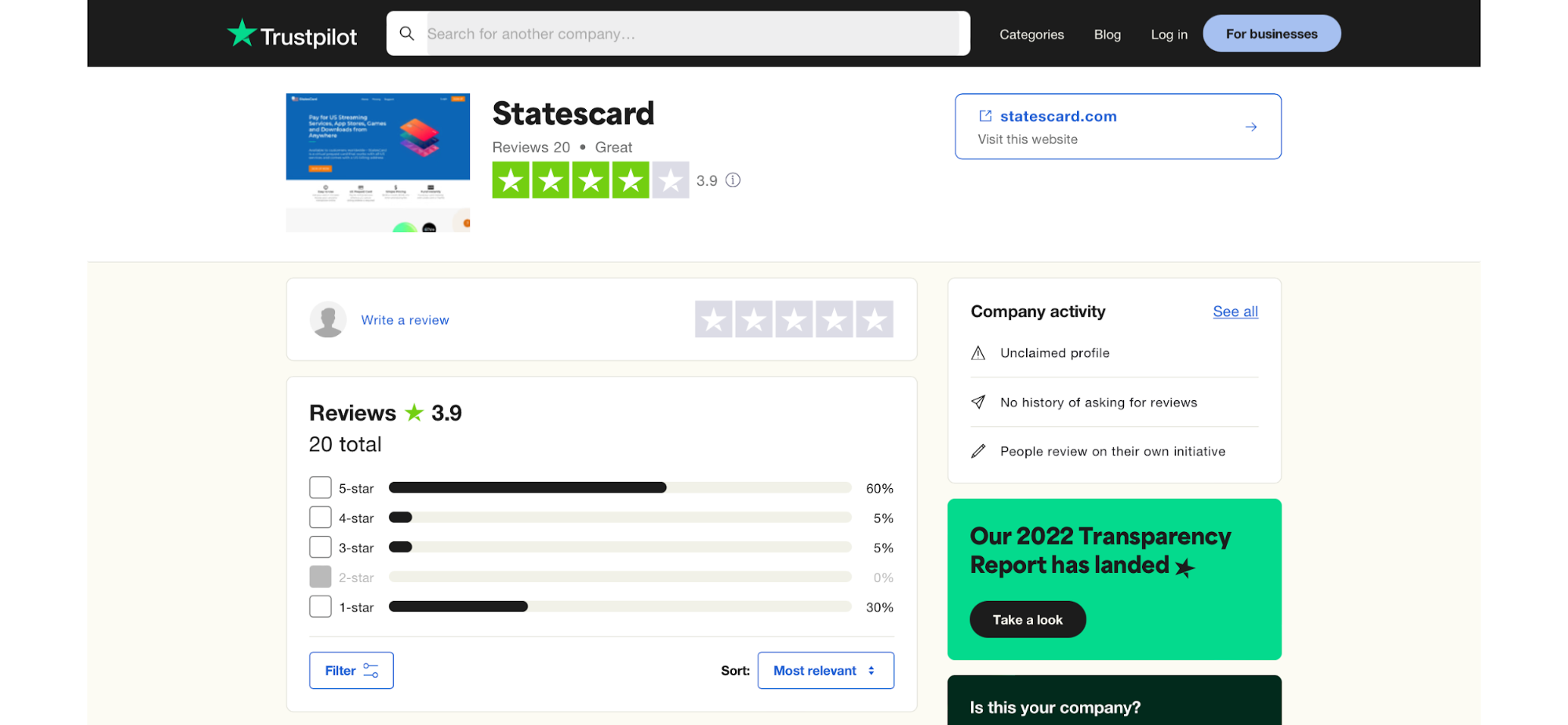

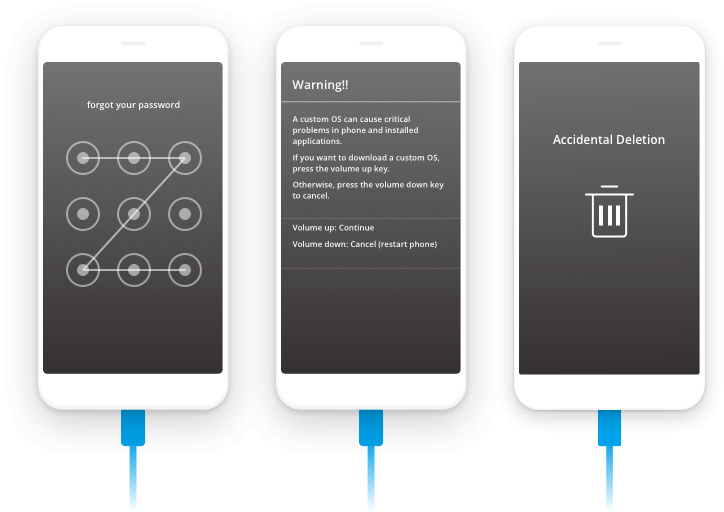
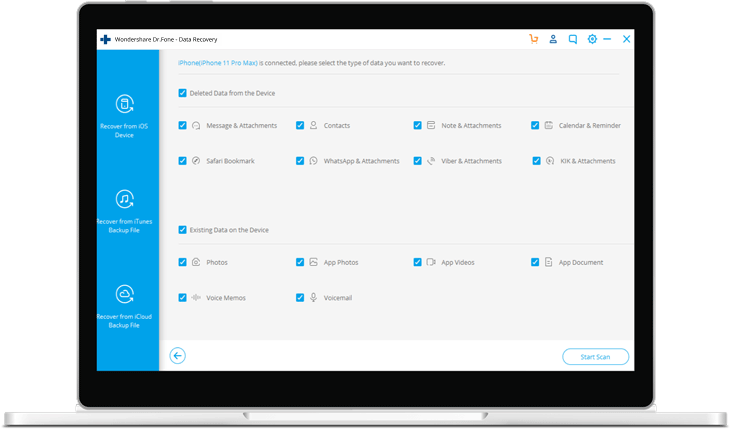
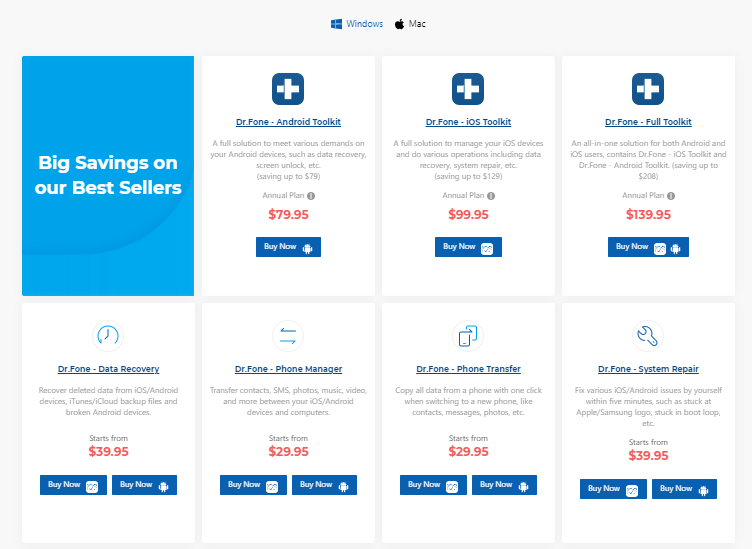
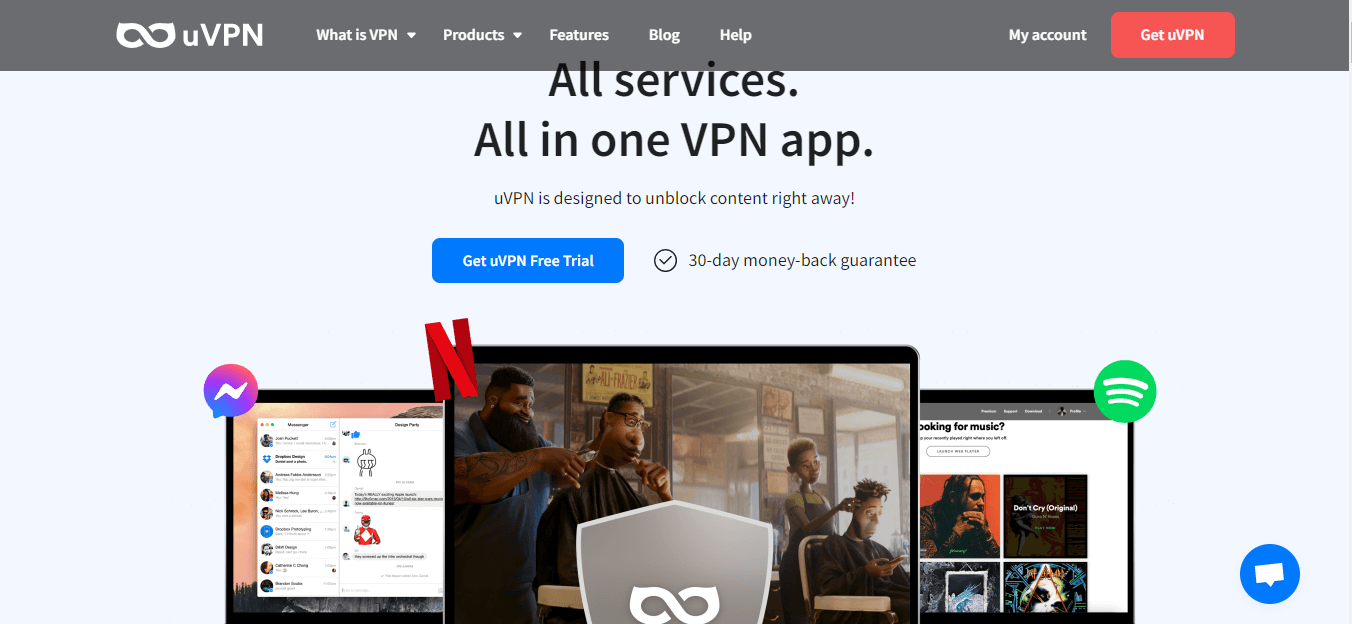
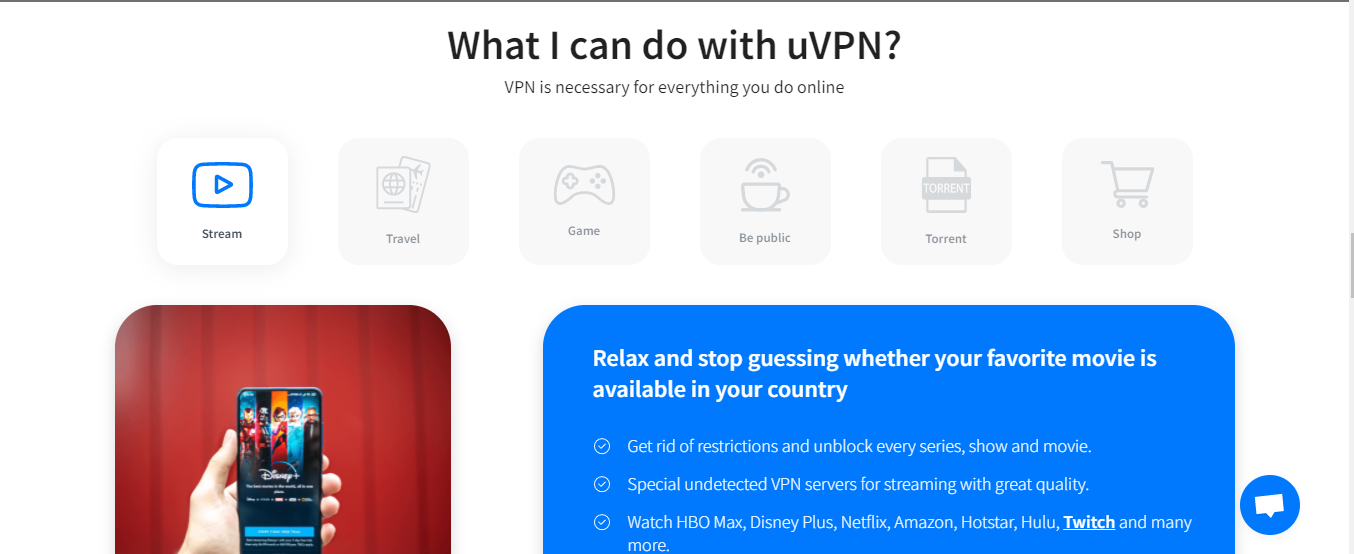
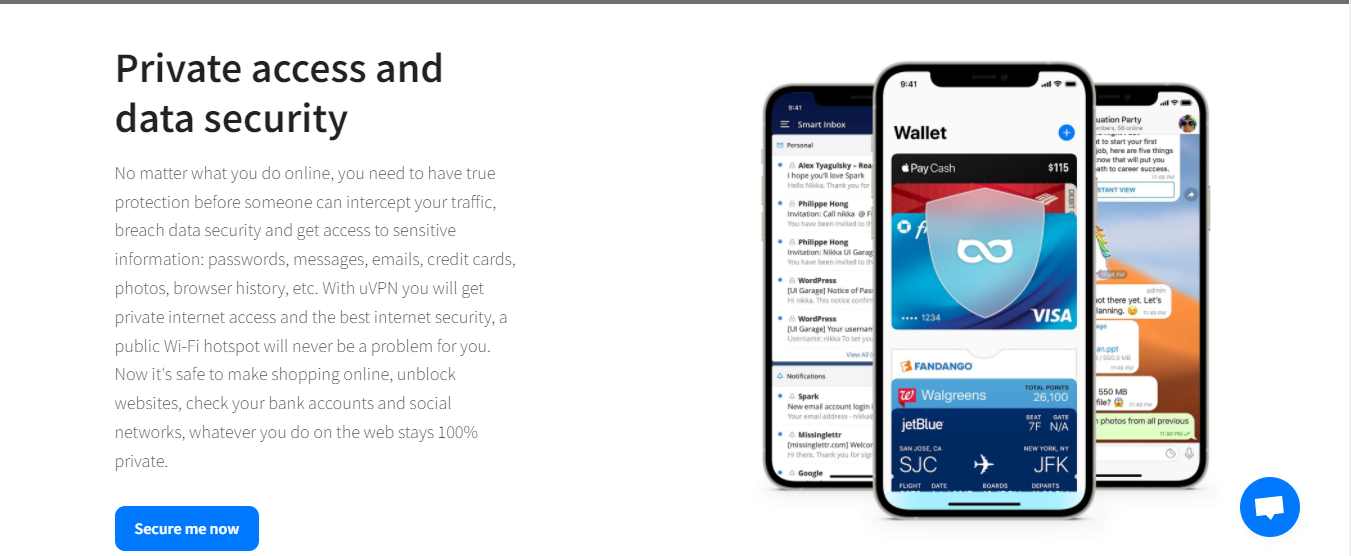
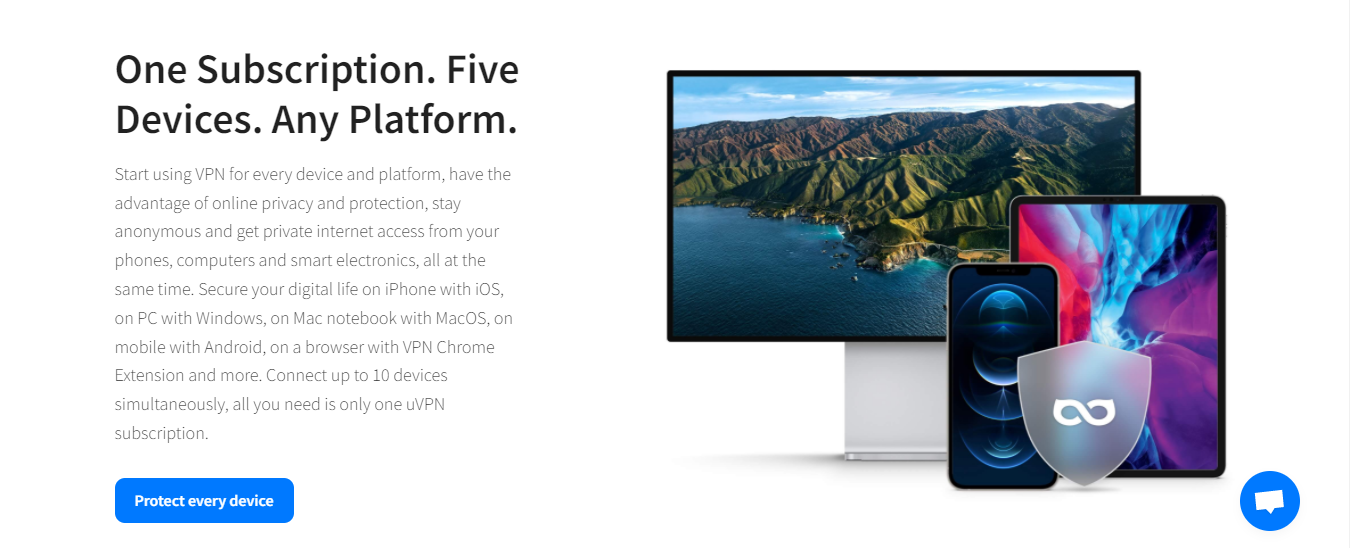



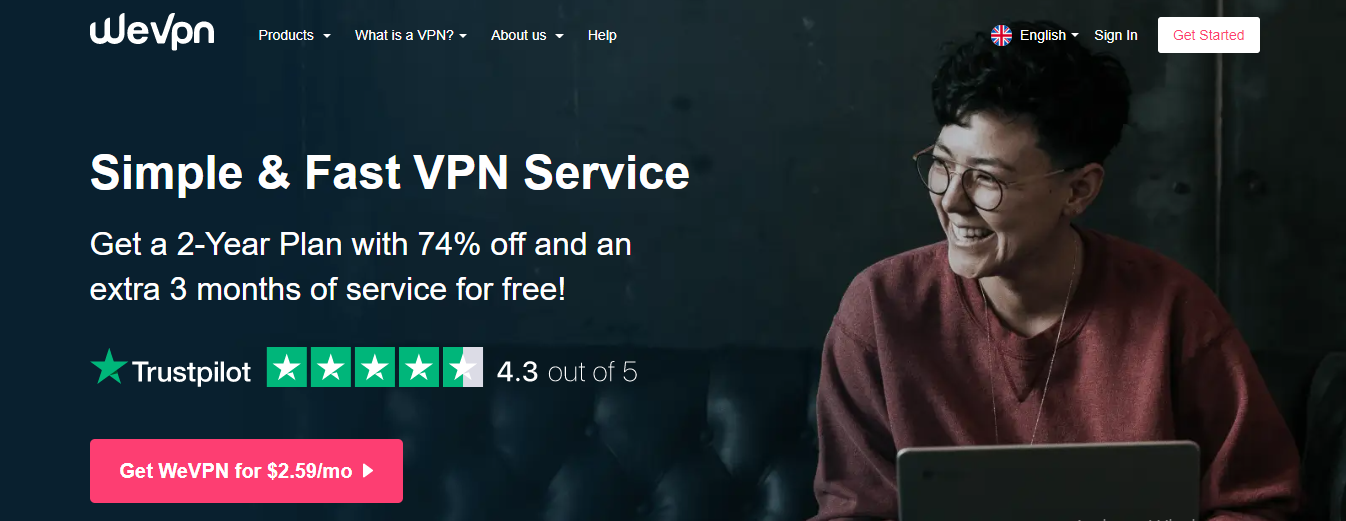

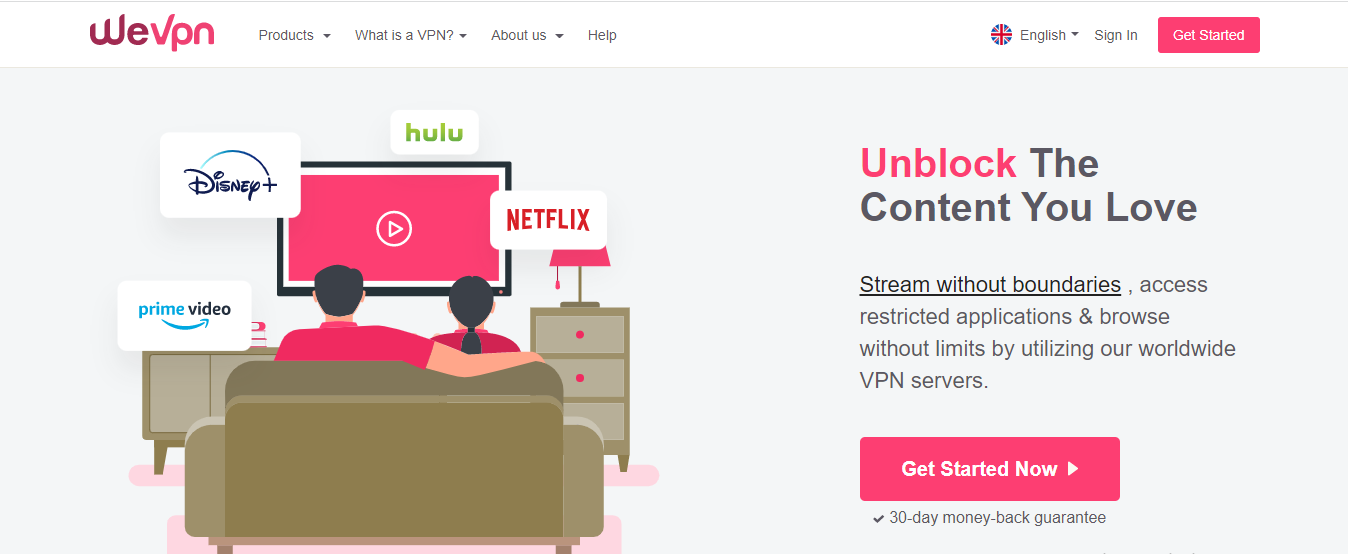
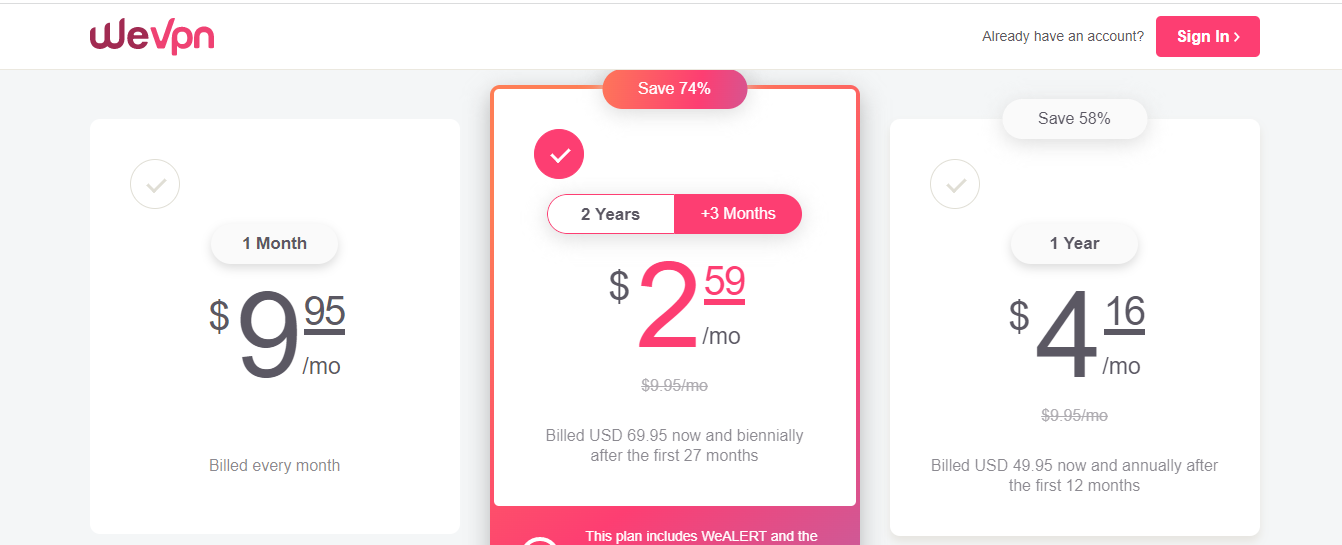
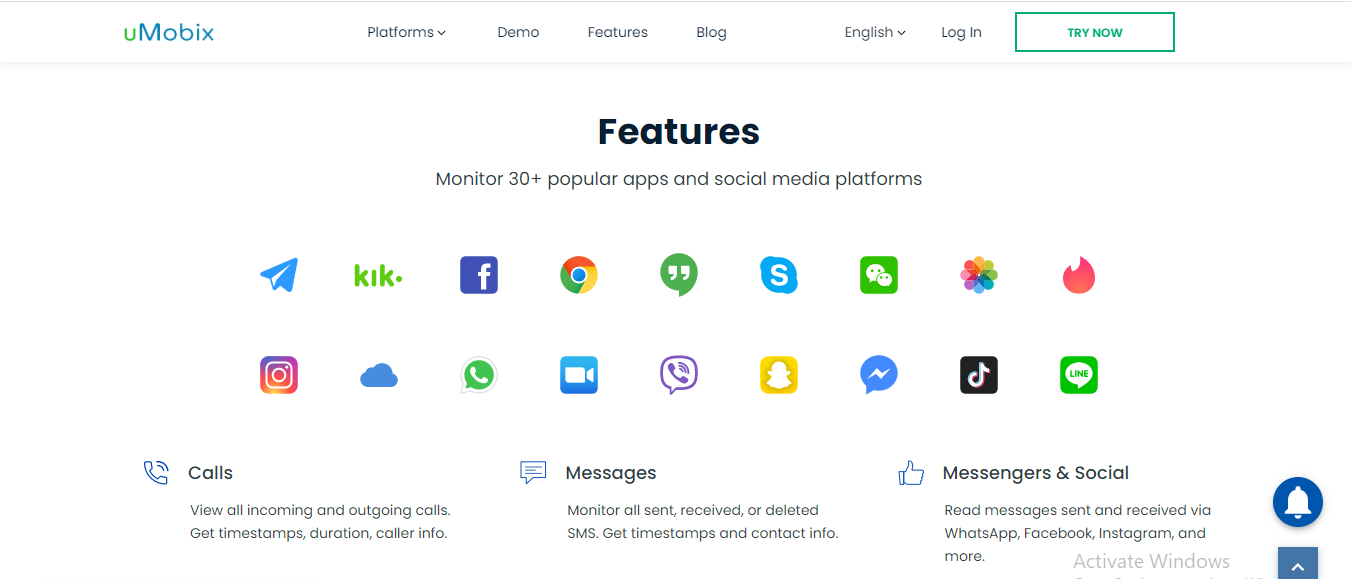
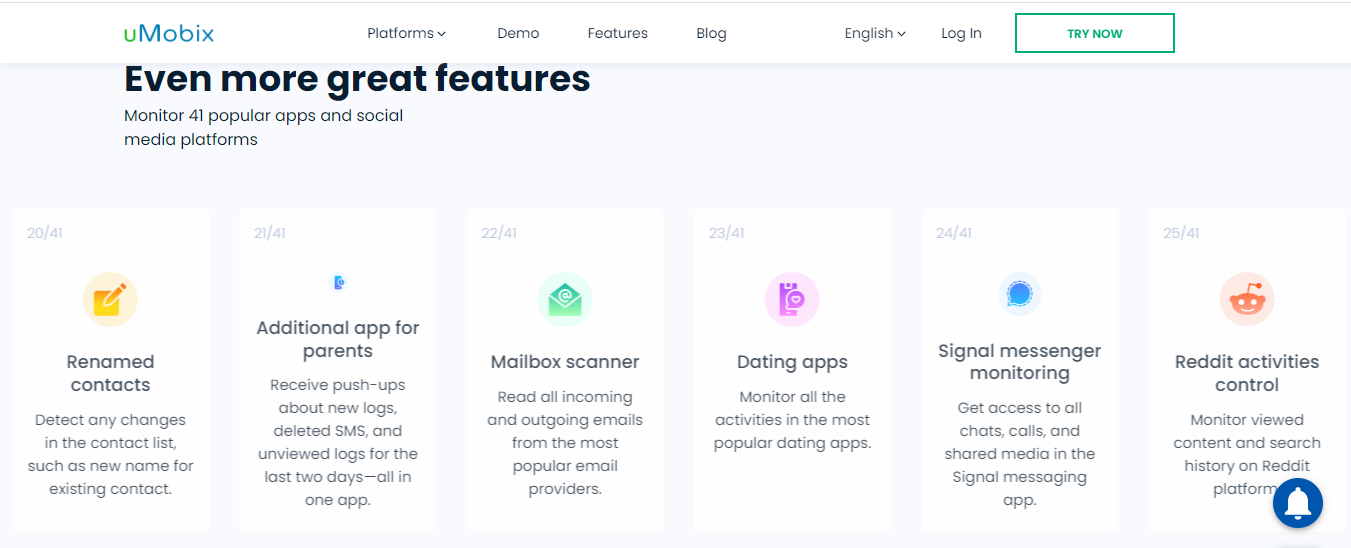
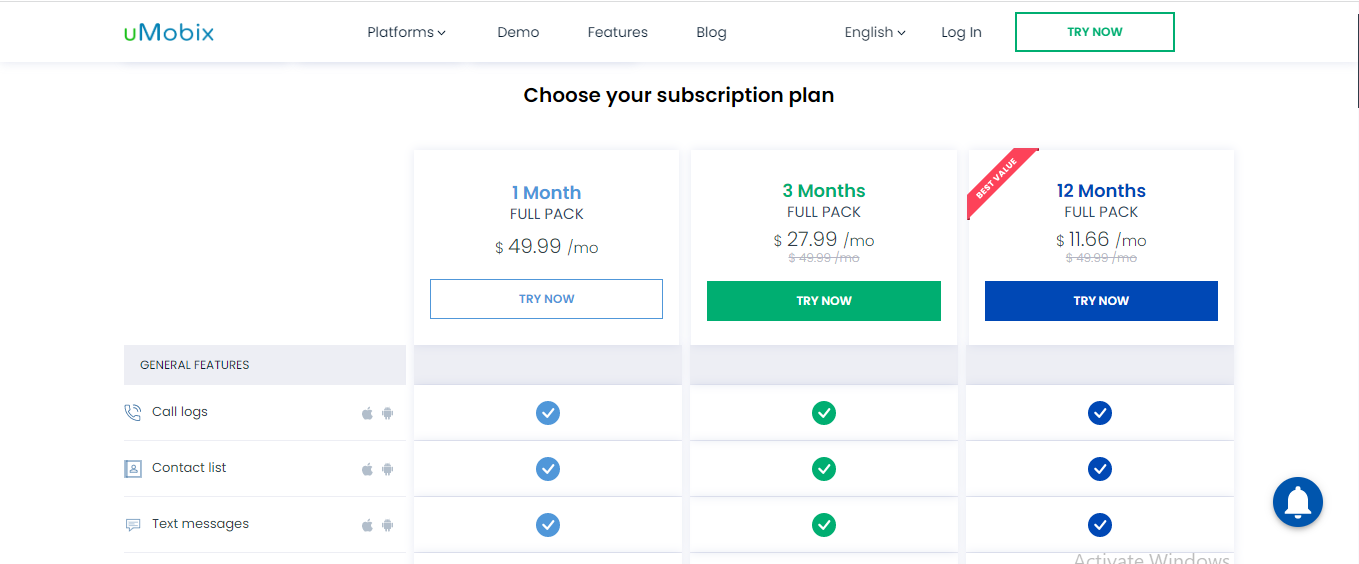

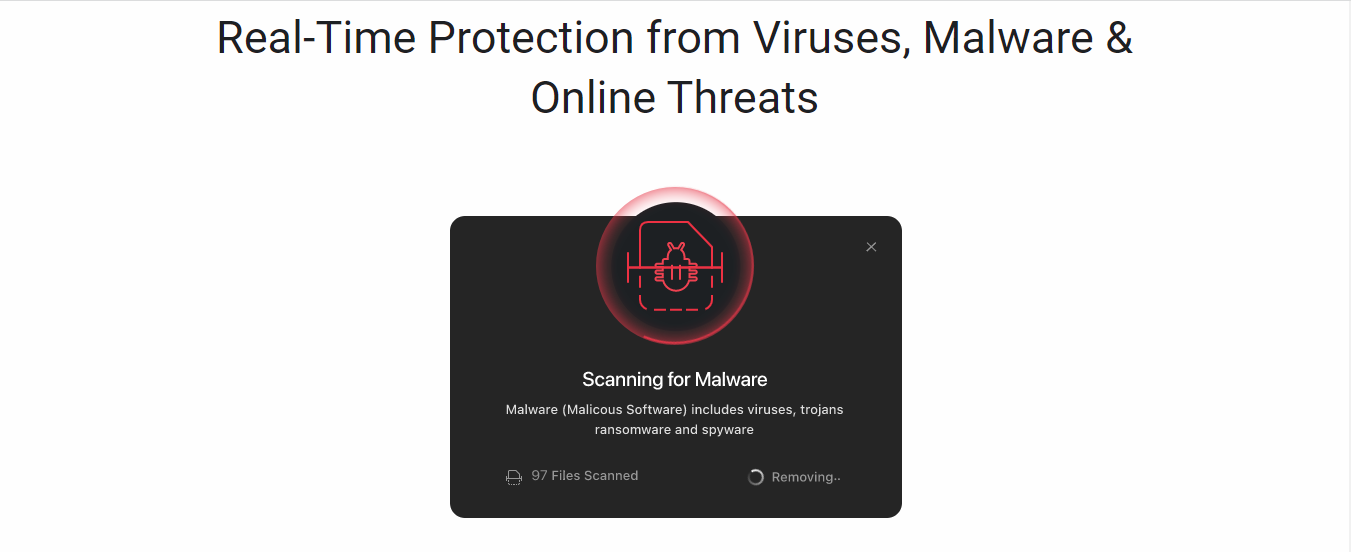
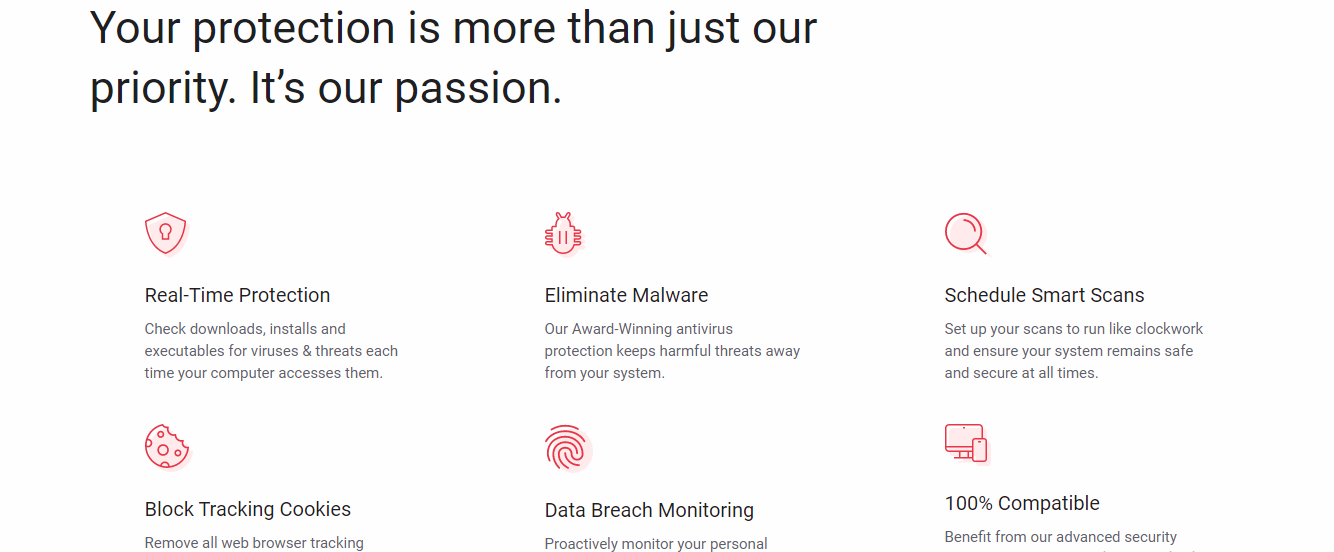 Available Customer support includes: