

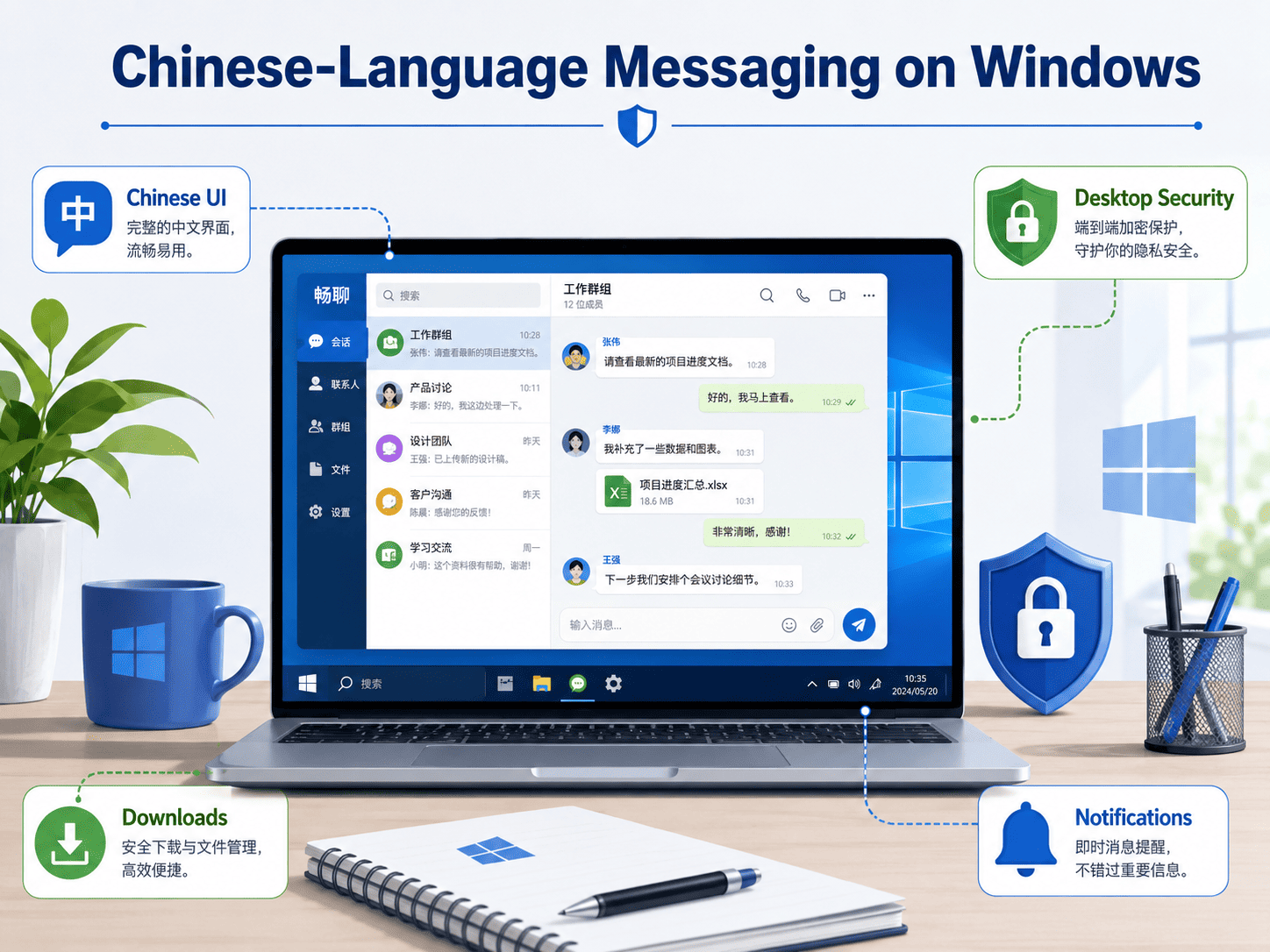
In this post, I will discuss Windows Security and Setup Guide for Chinese-Language Messaging Apps.
Chinese-speaking Windows users often need to solve three separate problems at the same time: finding the correct desktop client, downloading it through a trustworthy path, and configuring an interface that is comfortable to use in Chinese. Treating those tasks as one vague “Chinese version” search can make troubleshooting and source verification harder.
A user can have the correct Windows client but the wrong interface language, or a helpful Chinese-language guide that points to an installer whose origin still needs to be verified. Installation, localization, and software security should therefore be checked independently.
The most reliable setup sequence is to verify the Windows package first, install it normally, configure the supported Chinese interface second, and then review privacy, downloads, notifications, startup behavior, updates, and active sessions.
This guide explains that sequence for Windows users who want a Chinese-language messaging environment without weakening normal software-security checks.
Table of Contents
Choose the Correct Windows Desktop Edition First
Before changing language settings, users need to make sure they have the correct desktop application.
Messaging platforms may offer several access methods, including:
- Standalone Windows installers
- Microsoft Store editions
- Browser-based interfaces
- Portable versions
- Other desktop builds
These options can provide similar communication features, but they are not always identical in terms of updates, local storage, startup behavior, or system integration.
For users searching for telegram 電腦版中文, the search intent combines two requirements: a genuine Windows desktop client and a usable Chinese-language interface. Verify the desktop package first, then apply the supported language configuration rather than assuming a separate modified installer is required.
The correct setup sequence is usually:
- Verify the software source.
- Select the correct Windows desktop version.
- Install the application.
- Confirm that it launches normally.
- Configure the Chinese-language interface.
- Review notifications, storage, and security settings.
This sequence makes troubleshooting easier because users can identify whether a problem comes from installation or localization.
Separate Windows Installation From Chinese Localization
A common misconception is that a “Chinese version” must always be a completely different software package.
In many cases, the desktop application itself supports multiple interface languages. The same Windows installer can later be configured for English, Traditional Chinese, Simplified Chinese, or another supported language.
This means users should be cautious when unfamiliar websites claim that a special modified installer is required only to obtain a Chinese interface.
A safer model is:
Install the normal Windows desktop client first. Then configure the interface language through the software settings or another documented localization method.
This reduces the need to rely on modified third-party packages.
Verify the Windows Download Source Before Installation
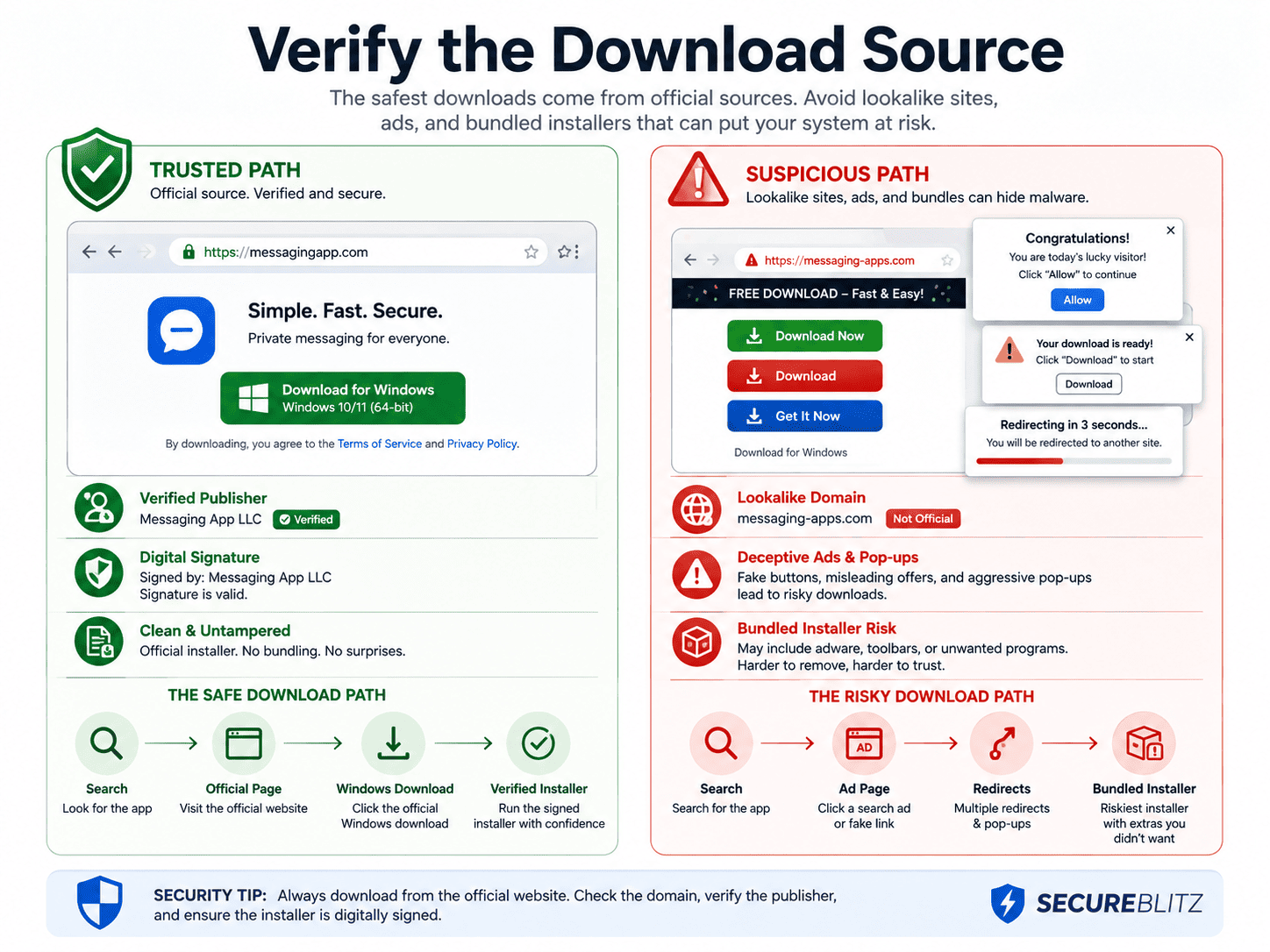
Language convenience should never replace source verification.
A page may provide useful Chinese-language instructions while still linking to a third-party installer. Users should evaluate the actual download path separately.
Before downloading, check:
- Domain spelling
- Page consistency
- Download destination
- Installer filename
- Publisher information
- Unexpected redirects
- Additional bundled software
Users researching 电报电脑版下载 should first confirm that the selected file is actually intended for Windows desktop use. After that, check the download path, filename, publisher information, and installer properties before installation; a Chinese-language page by itself does not verify the software source.
The key question is not only:
Does this page explain the software in Chinese?
It should also be:
Where does the Windows installer actually come from?
Inspect the Installer Before Running It
Once the Windows installer has been downloaded, users should inspect the file before opening it.
Check the filename
The filename should look consistent with the software being installed.
Be cautious if it contains:
- Random characters
- Unrelated product names
- “Download Manager”
- Unknown utilities
- Suspicious version labels
Review file properties
Right-click the file and select Properties.
Useful information may include:
- Product name
- File description
- Publisher
- Version
- Digital signature
If the metadata does not match the expected application, installation should stop until the difference is understood.
Check the Digital Signature
Windows digital signatures can provide another verification layer.
When available:
- Right-click the installer.
- Open Properties.
- Select the Digital Signatures tab.
- Review the signer.
- Open the signature details.
- Confirm that Windows reports the signature as valid.
A valid signature does not guarantee that every software-related risk has been eliminated, but it helps users identify the publisher associated with the package.
For frequently used desktop software, organizations can document the expected publisher name as part of their internal setup guide.
Scan the File With Windows Security
Before installation, users should scan the installer with Microsoft Defender or the organization’s endpoint-security software.
A basic process can include:
- Right-clicking the downloaded file.
- Selecting the available security scan.
- Reviewing the result.
- Investigating warnings before execution.
Users should also take Microsoft Defender SmartScreen warnings seriously.
If Windows displays an unexpected warning, the safest response is to pause and verify the source rather than immediately bypassing the alert.
Configure the Chinese Interface After the Client Is Installed
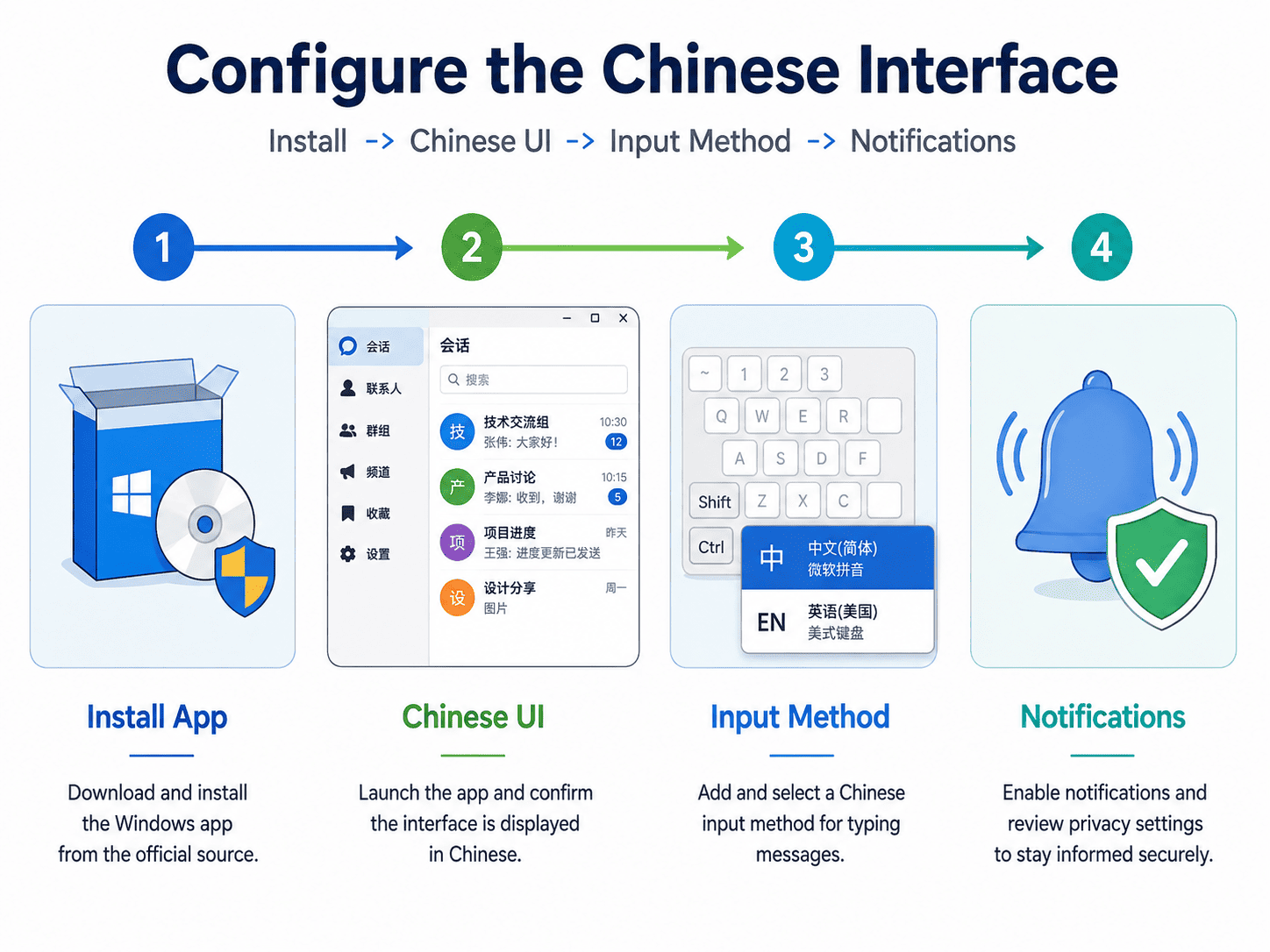
Once the desktop client is installed successfully, users can move to interface localization.
A typical process may involve:
- Opening application settings.
- Locating language or interface options.
- Selecting the preferred Chinese-language option.
- Restarting the client if necessary.
- Confirming that menus and settings display correctly.
The exact menu location can change as software updates are released, so users should rely on current instructions rather than old screenshots alone.
Organizations that support multiple Chinese-speaking regions should also decide whether they prefer:
- Traditional Chinese
- Simplified Chinese
- English
- Different defaults for different teams
The best choice depends on the actual users rather than technical capability alone.
Check Chinese Character Rendering
After localization, users should verify that Chinese characters display correctly throughout the application.
Check:
- Menu labels
- Group names
- Notifications
- Search results
- File names
- Contact names
- Settings pages
Problems can sometimes occur because of unusual Windows language settings, missing fonts, remote desktop environments, or legacy system configurations.
If the interface language looks correct but some text appears incorrectly, the issue may be related to Windows rather than the messaging application itself.
Configure the Windows Input Method
The application interface language and the Windows keyboard input method are separate settings.
A Chinese-language interface does not automatically configure Chinese text input.
Users who regularly type in Chinese should confirm that Windows has the appropriate keyboard or input method enabled.
A basic Windows configuration may include:
- Adding the required Chinese input method
- Selecting Traditional or Simplified input preferences
- Learning the keyboard shortcut for switching input methods
- Checking punctuation behavior
- Testing Chinese typing inside the messaging application
This is especially important for users who switch frequently between English and Chinese conversations.
Review Notification Settings
A secure and usable desktop setup should include notification configuration.
Messaging clients can display:
- Sender names
- Message previews
- Group names
- File information
- Notification sounds
In shared offices or public environments, message previews may reveal more information than users expect.
Consider configuring:
- Direct-message alerts
- Group notifications
- Sound behavior
- Message-preview visibility
- Windows notification permissions
- Focus Assist behavior
Users who frequently share their screen during meetings should pay particular attention to notification previews.
Set a Dedicated Download Folder
Desktop messaging applications can generate large numbers of local files.
Users may receive:
- PDFs
- Images
- Documents
- Spreadsheets
- Presentations
- Archives
- Other attachments
A dedicated folder can make these downloads easier to manage.
For example:
Downloads\Messaging Files
or:
Documents\Messaging Downloads
This helps users:
- Locate files faster
- Scan suspicious files
- Remove old downloads
- Separate messaging files from browser downloads
- Move important documents into permanent storage
The messaging download folder should be treated as temporary working storage rather than a long-term archive.
Control Automatic Downloads
Automatic file downloads can be convenient, but they should be configured intentionally.
Users may choose to allow automatic downloads for:
- Small images
- Common documents
- Trusted workgroup content
while requiring manual approval for:
- Large files
- Archives
- Executable files
- Unknown file types
This reduces storage clutter and gives users more control over what is written to the computer.
Be Careful With Files Received Through Messages
Installing a verified desktop client does not make every received file safe.
Users should still be cautious with:
- Executable files
- Unexpected archives
- Unknown links
- Documents from unfamiliar contacts
- Files that do not match the conversation context
Software security and content security are separate layers.
A trusted application can still be used to deliver unsafe files if a malicious or compromised account sends them.
Review Startup Behavior
Many desktop messaging applications can start automatically when Windows launches.
This is useful for users who depend on the software throughout the workday, but it may not be necessary for everyone.
Users should decide whether automatic startup is appropriate.
Automatic launch can be useful when:
- Messaging is a core work tool
- Immediate communication is important
- Users rely on desktop notifications
Manual launch may be preferable when:
- Messaging is used occasionally
- Users want fewer startup applications
- Focused work periods are important
Teams should define a recommended baseline while still allowing reasonable personalization.
Keep the Desktop Client Updated
Updates may contain:
- Security fixes
- Stability improvements
- New features
- Interface changes
- Windows compatibility improvements
Users should obtain updates through trusted mechanisms such as:
- The application’s built-in updater
- An approved store
- A verified download source
- An organization-managed deployment process
They should avoid searching random third-party sites for newer installers.
For organizations, update testing can be useful before a major version is deployed across many Windows PCs.
Recheck Language Settings After Major Updates
Software updates can occasionally change interface layouts or localization settings.
After a major update, users should confirm:
- Chinese interface remains active
- Menus display correctly
- Input methods still work
- Notifications behave normally
- Download folders remain unchanged
- Startup preferences remain correct
If support documentation relies heavily on screenshots, it may also need updating after interface changes.
Review Active Sessions
Desktop messaging clients often remain signed in for long periods.
Users should periodically review active sessions, especially after:
- Reinstalling Windows
- Replacing a computer
- Using remote desktop environments
- Accessing a shared workstation
- Losing control of an old device
Old or unfamiliar sessions should be closed.
Account security should be considered part of the desktop setup process, not a separate concern.
Avoid Unknown “Chinese Edition” or Repacked Installers
Users may encounter websites offering specially modified “Chinese” editions of popular software.
These packages deserve extra caution.
A modified installer may:
- Include unofficial changes
- Add bundled software
- Remove update mechanisms
- Change default settings
- Introduce unknown components
If the standard desktop application already supports localization, a separate modified installer may not be necessary.
Whenever possible, users should prefer:
- A verified Windows desktop package
- A documented localization process
- Normal application updates
This approach is easier to verify and maintain.
Standardize the Setup Across Multiple Windows PCs
Organizations with several Chinese-speaking users can reduce support complexity by creating a simple standard configuration.
A deployment guide can define:
- Approved Windows client
- Download source
- Expected publisher
- Preferred interface language
- Notification defaults
- Download folder
- Startup behavior
- Update method
- Session-security practices
This makes onboarding easier and reduces differences between users.
Standardization does not mean removing all personal preferences. It simply establishes a consistent technical baseline.
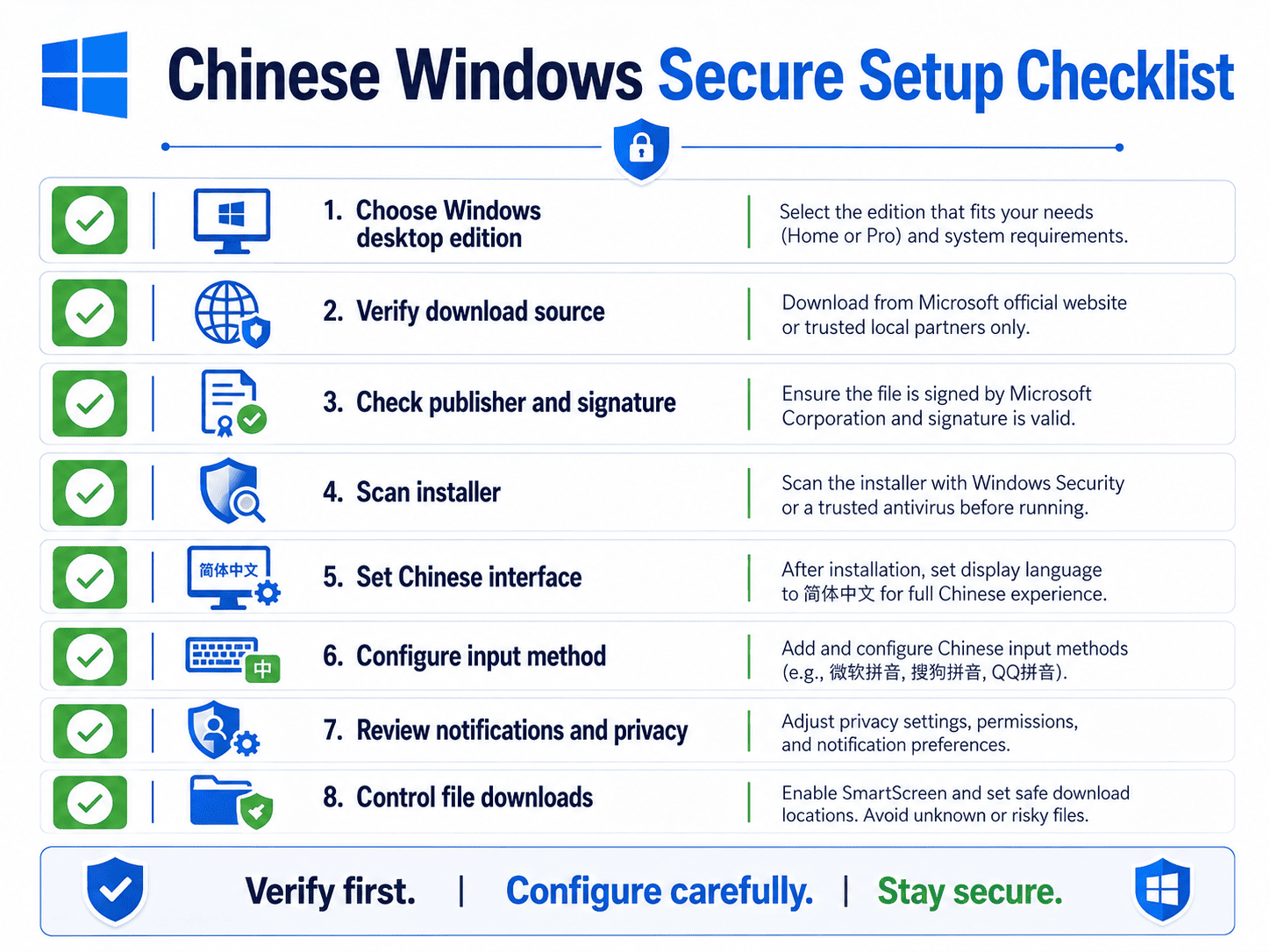
A Practical Chinese-Language Windows Setup Checklist
Before installation
- Confirm the correct desktop edition.
- Verify the download source.
- Check the domain.
- Review the installer filename.
- Inspect publisher information.
- Check the digital signature when available.
- Scan the file.
During installation
- Follow the normal Windows installation process.
- Avoid unrelated bundled software.
- Review installation prompts.
- Confirm the installed version.
Localization
- Open interface settings.
- Select the preferred Chinese-language option.
- Restart if required.
- Verify Chinese character rendering.
- Configure Windows input methods.
Desktop configuration
- Set notification preferences.
- Choose a download folder.
- Review automatic downloads.
- Configure startup behavior.
- Check update settings.
Security
- Review active sessions.
- Use Windows Security.
- Be cautious with received files.
- Avoid unknown modified installers.
- Keep the client updated.
Final Setup and Security Takeaways
A dependable Chinese-language messaging setup on Windows requires more than translating the interface.
The setup process should combine:
- Correct desktop software selection
- Verified download sources
- Installer inspection
- Chinese-language configuration
- Windows input methods
- Safe notification settings
- Controlled file downloads
- Reliable updates
- Session security
Localization should never be used as a reason to bypass source verification or install an unfamiliar modified package.
A safer pattern is to obtain a verified Windows desktop client first, confirm that it runs normally, and then configure the supported Chinese interface and Windows input settings.
When download verification, localization, file handling, updates, and session security are treated as one repeatable workflow, the desktop environment becomes easier to maintain and less dependent on risky shortcuts.
INTERESTING POSTS
- Windows Security Checklist for Installing a Desktop Messaging Client
- How to Verify Safe Messaging App Download Sources on Windows
- From Borders to Breakthroughs: Scaling Smarter with Localization
- How Software Localization Helps Boost App Engagement
- How to Access Windows Computer from a Mac PC
- Important Marketing Tips Every New Business Should Know
About the Author:

John Raymond is a cybersecurity content writer, with over 5 years of experience in the technology industry. He is passionate about staying up-to-date with the latest trends and developments in the field of cybersecurity, and is an avid researcher and writer. He has written numerous articles on topics of cybersecurity, privacy, and digital security, and is committed to providing valuable and helpful information to the public.