

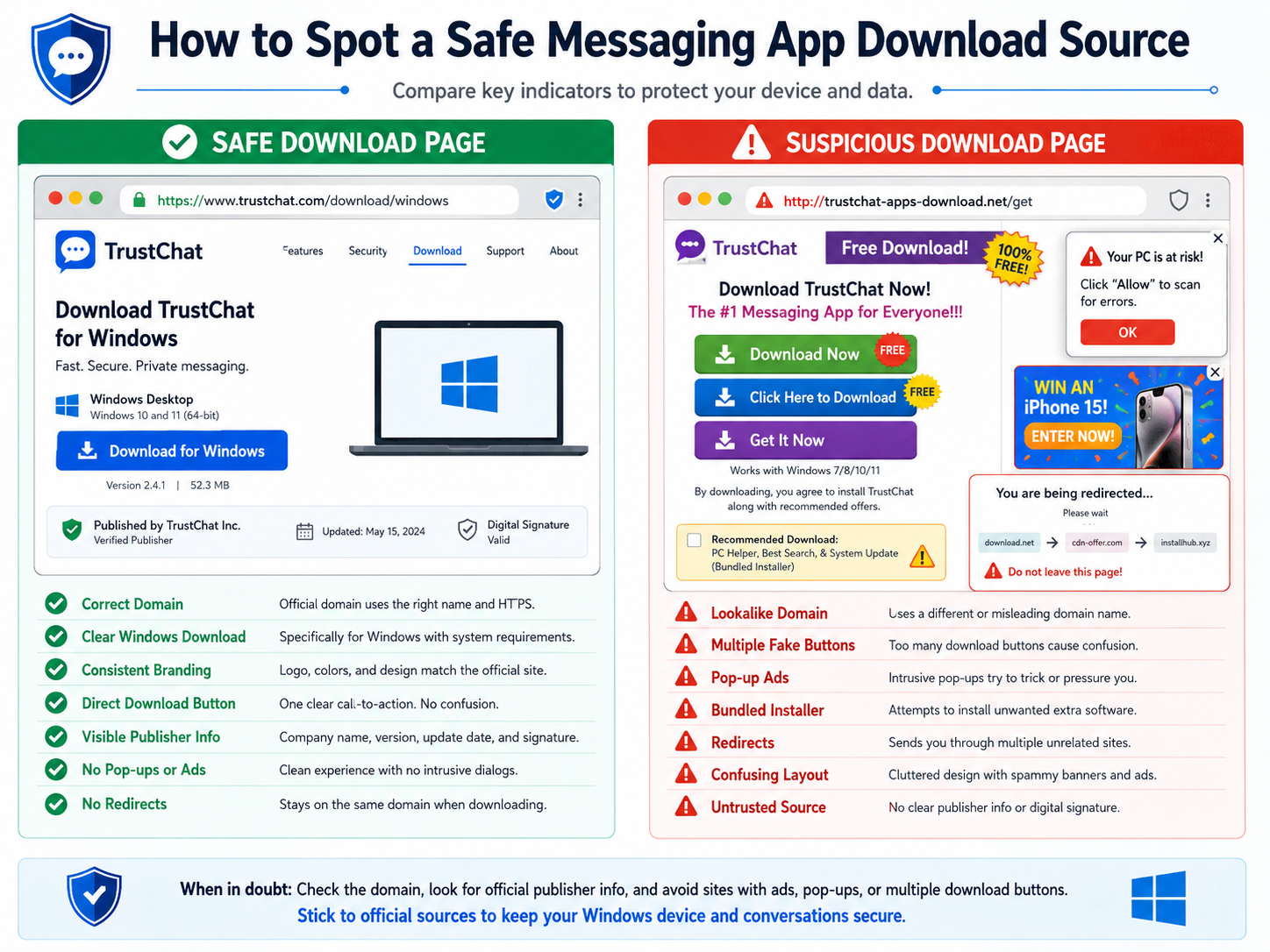
In this post, I will show you how to verify safe messaging app download sources on Windows.
Downloading a desktop messaging app on Windows is easy; verifying that the installer came from a trustworthy source is the part that deserves attention. Search results can lead to official product pages, software directories, regional guides, mirrors, advertisements, or outdated tutorials, and those sources do not carry the same level of trust.
The security decision therefore starts before the installer is opened. A useful download page should make the product, Windows edition, destination, publisher, and update path understandable without forcing the user through unrelated redirects or bundled download tools.
For Windows users, the safest workflow is to verify the domain and download path first, inspect the file second, and only then install and configure the application.
This guide covers that workflow step by step, including domain checks, official-source versus mirror evaluation, installer verification, digital signatures, Windows Security, SmartScreen, bundled installers, and post-installation checks.
Table of Contents
Why Download Source Verification Matters
Messaging applications may handle highly sensitive activity, including:
- Active login sessions
- Private conversations
- Shared files
- Contact information
- Group discussions
- Downloaded documents
- Notifications
- Account settings
Because of this, users should treat the software source as part of the security process.
Even if the application itself is trustworthy, obtaining it through an unreliable distribution path introduces additional uncertainty.
A modified installer could potentially include:
- Bundled software
- Advertising components
- Unwanted browser extensions
- Download managers
- Altered startup settings
- Additional executables
The best time to prevent these problems is before the file is downloaded.
Verify the Domain Before Clicking Download
A prominent download button is not proof that a page is trustworthy.
Before clicking anything, users should inspect the website itself.
Useful checks include:
- Is the domain spelled correctly?
- Does the site consistently discuss the intended product?
- Do internal pages and navigation work normally?
- Does the download page match the rest of the website?
- Are there unexplained redirects?
- Does the page contain multiple competing download buttons?
- Does the site clearly distinguish information from advertising?
When a Chinese-language search such as telegram 下载 is used to find a Windows messaging client, treat the result as a discovery path rather than proof that the installer is authentic. Verify the domain, final download destination, Windows package, and publisher information before running the file.
Search results are discovery tools. They should not be treated as identity verification.
HTTPS Is Helpful but Not Enough
Users often assume that a website using HTTPS must be legitimate.
HTTPS does provide an important security function: it encrypts the connection between the browser and the website.
However, HTTPS does not confirm that:
- The site is operated by the official software publisher
- The installer is genuine
- The page is trustworthy
- The domain is not a lookalike
- The download has not been modified
A suspicious website can still use HTTPS.
Therefore, users should combine HTTPS with broader checks such as domain verification, publisher information, page consistency, and installer inspection.
Official Source vs. Mirror: Understand the Distribution Path
Software can be distributed through several channels.
Official distribution
The software is provided directly through the platform or its recognized distribution path.
Software directories
A third-party website lists applications and may provide or redirect to installers.
Download mirrors
A third party hosts a copy of the installation file.
Download managers
A website requires users to install another program before obtaining the requested application.
Community or regional guides
An independent website explains where and how to access the software.
These sources should not automatically be treated as equivalent.
A query such as telegram 官方下载 usually signals that the user wants a trustworthy, publisher-recognized download route. Confirm where the Windows package is actually distributed, then verify the installer and its publisher before installation instead of assuming that a page is official from its wording alone.
The fewer unexplained intermediaries between the user and the application, the easier the download is to evaluate.
Watch for Lookalike Domains
Popular software brands are sometimes imitated through domains that resemble familiar names.
Common techniques include:
- Adding extra letters
- Removing a letter
- Replacing characters with similar-looking symbols
- Adding words such as “download,” “official,” or “desktop”
- Using an unfamiliar domain extension
- Creating subdomains that visually resemble another site
Users should read the full domain carefully rather than relying on the website logo.
A polished page can still exist on an unrelated domain.
If there is uncertainty, compare the page against trusted documentation or previously verified resources.
Avoid Misleading Download Buttons
One of the easiest ways to make a mistake is clicking the wrong button.
Pages supported by advertising networks may contain several elements labeled:
- Download
- Start Download
- Install Now
- Get Software
- Free Download
Some may lead to the correct installer, while others may open advertisements or unrelated software.
Windows users should be cautious when:
- Several download buttons appear close together
- The button opens a new domain
- A browser extension is offered
- A download manager appears unexpectedly
- The file name does not match the expected application
- The site asks for unnecessary permissions
If the download process becomes confusing, it is safer to stop and verify the source again.
Verify the Windows Installer After Download
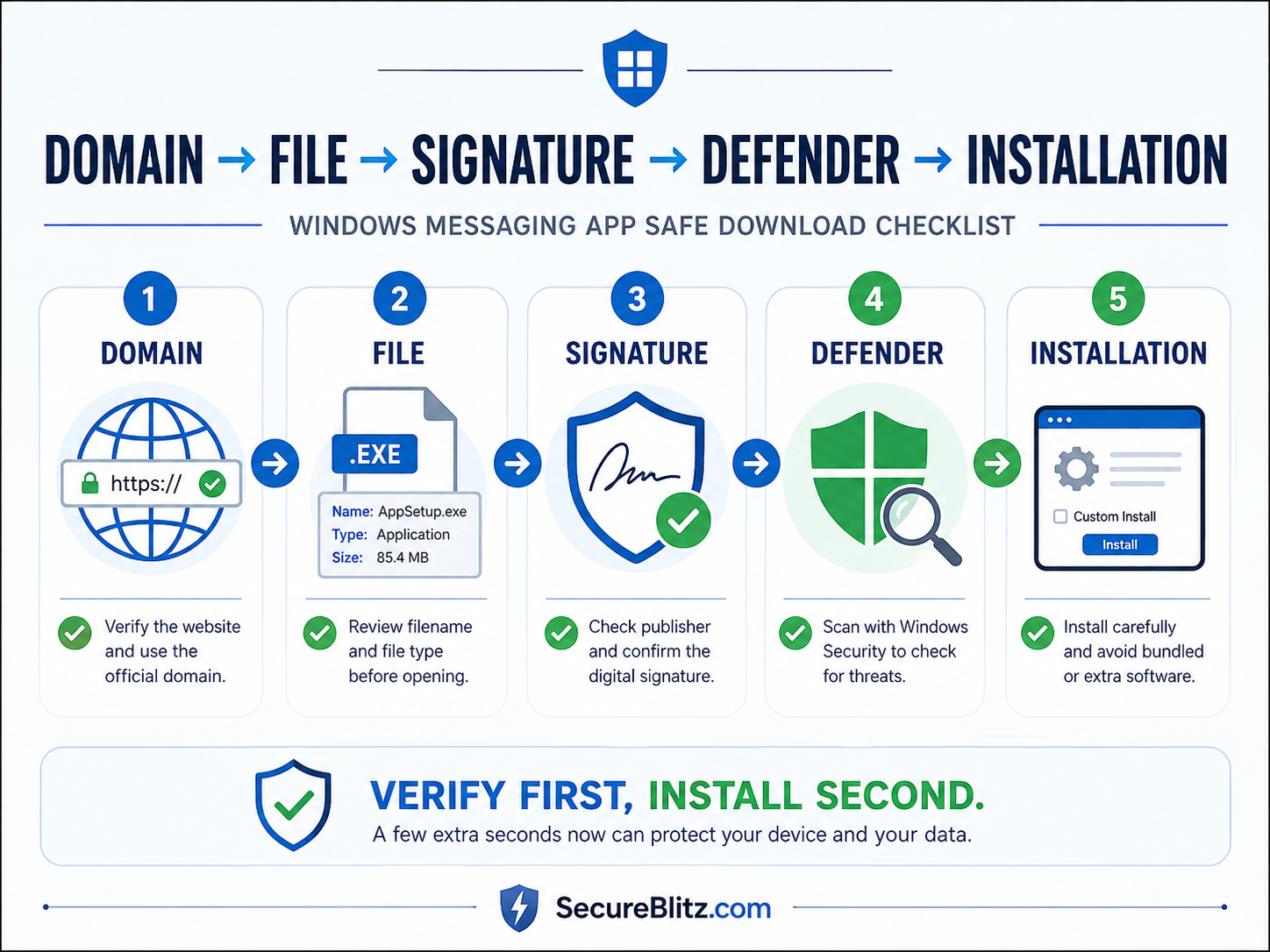
After downloading the installer, do not open it immediately.
First review the file.
Check the filename
The name should reasonably correspond to the software.
Be cautious with filenames containing:
- Random character strings
- Unrelated product names
- “Downloader” or “Installer Manager”
- Suspicious version numbers
- Multiple executable extensions
Check the file extension
Windows software is commonly distributed through formats such as:
- .exe
- .msi
If the expected installer arrives as an unusual script, archive, or unrelated executable, investigate before proceeding.
Check the file size
A file that is dramatically smaller or larger than expected can be a useful warning signal, especially when official documentation indicates a typical package size.
Review Windows File Properties
Windows provides useful metadata through the file properties interface.
To inspect a downloaded file:
- Right-click the installer.
- Select Properties.
- Review the General and Details tabs.
- Look for publisher and product information.
- Check whether a Digital Signatures tab exists.
Useful fields may include:
- Product name
- File description
- Company name
- Version
- Copyright
- Publisher
If the metadata appears unrelated to the expected messaging application, installation should stop until the discrepancy is understood.
Check the Digital Signature
Digital signatures are one of the most useful Windows verification signals.
When a signed installer is available, users can inspect the signer information.
A basic process is:
- Right-click the installer.
- Open Properties.
- Select Digital Signatures.
- Review the signer.
- Open the signature details.
- Confirm that Windows reports the signature as valid.
Organizations that install the same software repeatedly can document the expected publisher name.
This helps employees compare new installers against previously approved versions.
A valid signature does not replace all other checks, but it strengthens the verification process.
Scan the Installer With Windows Security
Before execution, users should scan the downloaded file using their normal security tooling.
For many Windows users, Microsoft Defender provides the baseline protection.
A file can be scanned by:
- Right-clicking the installer.
- Selecting the appropriate Microsoft Defender scan option.
- Waiting for the scan result.
- Investigating any warning before continuing.
Organizations may also use endpoint detection and response tools, antivirus software, or centralized security systems.
The important point is consistency: downloaded installers should be checked before they are executed.
Take SmartScreen Warnings Seriously
Microsoft Defender SmartScreen may warn users when an application is unrecognized or has a poor reputation.
Users should not be trained to bypass these warnings automatically.
Instead, pause and review:
- The software source
- Publisher
- Digital signature
- Version
- File name
- Reason for the warning
An unfamiliar application is not necessarily malicious, but an unexpected warning is a reason to verify the installation package more carefully.
Organizations should train employees to report unusual warnings rather than bypassing them out of habit.
Be Careful With Bundled Installers
Some third-party download services wrap software inside their own installation process.
These packages may attempt to install:
- Additional utilities
- Browser extensions
- Search tools
- Advertising software
- System optimizers
- Unrelated applications
Users may accidentally accept these components by clicking through installation screens too quickly.
Warning signs include:
- “Recommended installation”
- Preselected optional software
- Browser homepage changes
- Default-search changes
- New startup tools
- Additional desktop shortcuts
For Windows messaging applications, direct and clearly documented installers are easier to evaluate and manage.
Compare Version Information
Another useful verification technique is checking the application version.
If a download page provides a version number, compare it against information from a trusted source.
Questions to ask include:
- Is the version recent?
- Is the file unexpectedly old?
- Does the installer identify the same version?
- Does the page claim to offer a “latest” version without providing details?
Outdated installers may contain known bugs or security issues.
For workplace environments, organizations should maintain an approved version or update policy.
Confirm Windows Compatibility
Before installation, verify that the software is appropriate for the user’s system.
Check:
- Windows 10 or Windows 11 support
- 64-bit compatibility
- Disk space
- Required permissions
- Supported installation method
- Update behavior
Using the wrong package can create installation failures that users may mistakenly interpret as security problems.
Clear compatibility information is another sign of a well-documented download source.
Use a Repeatable Windows Download Verification Process
Organizations can reduce risk by creating a simple approved download workflow.
For example:
Step 1: Identify the software requirement
Confirm which messaging client is needed.
Step 2: Select the approved source
Document the website or distribution method.
Step 3: Select the supported Windows package
Make sure users obtain the same edition.
Step 4: Inspect the installer
Check filename, metadata, publisher, and signature.
Step 5: Scan the file
Use Windows Security or organizational endpoint protection.
Step 6: Install carefully
Read installer prompts and reject unrelated software.
Step 7: Verify after installation
Confirm the application behaves as expected.
This procedure is simple enough for ordinary users but structured enough for team deployment.
Verify the Application After Installation
The verification process should continue after installation.
Check:
- Does the expected application launch?
- Is the publisher correct in Windows Apps settings?
- Did any unrelated software appear?
- Were browser settings changed?
- Did new startup applications appear?
- Does the application connect normally?
- Are updates configured correctly?
Unexpected behavior after installation may indicate that the source or installer should be reviewed again.
Configure a Dedicated Download Folder
Once the desktop messaging client is running, users should decide where received files will be stored.
A dedicated folder can help separate messaging downloads from ordinary browser activity.
For example:
Downloads\Messaging Files
This improves:
- File organization
- Malware scanning
- Cleanup
- Troubleshooting
- Storage management
Important documents should eventually move into an approved long-term storage system rather than remaining inside a chat download directory.
Treat Files Received Through Messaging Separately
A verified messaging application does not make every file received through it trustworthy.
Users should remain cautious with:
- Executable files
- Archives
- Scripts
- Documents from unfamiliar contacts
- Unexpected attachments
- Suspicious links
Application security and content security are different layers.
A safe installer provides a trusted communication client, but users still need judgment when handling the content that arrives through it.
Keep the Update Path Trusted
After installation, future updates should follow a trusted process.
Updates should ideally come from:
- The application’s built-in updater
- An approved store
- A verified Windows download source
- A company-managed deployment system
Users should avoid searching random websites for “latest versions.”
The same source-verification principles used for the initial installation should also apply when a full installer is required for an update or reinstall.
Build an Internal Approved Software List
Organizations that use several communication and productivity applications can maintain an approved-software list.
Useful fields include:
- Application name
- Approved download source
- Windows edition
- Expected publisher
- Current approved version
- Update method
- Installation notes
- Support contact
This reduces the need for employees to make independent download decisions.
It also makes incident investigation easier because IT teams know what software and distribution paths should be present.
A Practical Safe Download Checklist
Windows users can use the following checklist before installing a messaging application.
Before downloading
- Verify the domain.
- Confirm that the page matches the intended software.
- Avoid unexplained redirects.
- Identify the Windows desktop edition.
- Watch for misleading advertisements.
After downloading
- Review the filename.
- Confirm the file type.
- Check file properties.
- Review the publisher.
- Inspect the digital signature.
- Scan the file with Windows Security.
Before installation
- Confirm Windows compatibility.
- Close unrelated installers.
- Review SmartScreen warnings.
- Avoid bundled software.
- Read each installation prompt.
After installation
- Verify the application.
- Check installed software.
- Review startup behavior.
- Configure updates.
- Set the download folder.
- Confirm that no unrelated changes occurred.
Final Security Takeaways
Safe Windows installation starts with source verification, not with the first visible download button.
A reliable process connects each stage: the search result, domain, download page, Windows package, publisher or signature information, security scan, installation prompts, and the update path used afterward.
None of these checks is difficult on its own. Their value comes from applying them consistently.
For individual users, this reduces the chance of running an unexpected or repackaged installer. For organizations, the same workflow can become an approved software-download standard for multiple Windows PCs.
The practical rule is simple: verify where the file comes from, confirm what the file is, and make sure every step from download to update is understandable before trusting the installation.
INTERESTING POSTS
- Important Marketing Tips Every New Business Should Know
- 3 Simple Tricks to Verify a Site Is Secure Before Signing Up
- Practical Steps to Avoid Loan Scams When Borrowing Online
- 5 Valuable Advertising Tips Every Entrepreneur Should Know
- How to Use Nano Banana 2 AI Image Generator as AI Image Editor in 2026
About the Author:

John Raymond is a cybersecurity content writer, with over 5 years of experience in the technology industry. He is passionate about staying up-to-date with the latest trends and developments in the field of cybersecurity, and is an avid researcher and writer. He has written numerous articles on topics of cybersecurity, privacy, and digital security, and is committed to providing valuable and helpful information to the public.