

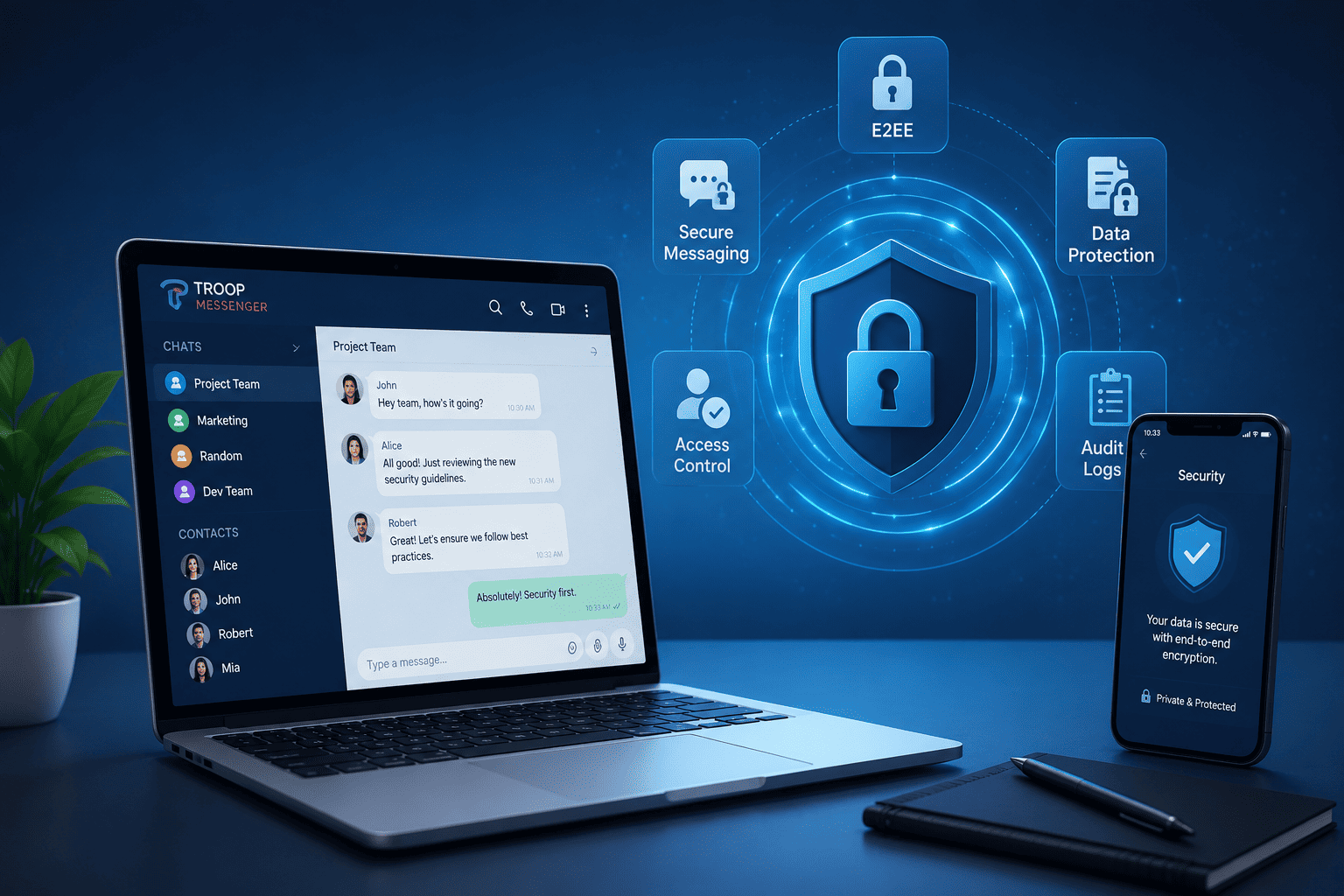
In this post, I will discuss the Windows Security Checklist for installing a desktop messaging client.
Installing a desktop messaging client on Windows is usually treated as a routine setup task, but the most important security decisions happen before the user signs in. The source page, Windows package, publisher information, installation prompts, local download settings, and update path all affect the trustworthiness of the final setup.
A misleading download page or repackaged installer can introduce risk even when the messaging service itself is legitimate. The objective is therefore not merely to “find the app,” but to verify the path from discovery to installation.
Common warning signs include lookalike domains, unrelated redirects, third-party installer wrappers, unexpected file types, missing publisher information, bundled utilities, and permission requests that do not match the software being installed.
Windows users should treat installation as a short verification workflow rather than a one-click action.
The checklist below covers source verification, Windows edition selection, installer inspection, digital signatures, Windows Security and SmartScreen, installation permissions, local file controls, updates, and post-installation review.
Table of Contents
Verify the Download Source Before Any File Reaches Windows
The first security decision happens before any file reaches the computer.
Popular messaging software can appear across many different websites, including:
- Official product resources
- Search-result pages
- Software directories
- Download mirrors
- Regional-language guides
- Community tutorials
- Advertising pages
- Third-party repositories
Not every source plays the same role.
Some pages provide useful guidance without distributing software directly. Others may host installation files themselves. Users need to understand which type of page they are viewing before clicking a download button.
For Chinese-speaking users researching 纸飞机下载, the security priority is to trace the Windows installer to a clear distribution source. Treat the keyword or regional guide as a way to discover the software, then verify the final domain, package, and publisher before running the installer.
Before downloading anything, check:
- The domain name
- Page consistency
- The destination of the download link
- Whether unexpected redirects occur
- Whether unrelated software is offered
- Whether the Windows edition is clearly identified
A trusted installation process begins with a clear and understandable download path.
Confirm You Are Downloading the Windows Desktop Edition
Messaging platforms may provide several ways to access the same service.
Windows users may encounter:
- A standalone desktop installer
- A Microsoft Store edition
- Browser access
- A portable desktop package
- Different builds for different Windows environments
The correct choice depends on how the computer will be used.
A dedicated Windows client is often useful for users who need:
- Persistent desktop notifications
- Faster keyboard-based communication
- File downloads
- Multiple conversations
- Better multitasking
- Long-running desktop sessions
- Integration with the Windows workspace
Users searching for telegram 电脑版下载 should confirm that the selected package is specifically intended for Windows desktop use and that its source is verifiable. This prevents a familiar product name from masking the wrong platform build, a mirror, or an unrelated installer wrapper.
The goal is to avoid downloading the wrong package simply because the page contains a familiar product name.
Verify the Domain Carefully
Lookalike domains are a common source of confusion.
A suspicious website may imitate a familiar software name while changing only a small part of the domain.
Watch for:
- Extra letters
- Missing characters
- Added hyphens
- Unfamiliar subdomains
- Unexpected domain extensions
- Words such as “download,” “official,” or “free” added to the brand name
Users should read the full domain rather than relying on logos, colors, or page titles.
Visual design is easy to copy. Domain ownership and software publisher information are more useful verification signals.
Do Not Treat HTTPS as Proof of Authenticity
HTTPS is important because it encrypts the connection between the browser and the website.
However, HTTPS does not prove that:
- The website is official
- The operator is trustworthy
- The installer is genuine
- The domain is not misleading
- The download has not been repackaged
A suspicious website can still use HTTPS.
Users should therefore combine HTTPS with other checks such as domain verification, download-path review, publisher information, and installer inspection.
Watch for Fake or Misleading Download Buttons
Many software-related pages contain more than one element labeled “Download.”
Advertising networks and third-party widgets can make it difficult to identify the intended button.
Warning signs include:
- Multiple large download buttons
- Buttons that open unrelated websites
- Pop-up windows
- Browser-extension prompts
- Download-manager offers
- Files whose names do not match the expected application
If clicking the download button starts a complicated chain of redirects, users should stop and review the source.
A legitimate desktop software workflow should be understandable.
Inspect the Windows Installer Filename Before Opening It
After downloading the Windows installer, do not launch it immediately.
Start by reviewing the filename.
The name should reasonably correspond to the application.
Be cautious with files containing:
- Random character strings
- Unrelated software names
- “Download Manager”
- “Setup Assistant” from an unknown company
- Suspicious version numbers
- Multiple executable extensions
The filename alone cannot prove authenticity, but an obviously unusual name is a good reason to investigate further.
Confirm the File Type
Windows desktop software is commonly distributed through installation formats such as:
- .exe
- .msi
If the expected application arrives as an unfamiliar script, archive, or unrelated executable, users should pause.
Compressed archives can sometimes be legitimate, particularly for portable software, but the distribution method should match the documentation.
Unexpected file types are often a sign that the user clicked the wrong download button.
Review Windows File Properties
Windows provides useful metadata directly through the file properties interface.
To inspect a downloaded installer:
- Right-click the file.
- Select Properties.
- Review the General tab.
- Review the Details tab.
- Check for a Digital Signatures tab.
Useful fields may include:
- Product name
- File description
- Company name
- File version
- Publisher
- Copyright information
If the file identifies a company or product completely unrelated to the messaging application, installation should stop.
Check the Digital Signature
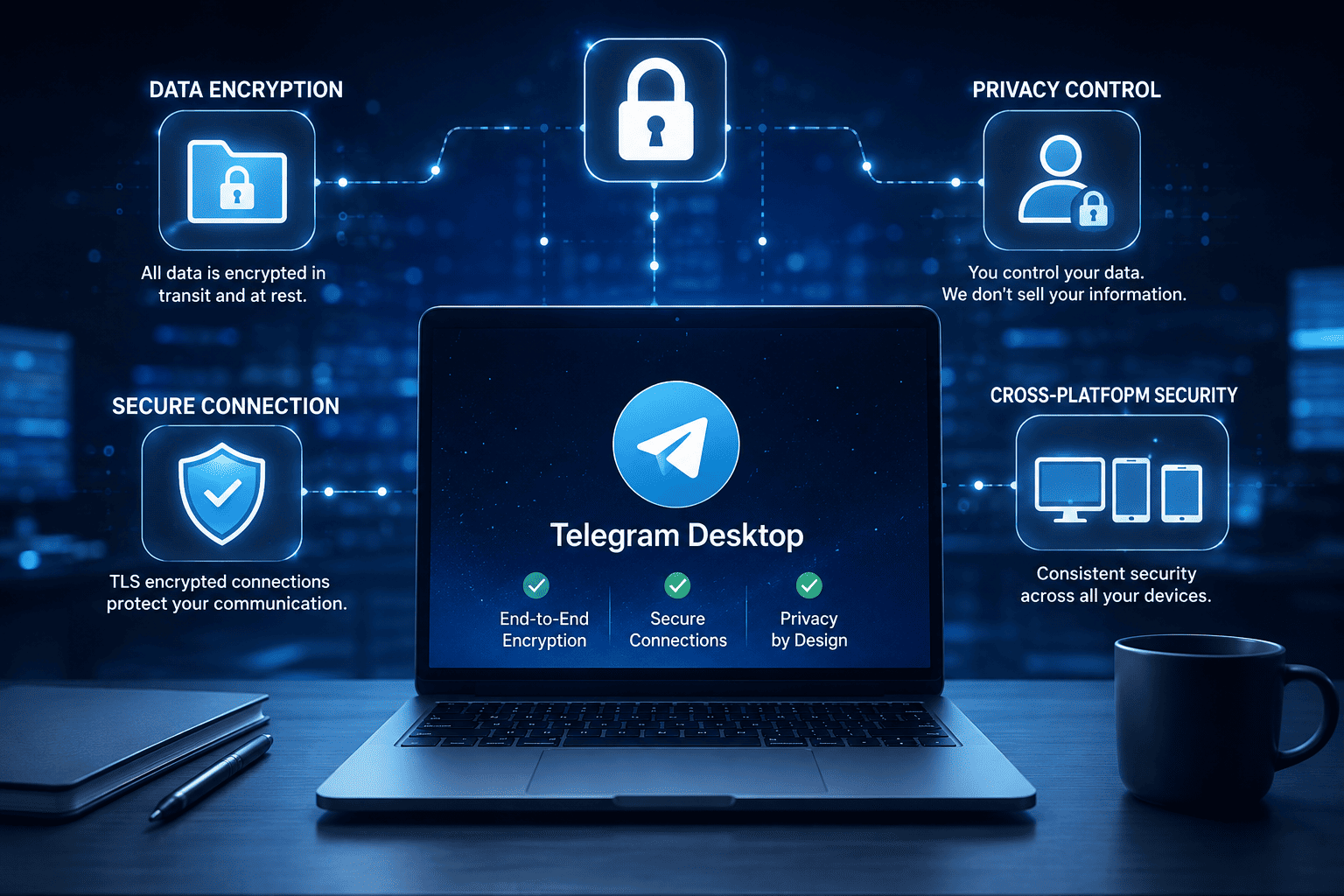
A digital signature can help verify who signed a Windows installer.
When the installer includes a signature:
- Open the file properties.
- Select Digital Signatures.
- Review the signer name.
- Open the signature details.
- Confirm that Windows reports the signature as valid.
Organizations that deploy the same messaging software across multiple computers can document the expected publisher name.
This gives support teams a consistent reference when new versions are downloaded.
A digital signature is not the only security check that matters, but it is one of the strongest built-in Windows verification signals.
Scan the Installer With Windows Security
Before execution, scan the file with Microsoft Defender or the organization’s endpoint-security platform.
A simple workflow is:
- Right-click the installer.
- Select the available Microsoft Defender scan option.
- Wait for the result.
- Investigate warnings before continuing.
Users should not assume that a file is safe simply because the browser allowed the download.
Browser filtering and endpoint malware scanning are different security layers.
Take SmartScreen Warnings Seriously
Microsoft Defender SmartScreen can display warnings when an application is unfamiliar or lacks sufficient reputation.
Users should not automatically click through these warnings.
Instead, verify:
- Download source
- Publisher
- Digital signature
- File version
- Filename
- Reason the software is being installed
An uncommon application is not automatically malicious, but an unexpected warning deserves investigation.
Organizations should train employees to report unusual warnings rather than bypassing them out of habit.
Avoid Third-Party Installer Wrappers
Some software sites use their own download managers or installer wrappers.
These programs may eventually install the requested application, but they can also offer:
- Browser extensions
- Advertising utilities
- System optimizers
- Search tools
- Additional applications
- Modified startup settings
For security-sensitive applications such as messaging clients, direct Windows installers are easier to evaluate.
Users should be suspicious if the download process requires an unrelated program before the actual application can be installed.
Read Every Installation Screen
Users often click through installers quickly.
That can lead to accidental changes such as:
- Installing optional software
- Changing the default browser
- Adding startup utilities
- Installing browser extensions
- Creating unwanted shortcuts
- Accepting unnecessary background services
During installation, read each screen carefully.
Pay particular attention to checkboxes that are already selected.
A clean installer should make the installation process understandable and should not pressure users into accepting unrelated software.
Review Installation Permissions
Windows may ask for administrator permission when software is installed.
Users should understand why elevated privileges are required.
Questions to ask include:
- Is the installer expected to require administrator access?
- Does the publisher information match the application?
- Is the UAC prompt appearing immediately after launching the expected installer?
- Is another unknown executable requesting permission?
An unexpected administrator prompt from an unfamiliar publisher is a strong reason to stop.
Use a Dedicated Download Folder
After the desktop client is installed, users should configure where files received through messaging are stored.
A dedicated directory such as:
Downloads\Messaging Files
can make local file management easier.
Benefits include:
- Easier malware scanning
- Faster cleanup
- Clear separation from browser downloads
- Better troubleshooting
- More predictable storage
For work environments, downloaded chat files should usually be treated as temporary working copies.
Important documents should move into approved shared storage.
Review Automatic Download Settings
Messaging applications may automatically download files depending on their configuration.
Users should decide whether this behavior is appropriate.
Consider different rules for:
- Images
- Documents
- Videos
- Archives
- Large files
- Executable files
Automatically downloading every file can increase storage use and expose the PC to unnecessary content.
A more selective configuration gives users greater control.
Be Careful With Executable Files Received in Chats
A safe messaging client does not make every file received through it safe.
Executable files deserve particular caution.
Users should avoid running unexpected:
- .exe files
- .msi packages
- scripts
- compressed executable archives
even if they were received through a legitimate desktop application.
If someone sends software through a chat, verify the sender and independently confirm why the file is needed.
Communication-channel trust and file trust should be evaluated separately.
Configure Notifications With Privacy in Mind
Desktop notifications can expose sensitive information.
Windows may display:
- Sender names
- Message previews
- Group names
- File names
This becomes a concern in:
- Shared offices
- Coworking spaces
- Screen-sharing sessions
- Public environments
- Customer-facing workspaces
Users should review whether full message previews are necessary.
It may be safer to display a basic notification without revealing the complete message content.
Review Startup Behavior
Many desktop messaging clients can launch automatically when Windows starts.
Automatic startup is useful for users who rely heavily on messaging, but every startup application adds background activity.
Users should confirm:
- Whether automatic startup is necessary
- Whether the application appears in Windows Startup Apps
- Whether any unexpected related programs were added
A clean installation should not introduce unknown background utilities.
Review Active Sessions
Desktop messaging accounts can remain active for long periods.
Users should periodically review account sessions, particularly after:
- Replacing a PC
- Reinstalling Windows
- Using a temporary workstation
- Accessing a remote desktop
- Losing access to an old device
Old or unfamiliar sessions should be terminated.
Windows device security and account-session security work together.
Keep the Desktop Client Updated
Updates may include:
- Security patches
- Stability improvements
- Windows compatibility fixes
- New features
- Interface changes
The application should be updated through a trusted mechanism.
Preferred update methods include:
- Built-in updater
- Approved Windows Store distribution
- Verified download source
- Organization-managed software deployment
Users should avoid searching random websites for “latest desktop versions.”
If a full installer must be downloaded again, repeat the same verification process used for the original installation.
Do Not Reuse Old Installers Indefinitely
Users often leave old installation packages in the Downloads folder.
Months later, they may reuse the same file when reinstalling the application.
This is not always ideal.
An old installer may:
- Be outdated
- Lack recent security fixes
- No longer match the supported version
- Use an obsolete update path
When performing a clean reinstallation, users should normally obtain the current approved package again and verify it.
Check the Installation Afterward
A basic post-installation review can detect unexpected changes.
Confirm:
- The expected application launches
- No unrelated software appeared
- Browser settings were not changed
- No unfamiliar startup tools were added
- Windows Security remains active
- The application connects normally
- Download storage is configured correctly
- Updates are enabled through the approved method
If something unexpected appears, investigate before entering sensitive account information.
Consider a Test Installation for Teams
Organizations deploying a desktop messaging client across multiple Windows PCs should avoid immediate full-scale rollout.
A pilot installation can reveal:
- Compatibility problems
- Security-software conflicts
- Installer permission issues
- Unexpected update behavior
- Download-folder problems
- Notification issues
A small test group gives IT teams time to document the correct configuration before broader deployment.
Create an Approved Desktop Software Record
Businesses can maintain a simple record for commonly used desktop software.
Useful fields include:
- Application name
- Approved download source
- Current version
- Windows edition
- Expected publisher
- Installer filename
- Update method
- Installation notes
This makes later verification easier.
When a new installer appears, support teams can compare it against the approved record.
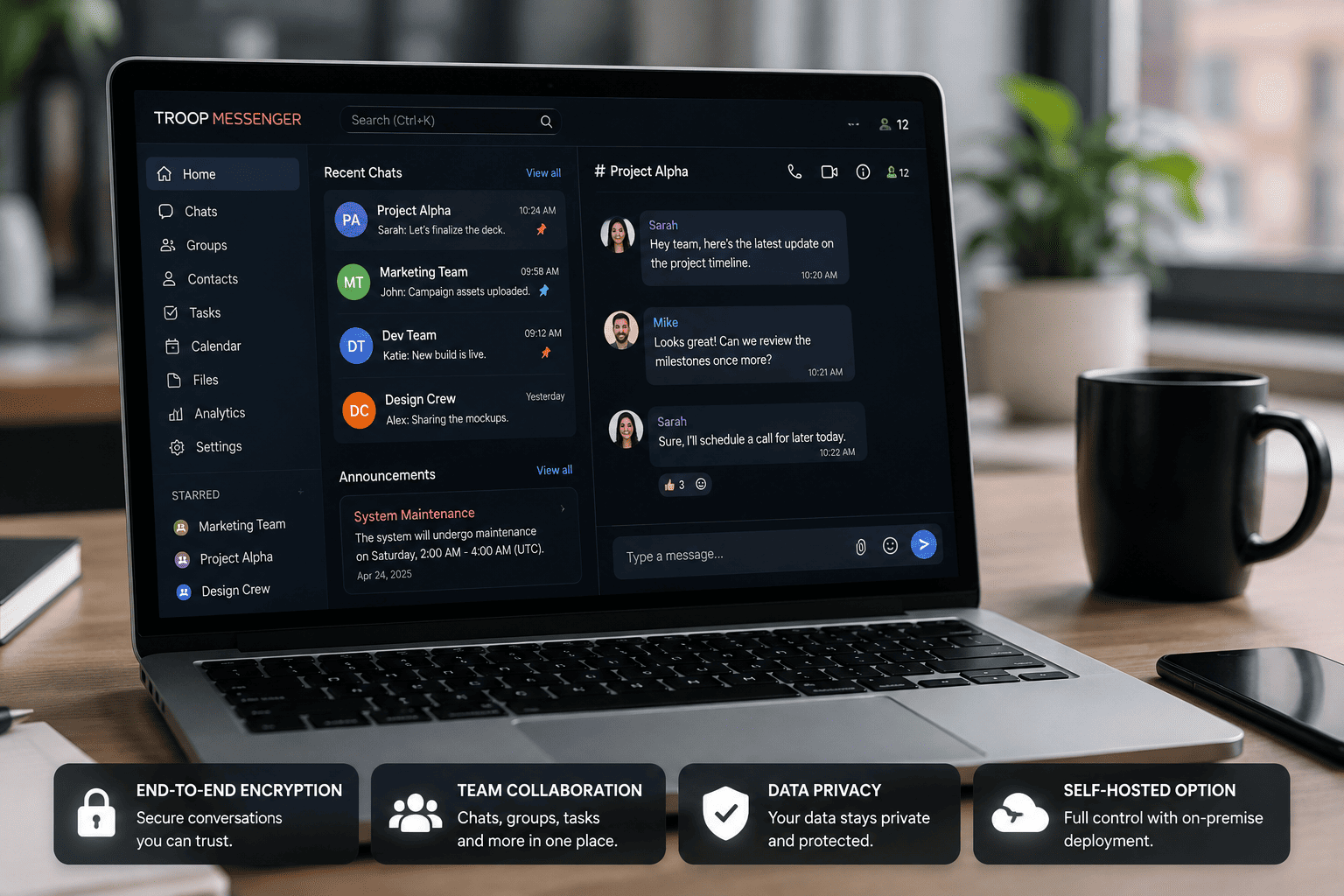
Practical Windows Messaging App Security Checklist
Before installing a desktop messaging client, review the following.
Source
- Confirm the domain.
- Understand the role of the page.
- Avoid unexplained redirects.
- Identify the intended Windows download.
- Watch for misleading advertisements.
Installer
- Review the filename.
- Confirm the file type.
- Check file properties.
- Review publisher information.
- Inspect the digital signature.
- Scan the file with Windows Security.
Installation
- Read UAC prompts carefully.
- Review every installation screen.
- Decline unrelated bundled software.
- Avoid unknown download managers.
- Verify the application after installation.
Desktop configuration
- Set a dedicated download folder.
- Review automatic downloads.
- Configure notifications.
- Review startup behavior.
- Check active sessions.
Maintenance
- Keep the software updated.
- Use trusted update sources.
- Do not rely indefinitely on old installers.
- Recheck the source during a clean reinstall.
- Review sessions when devices change.
Final Security Takeaways
Installing a desktop messaging client safely does not require advanced cybersecurity tooling, but it does require a consistent verification habit.
The highest-value checks are straightforward and repeatable:
- Verify the website.
- Confirm the desktop edition.
- Inspect the installer.
- Check the publisher.
- Scan the file.
- Read installation prompts.
- Control downloads.
- Keep the software updated.
Together, these controls reduce uncertainty from the first search result through installation, daily file handling, updates, and eventual reinstallation.
For individuals, the workflow adds only a small amount of effort. For teams, it can be documented as a standard Windows deployment checklist so every workstation follows the same source and installer checks.
The central rule is to treat a desktop installer as executable software that must be verified, not merely as a file that needs to be opened.
INTERESTING POSTS
About the Author:

John Raymond is a cybersecurity content writer, with over 5 years of experience in the technology industry. He is passionate about staying up-to-date with the latest trends and developments in the field of cybersecurity, and is an avid researcher and writer. He has written numerous articles on topics of cybersecurity, privacy, and digital security, and is committed to providing valuable and helpful information to the public.