
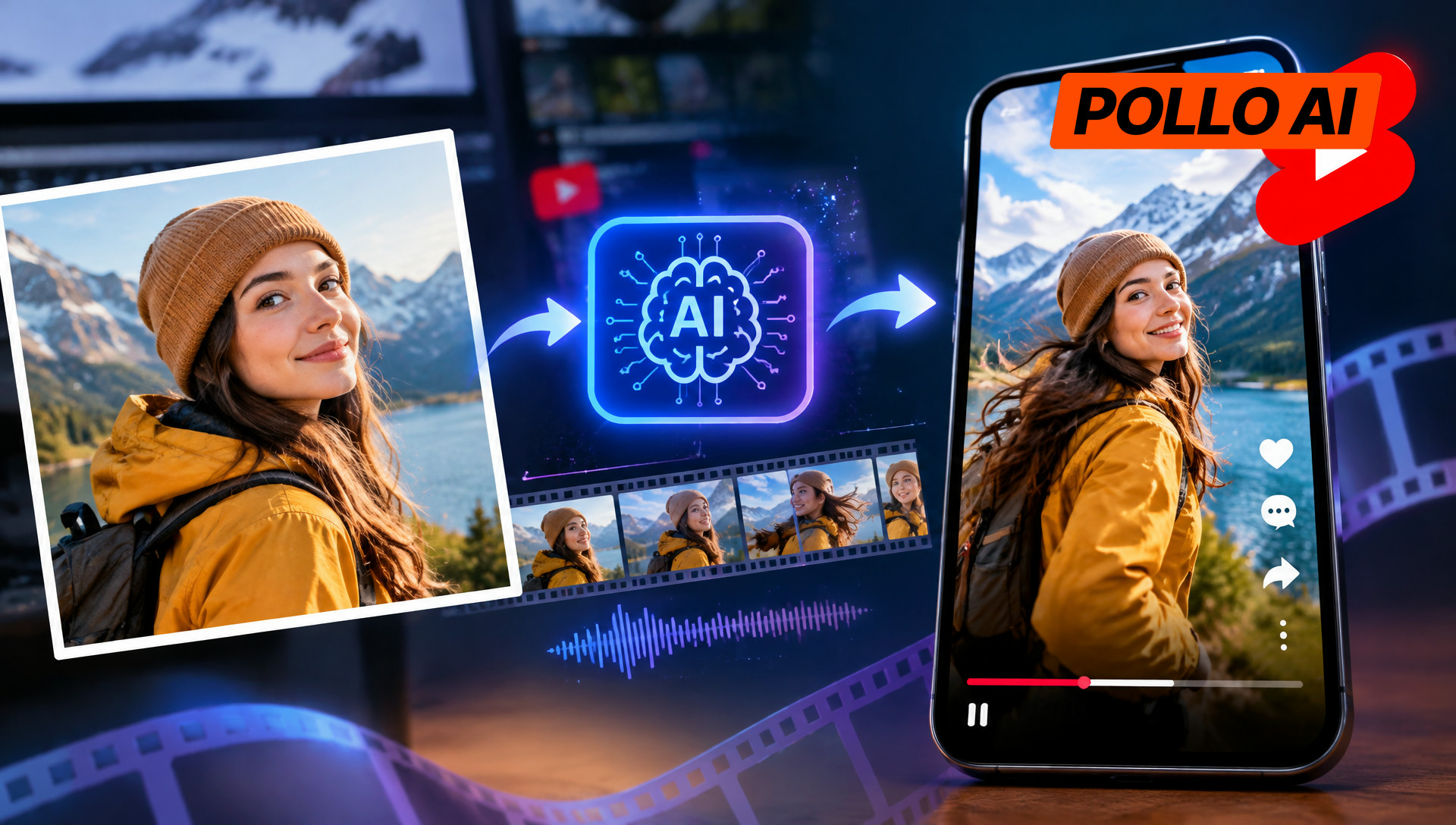
Learn how to make AI photo to video clips for YouTube Shorts in 2026 with Pollo AI Image to Video. Animate photos, edit clips, and prepare vertical videos for your channel.
Need footage for YouTube Shorts but don’t have time to film? Pollo AI Image to Video can turn existing photos into moving clips for product showcases, travel videos, and educational content. This guide covers the workflow, from uploading images to editing the finished clips for Shorts.
Table of Contents
What Is Pollo AI Image to Video?
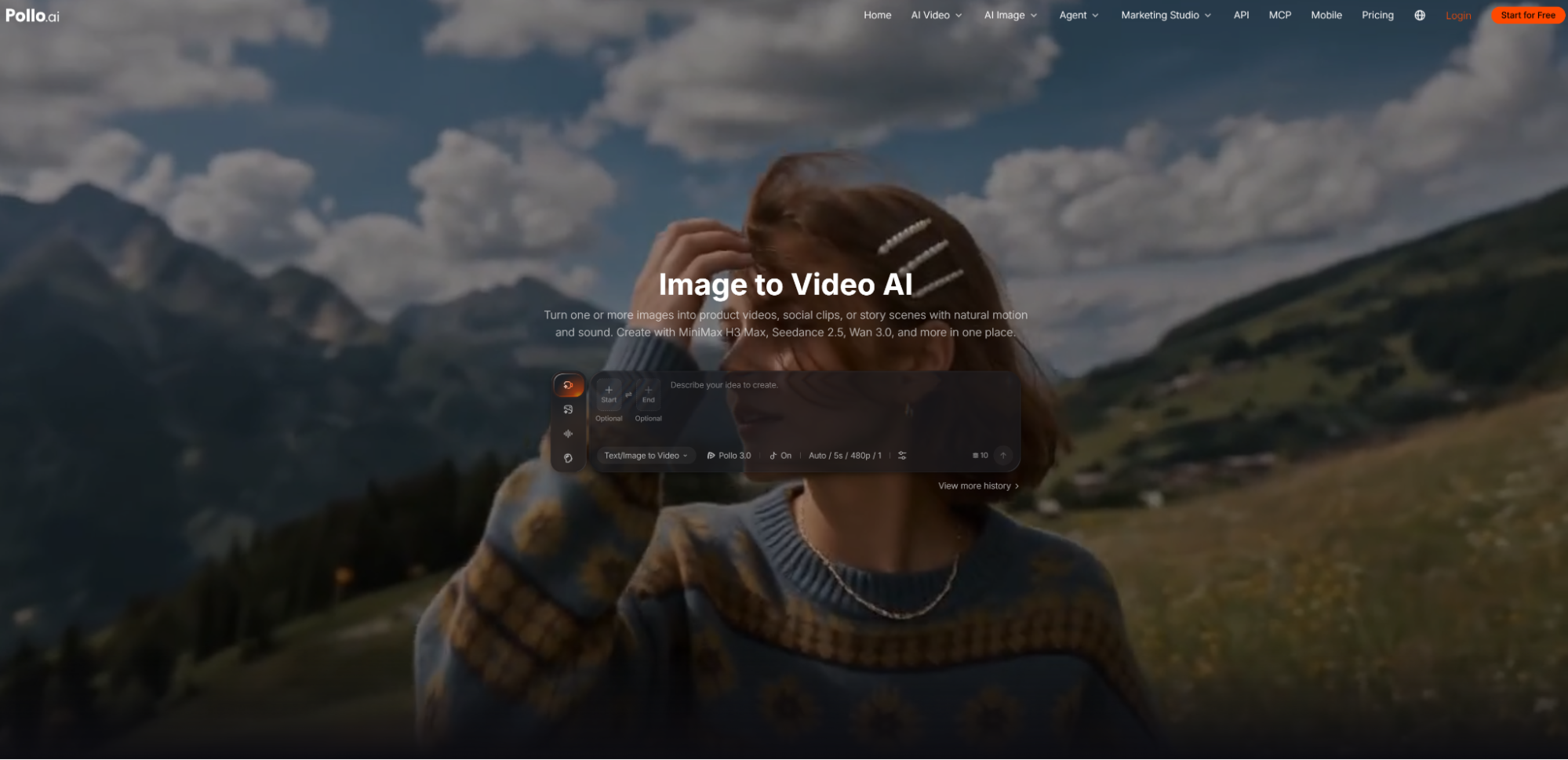
Pollo AI Image to Video turns still photos into video clips based on text prompts. Users upload photos, product images, or illustrations, describe the desired movement, and generate a clip using an available video model.
The tool provides access to multiple video models, including Seedance 2.5, MiniMax H3, and Wan 3.0. Depending on the selected model and workflow, creators can explore different motion styles, output settings, and audio generation options.
For YouTube Shorts, this makes it possible to reuse existing images without filming every scene again. An online store can animate product photography, a travel creator can add movement to landscape shots, and a channel owner can create YouTube intro videos from existing graphics or illustrations. However, generated motion may alter details such as logos, faces, and product shapes, so clips should be reviewed before publication.
How to Make AI Photo to Video Clips for YouTube Shorts
Step 1: Choose Images That Fit the Short
Start with a clear idea for the video. A product Short might highlight one feature, while a travel video could introduce a destination through a few key views. Each image should contribute something specific rather than simply add another animated shot.
Choose photos with a clear subject and enough space for movement. Portrait images can simplify framing for vertical Shorts, while landscape photos may need cropping to fit a 9:16 canvas. Check that cropping won’t remove important product details or faces.
Step 2: Upload an Image to Pollo AI
Open Pollo AI Image to Video, upload an image, and select an available video model. Enter a description of the movement you want, then adjust the available generation settings.
The right model depends on the shot. A product close-up may need subtle movement, while a scene with more expressive action may benefit from trying different models. Check the available duration, resolution, aspect ratio, and audio options before generating, as these can vary by workflow.
Step 3: Generate the Video Clip
Generate the clip and watch the entire sequence before using it. Check whether the movement suits the image and whether the main subject remains recognizable.
For product footage, look for changes to packaging, logos, and proportions. For portraits, check facial features and body movement. For landscapes, watch for distorted buildings or shifting horizons.
If the subject changes noticeably, simplify the motion description or try another available model. If the clip works but feels too long, trimming it during editing may be enough.
Step 4: Edit the Clips into a YouTube Short
Arrange the selected clips around a simple sequence. A product Short could open with the item, move to a close-up, and finish with a use case or brief call to action. A travel Short might combine an animated landscape with real footage and a location caption.
Use a video editor to trim pauses, add subtitles, and adjust transitions. Add product names, prices, and other text during editing when accuracy matters.
If the generated clip includes audio, check that it suits the scene. Otherwise, add narration, music, or sound effects separately, using material the creator has permission to publish.
Step 5: Check the Format Before Publishing
A 9:16 vertical canvas is a practical choice for full-screen mobile viewing. Keep captions and important visual details away from the edges, where interface elements may obscure them.
Preview the finished Short on a phone-sized screen. Make sure the opening establishes the topic quickly, transitions feel natural, and every shot contributes to the video. Before uploading through YouTube Studio or the mobile app, review the title, visibility, audience settings, and applicable music or footage rights.
Tips for Better AI Photo to Video Shorts
Write prompts around movement, not just appearance. Describe what should move, how the camera should behave, and which details should stay consistent. For example, a product prompt can request a slow camera push while keeping the packaging unchanged. A travel prompt can focus on moving clouds or gentle waves rather than changing the entire scene.
Keep each shot focused. One clear action is easier to control than several unrelated movements. If a result looks unnatural, simplify the prompt or reduce the camera movement before adding more detail.
Match motion to the subject. Subtle movement often suits product details and landscapes, while character-led scenes may need more expressive action. Motion should support the content rather than distract from it.
Check details before publishing. Small distortions in logos, faces, and product shapes can become obvious on a phone screen. Review these areas at full size, especially when the video is intended to showcase something viewers may want to buy.
Mix AI clips with real footage. Generated shots can fill gaps or add variety without replacing every recorded scene. Combining the two can help tutorials and product videos feel less repetitive.
Final Thoughts
Pollo AI Image to Video helps YouTube Shorts creators turn existing photos into moving clips using text prompts and a choice of video models. It can be useful for product showcases, travel content, and educational videos when filming new footage isn’t practical.
Choose images that fit the story, keep motion prompts focused, and review each clip before editing. When every shot serves a clear purpose, AI-generated footage can fit naturally into a finished Short.
INTERESTING POSTS
- How to Use FlexClip’s AI Recreate and Auto Edit: A Practical Guide
- The Best Pollo AI Alternative in 2026?
- Keep Your AI Videos Useful When the Message Changes
- Understanding the Risks of Face Swap Videos: A Practical Safety Guide
- Smart Security Systems and Motion Sensors: Debunking Common Myths and Misconceptions
- Take Your Small Business To The Next Level With YouTube Marketing
About the Author:
Chandra Palan is an Indian-born content writer, currently based in Australia with her husband and two kids. She is a passionate writer and has been writing for the past decade, covering topics ranging from technology, cybersecurity, data privacy and more. She currently works as a content writer for SecureBlitz.com, covering the latest cyber threats and trends. With her in-depth knowledge of the industry, she strives to deliver accurate and helpful advice to her readers.