

Read on for the Kytephone parental control review.
Kytephone made parenting easier by allowing parents to control their kids’ phones. Parents can control access to apps, edit the contacts on their kids’ phones, edit images, and monitor their kids’ location via GPS.
Once Kytephone is installed, it automatically launches in parent mode, allowing you to configure it, after which it now switches to kids mode. Attempting to exit Kid Mode, shut down the app, or make adjustments will require a password. Also, the app runs automatically once the kid’s phone is powered on. Therefore, kids have no control over Kytephone’s activities on their phones.
With Kytephone, you could monitor and control your child’s activities, including time spent gaming; however, the best feature of Kytephone is it is tamperproof; therefore, your child cant mess around with the settings or exit the app except if your kid is a blackhat hacker.
Table of Contents
What Is Kytephone?
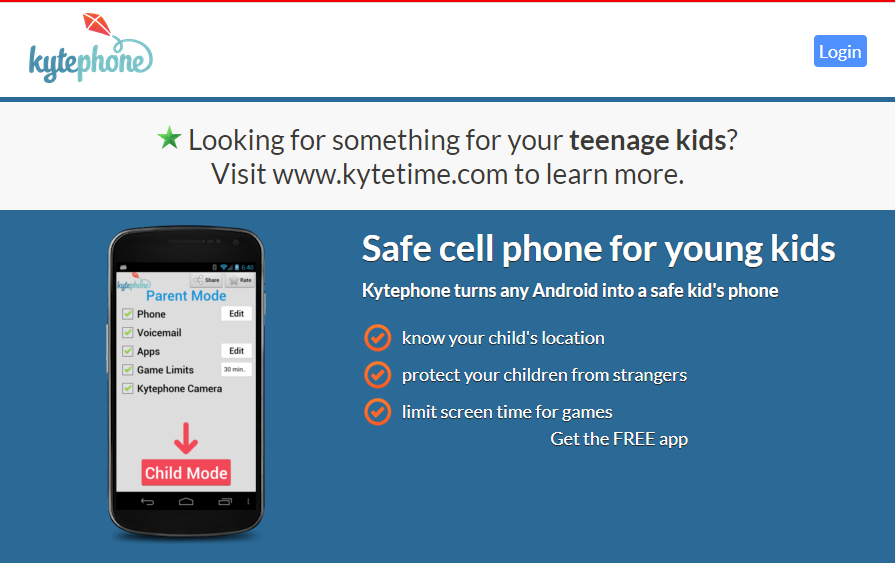
Kytephone was a parental control app that gives you total control of your kids’ activities on smartphones (worked only on Android devices).
Kytephone was a simple app much loved by parents and kids; regrettably, Kytephone shut down its operations on August 12, 2014. Parents who signed up for Kytephone got an unlock code to get their kids’ phones out of ‘Kid Mode’ because passwords were deactivated after shutting down its operations.
With Kytephone installed on your kid’s device, you can monitor and control what calls your kids can make or receive, the games they can play, how long they can play, the websites they can visit, the apps they can use, and also see their location in real-time from your web dashboard.
Recommended parental control apps you should consider subscribing to include:
- Norton Family
- Kaspersky Safe Kids
- Qustodio
- Net Nanny
- OurPact
- Screen Time
- MMGuardian
- CHECK OUT: Qustodio The Best Kytephone Alternative
How To Set Up Kytephone
Setting up Kytephone starts with creating an account using their web version and validating your email address.
Downloading and installing Kytephone on your kid’s app is a no-brainer; after the installation is completed, the app automatically launches in parent mode, allowing you to configure, add and remove apps and contacts.
Once you’re done configuring Kytephone in parental mode, the app restarts in kid’s mode; any attempt to change the settings or uninstall the app will require a password. Also, an attempt to shut down the app by restarting the device will launch Kytephone automatically; therefore, kids have no control over the app.
Kytephone Features
GPS-enabled
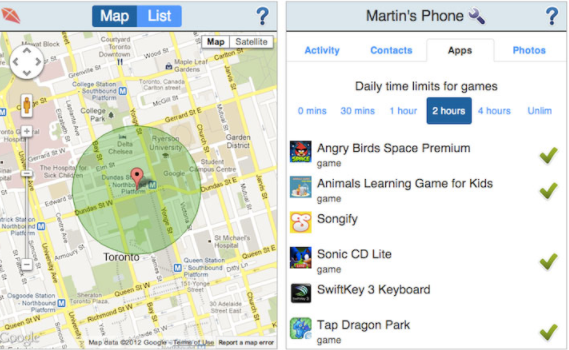
Kytephone’s GPS feature lets you monitor your child’s location via Kytephone’s web interface. From your dashboard, you can view your child’s location in real-time on Google map. This is a useful feature for monitoring your kid’s location anytime.
Adding and deleting contacts
Right from the web interface, you can add, edit, or delete contacts on your child’s Android device. You can whitelist or blacklist a contact or group of contacts on your kid’s device, easily controlling who has access to your kid via call or text.
App access
right from your dashboard, you have access to apps installed on your kid’s device. You can select what app to display on your kid’s device as well as limit the amount of time your kid spends on each app. For example, you can limit the amount of time your kids spend playing Pokemon Go to 2 hours daily; that’s a fair deal.
Monitor phone usage
I find this feature amusing, though extremely useful. Imagine being able to view pictures taken with your kid’s phone right on your device, what game your kid is playing, or who he is talking with. This feature lets you monitor your kid’s activities in real-time.
Age restrictions
This app is useful for monitoring kids from 5 to 12 years. As your kid gets older, you can relax the restrictions gradually. As you do this, the app’s interface gets upgraded to suit the restriction levels. Kytephone has series of interfaces adapted to suit different age ranges, making it look more appealing to your kid as he/she matures.
Operating System
In as much as Kytephone is a parental control app loved by parents, it is only available for android users. Therefore, parents intending to use Kytephone were forced to get android devices for their kids. Hopefully, if Kytephone were to make a comeback, I guess they will be available on multiple OS platforms.
READ ALSO: Best Parental Control Software for 2025
Kytephone Parental Control Review: Frequently Asked Questions
What is Kytephone and how does it work?
Kytephone was a parental control app designed for Android devices that allowed parents to manage their kids’ phone usage. It gave full control over app access, contacts, images, games, and even location tracking via GPS. Once installed, it ran automatically in “Kid Mode,” which could only be exited with a parent’s password.
Is Kytephone still available for download?
No. Kytephone officially shut down operations on August 12, 2014. After its shutdown, parents received unlock codes to remove Kid Mode from their children’s devices. As of now, the app is no longer supported or available for download.
What made Kytephone different from other parental control apps?
Kytephone’s strongest advantage was its tamperproof system. Kids couldn’t uninstall, exit, or modify the app without a password. It also launched automatically at startup, ensuring parents always had control over the phone’s usage and security settings.
What features did Kytephone offer parents?
Kytephone included several helpful parental control tools, such as:
- GPS tracking to monitor real-time location.
- Contact management (add, edit, or block contacts).
- App control to restrict or limit screen time.
- Phone usage monitoring including calls, games, and photos.
- Age-based interface that adapted as children matured.
READ ALSO: Tips For Keeping Children Safe Online [Detailed Guide For Parents]
Could kids disable or uninstall Kytephone on their own?
No. Kytephone was designed to be completely tamperproof. Any attempt to disable, modify, or uninstall the app required the parent’s password. Even restarting the device would automatically relaunch Kytephone.
What age group was Kytephone best suited for?
Kytephone was ideal for children aged 5 to 12 years old. The app’s interface evolved to match the child’s growing age and responsibility level, providing parents with flexibility in adjusting restrictions as the kids matured.
Was Kytephone compatible with iPhones or iPads?
Unfortunately, no. Kytephone was available only for Android devices. Parents using iOS devices needed to look for alternative apps such as Qustodio, Norton Family, or Kaspersky Safe Kids.
READ ALSO: Securing Your Apple: The Best Protection Tools for Mac in 2025
How could parents set up Kytephone?
Parents began by creating an account via the Kytephone web portal, verifying their email, and then installing the app on their child’s Android phone. The setup began in Parent Mode for configuration, after which the app automatically switched to Kid Mode.
What were the best alternatives to Kytephone after it shut down?
After Kytephone’s closure, several other reliable parental control apps became popular, including:
- Qustodio (most recommended alternative)
- Norton Family
- Kaspersky Safe Kids
- Net Nanny
- OurPact
- MMGuardian
Why do parents still talk about Kytephone today?
Even years after its shutdown, Kytephone is remembered for its simplicity, reliability, and strong parental control features. It set a high standard for future parental control apps by striking a balance between usability, safety, and full device management for kids.
Wrapping Up The Kytephone Parental Control Review
There are other parental control apps as great as Kytephone, although they come at a premium, you’re sure of getting premium services that give you total control of your kid’s activities and his/her location.
INTERESTING POSTS
- The Ultimate Revelation Of Best Apps For Parental Control
- Best Parental Control Software for 2021
- Full Review Of Qustodio Parental Control Software
- 6 Online Security Tips for Kids
- Dos And Don’ts Of Using A Public Wi-Fi [Ultimate Guide]
- Software and Tips To Restrict Children To Adult Content Websites
- How To Hack A Smartphone With Xnspy App
About the Author:

Abraham Faisal is a professional content writer. He has a strong passion for online privacy, cybersecurity and blockchain and is an advocate for online privacy. He has been writing about these topics since 2018 and is a regular contributor to a number of publications. He has a degree in Computer Science and has in-depth knowledge of the ever-evolving world of digital security. In his free time, he likes to travel and explore new cultures.