




I will talk about keeping your Apple devices running smoothly and securely in this post.
Is your iPhone or Mac acting slow or unsafe? Many people face these problems as their Apple devices get older. This guide will show you simple steps for better performance, security, and storage.
Keep reading to make your device work like new again.
Table of Contents
Keep Your Software Up-to-Date
Update your devices often to get the latest security and performance improvements. Apple releases updates for iOS, iPadOS, macOS, and watchOS many times each year. For example, in 2023, Apple released iOS 17 with better privacy features and bug fixes.
These updates patch security flaws that hackers may use to steal data or cause trouble.
Turn on automatic updates so your device always has the newest software without extra work from you. This helps protect your personal information with stronger encryption and better authentication methods like Face ID or Touch ID.
Keeping your software current also keeps apps running smoothly and reduces crashes or slowdowns.
Manage Storage Effectively
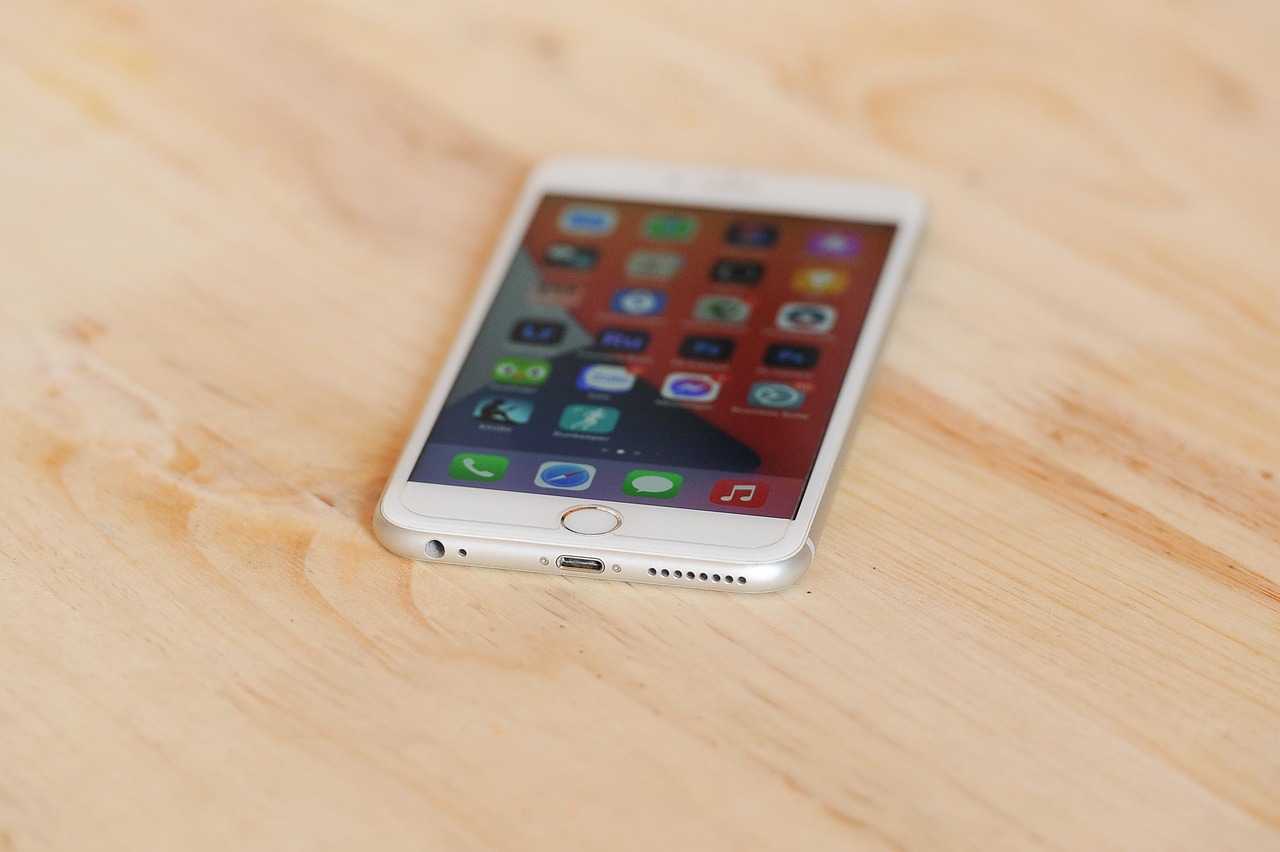
Free up space to help your device run better. Learn simple ways to manage files and keep storage organized.
Clear temporary files and caches
Temporary files and caches can slow down your Apple devices. Clearing them helps improve performance and free up storage.
- Go to Settings, then tap on General. Choose iPhone Storage or iPad Storage.
- Review the apps listed. Look for those that take up a lot of space.
- Tap an app to see its data usage. Select “Delete App” if you no longer need it.
- For Safari users, clear browser data by going to Settings, tapping Safari, and selecting “Clear History and Website Data.”
Regularly backing up your data is crucial to prevent loss in case something goes wrong with your apple device.
- Restart your device after clearing temporary files. This helps refresh the system.
- Consider using third-party cleaning apps with strong reviews for additional help in clearing unwanted files.
- Check your device regularly to keep it running smoothly and securely.
Organize and delete unused apps or files
Keeping your Apple devices tidy is key to smooth performance. Unused apps and files can take up space and slow things down.
- Check your apps regularly. Look for ones you rarely use. Delete any that you do not need.
- Review downloaded files often. Remove old documents, images, or videos that clutter your device.
- Use the “Storage” option in settings. It shows which apps take up the most space.
- Organize your apps into folders. This makes it easier to find what you use daily.
- Set a schedule for cleaning up storage. Use reminders to check every month or so.
- Empty the “Recently Deleted” folder after deleting items. This frees up more space right away.
- Avoid keeping large game apps if you don’t play them anymore. They usually take up a lot of storage.
- Move photos and videos to cloud storage if needed; this saves local space while keeping them accessible.
- Unsubscribe from services or newsletters filling up your email box too quickly; this reduces digital clutter.
Implementing these changes can help keep your device secure and performing at its best, enhancing privacy and user experience as well.
Optimize Device Performance
To keep your device fast, adjust the settings for background app refresh. Also, close apps that you do not need running at the same time.
Adjust background app refresh settings
Background app refresh can slow down your device. It allows apps to update even when you are not using them. Disabling this feature saves battery life and boosts performance.
Open the settings on your Apple device. Tap on “General,” then select “Background App Refresh.” You can turn it off for specific apps or all of them. This helps keep storage free and your device running smoothly.
If you encounter persistent issues, it may be beneficial to reach out for Mac IT support to help diagnose and resolve the problems efficiently.
Adjust these settings for better efficiency and improved security.
Close unnecessary apps running in the background
Closing unnecessary apps running in the background can help your device perform better. Each app takes up memory and power, even if you are not using it. This can slow down your Apple device over time.
To improve speed, close apps that you no longer need open.
On iPhones or iPads, swipe up from the bottom of the screen to see all active apps. Swipe left or right to find apps you want to close. On a Mac, click on the app icon in the dock and select “Quit.” Keeping only essential apps open helps maintain performance and saves battery life too.
Maintain Battery Health

Check your battery cycle count regularly. Keep your device away from extreme temperatures to help it last longer.
Monitor battery cycle count
Every Apple device has a battery cycle count. This shows how many times the battery has gone from fully charged to empty and back again. Keeping track of this count can help you know your battery’s health.
A higher cycle count means the battery may not hold a charge as well.
Apple recommends replacing the battery when it reaches around 500 cycles for iPhones and 1000 cycles for MacBooks. You can find your device’s cycle count in the settings or by using apps designed for this purpose.
Checking this regularly ensures your device maintains good performance over time.
Avoid extreme operating temperatures
Extreme temperatures can harm your Apple device. Heat can make the battery drain faster and affect its life. Cold can cause the screen to freeze or become unresponsive. Keep your device in a temperature range of 32°F to 95°F (0°C to 35°C).
Do not leave it in a hot car or outside on a cold day. Proper care helps maintain performance, security, and battery health.
If your device gets too hot, turn it off for some time. Remove any cases that trap heat during heavy use. Keeping your device at the right temperature will ensure smooth operation.
Strengthen Device Security
To strengthen your device security, enable two-factor authentication. This adds an extra step to keep your data safe. Use Face ID or Touch ID for quick access and added protection against unauthorized users.
Adjust these settings today to help guard your information better.
Enable two-factor authentication
Two-factor authentication adds an extra layer of security to your Apple devices. This feature requires two steps to log in: your password and a code sent to your trusted device.
With this method, even if someone gets your password, they cannot access your account without the second step. It’s easy to set up and helps keep your information safe from hackers.
Make sure you enable it for better protection of your privacy and data security.
Use Face ID or Touch ID
Strong security is a must for your Apple devices. Face ID and Touch ID make unlocking your device quick and safe. These features use your unique facial or fingerprint data to grant access.
This makes it hard for others to get in without permission.
Using Face ID or Touch ID also protects your personal information better than passwords do. You can set these options in the settings menu easily. Enabling them adds an extra layer of protection, keeping your data private and secure from threats.
Enjoy peace of mind knowing that only you can access your device with just a glance or a touch.
Perform Regular Backups
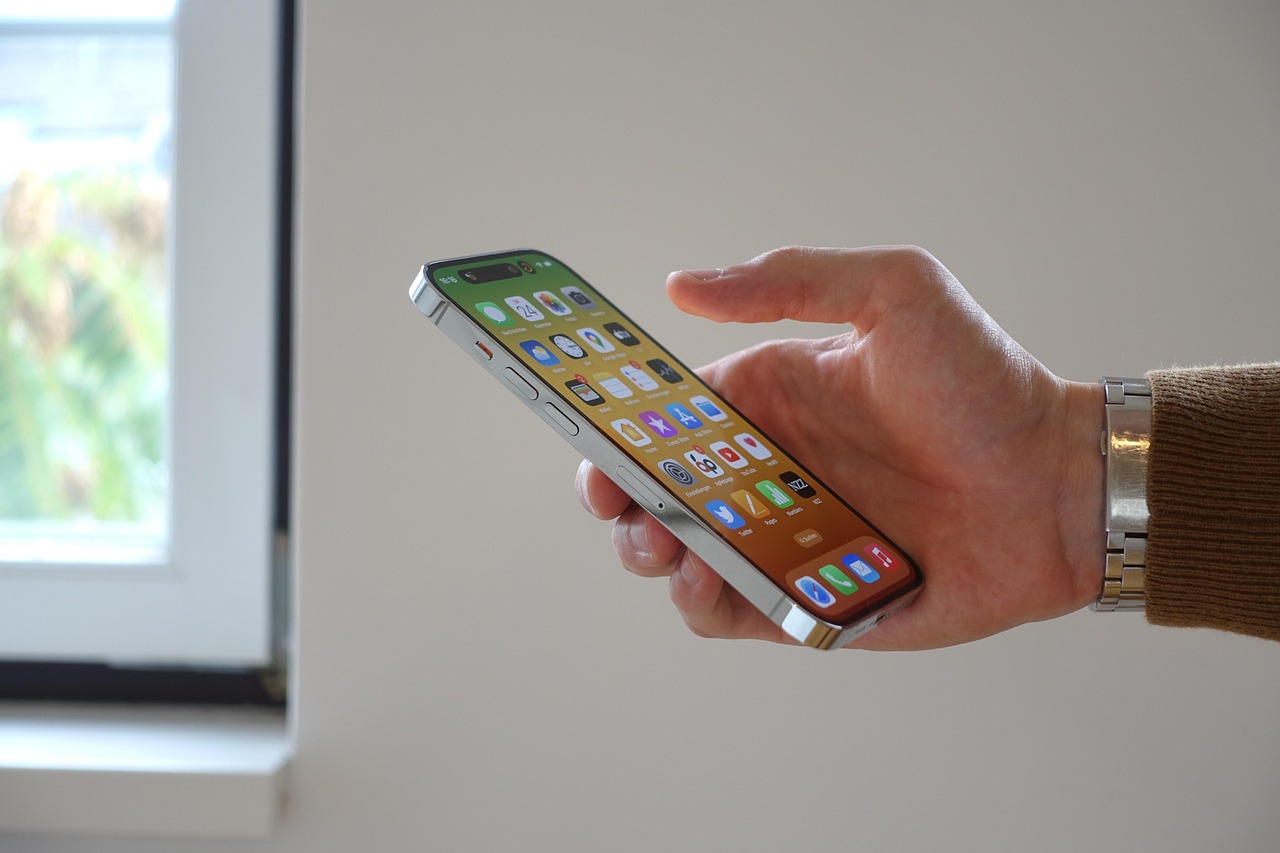
Always back up your devices. Use iCloud for quick and easy backups. You can also create backups on a Mac or PC for extra safety.
Use iCloud for automatic backups
iCloud is a great tool for keeping your data safe. It automatically backs up your Apple devices, so you don’t lose anything important.
- Automatic backups happen when your device is connected to Wi-Fi and charging. This means you won’t have to worry about doing it manually.
- You can back up photos, videos, app data, and more with iCloud. This storage makes sure all your files are secure and easy to access.
- Accessing iCloud is simple. Just go to Settings, tap on your name, and select iCloud. You can see what is backed up easily.
- Each Apple ID comes with 5GB of free storage for iCloud. If you need more space, you can purchase extra storage.
- Backups happen daily if your device is connected to Wi-Fi and charging. This keeps your data fresh without extra work on your end.
- Restoring from an iCloud backup is easy if you ever need to set up a new device or reset yours. Just sign in to your account during the setup process.
Using iCloud protects your privacy while keeping important files safe. Moving on, let’s talk about creating local backups via Mac or PC.
Create local backups via Mac or PC
Creating local backups is a smart way to keep your data safe. It helps you avoid losing important files or photos.
- Connect your device to your Mac or PC with a USB cable. This connection allows the computer to access your device directly.
- Open Finder on Mac or File Explorer on PC. These programs help you find your device in the list of connected devices.
- Select your device in Finder or File Explorer. This action shows the contents of your device.
- Choose the option to create a backup. On Mac, this is often found under “Back Up Now.” On PC, you may need specific software like iTunes.
- Wait for the backup process to finish. Do not disconnect your device until the process is complete; this ensures all data is saved correctly.
- Check that the backup was successful. Look for notifications or messages confirming that everything went well.
Creating local backups adds another layer of protection for your information. It helps maintain privacy and security across all your Apple devices. Now let’s look at how to clean and protect your device physically.
Clean and Protect Your Device Physically
Dust and dirt can harm your Apple devices. Use a soft cloth to clean screens and surfaces regularly. Avoid using harsh chemicals; they can damage the finish.
Also, consider getting a case for added protection. A good case shields your device from drops and scratches. Keep your Apple devices safe from extreme temperatures too. High heat or cold can hurt performance and battery life.
Conclusion
Keeping your Apple devices in good shape is easy. Regular updates, proper storage management, and strong security measures keep them running smoothly. Always back up your data to avoid losing important information.
Stay aware of battery health and physical protection too. With these steps, you can enjoy a safe and fast experience on your devices.
INTERESTING POSTS
- Surfshark Alternative ID Review 2026
- Do You Still Need Antivirus Protection For Your Business?
- Use UltData iPhone Data Recovery to recover data on Damaged iOS device
- 6 Best Cloud Backup Services For Personal Use
- Ways To Convert Apple Music To MP3 Via iTunes And Apple Music App
- How To Keep Your Business Running Smoothly
- How to Keep Your Payment Workflows Safe and Running Smoothly
About the Author:

Fiorella Salazar is a cybersecurity expert, digital privacy advocate, and VPN evangelist based in Canada. She holds an M.Sc. in Cybersecurity from a Canadian university. She is an avid researcher and frequent contributor to several cybersecurity journals and magazines. Her mission is to raise awareness about the importance of digital privacy and the benefits of using a VPN. She is the go-to source for reliable, up-to-date information on VPNs and digital privacy.


