


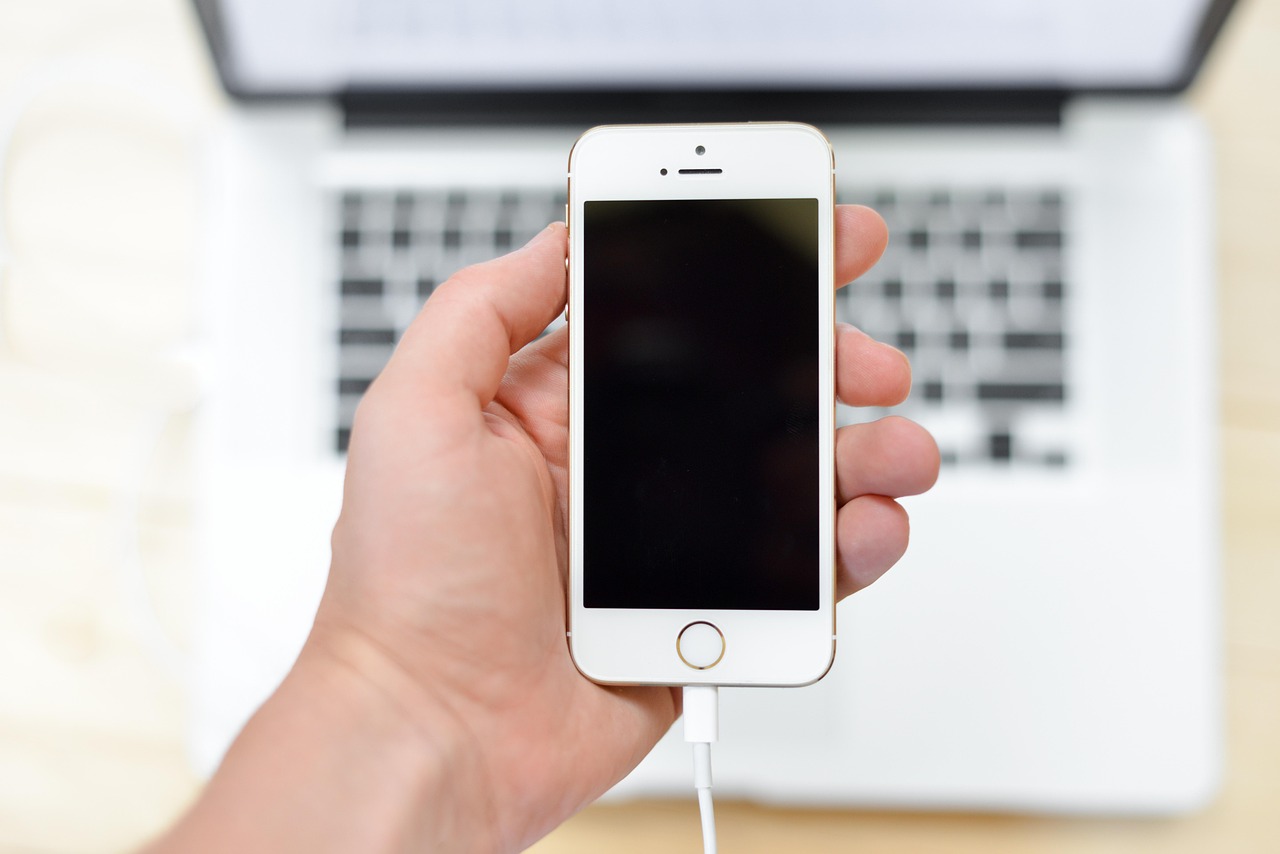

In this post, I will show you why is the PC not detecting iPhone through USB.
Connecting your iPhone with your PC is not a difficult task at all, you just need to plug in the cable, and the phone will show up on your computer. But sometimes for many users, it does not happen, in fact the iPhone starts charging instead or nothing appears on the PC at all.
This is a common issue though but can be fixed easily. So if you also have questions like “How do I get my PC to recognize my iPhone?”,then this post is for you.
Let’s first understand why this happens and then the solutions.
Table of Contents
Why PC Is Not Detecting iPhone Through USB
Usually it happens due to different and small issues related to cable, settings, or drivers. So below are the most common issues and their solutions.
1. iPhone Is Only Charging, Not Transferring Data
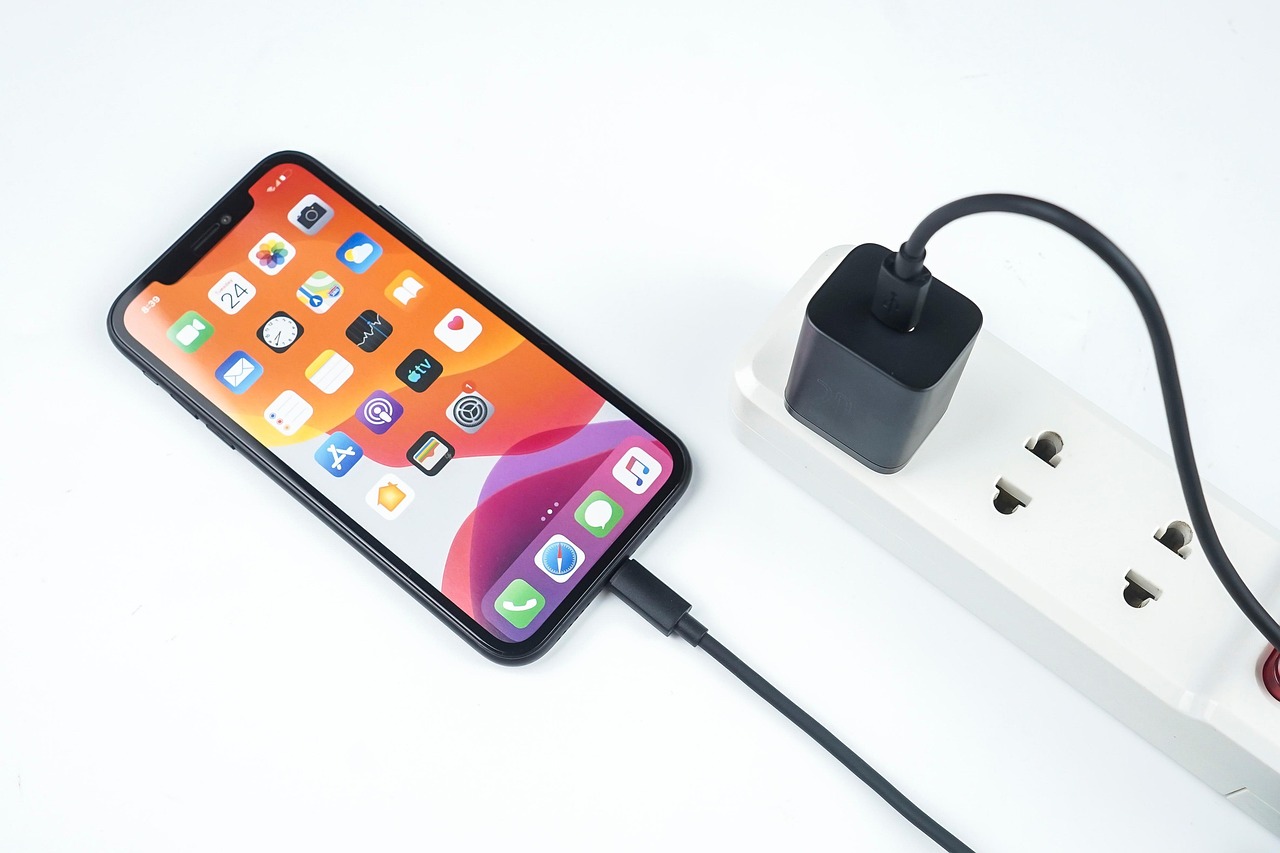
One of the most common complaints is “iPhone not connecting to PC, only charging.”
This usually happens because:
- The USB cable supports charging but not data
- The cable is damaged
- You’re using a low-quality or duplicate cable
What You Can Do
- Try using the original iPhone cable
- Use a different USB cable
- Plug into a different USB port on your PC
Many times, just changing the cable fixes the problem.
2. “Trust This Computer” Message Not Accepted
When you connect your iPhone to a PC for the first time, your phone asks you to trust the computer.
Some users say “iPhone trusts this computer keeps popping up”, or they don’t see the message at all.
If the trust request is not accepted properly, the PC won’t recognise your iPhone.
What You Can Do
- Unlock your iPhone
- Connect it to the PC
- When you see “Trust This Computer”, tap Trust
- Enter your iPhone passcode
If you accidentally tapped “Don’t Trust” earlier, this step is very important.
3. iPhone Is Locked When Connected
If your iPhone screen is locked, the PC may not detect it.
Simple Fix
- Unlock your iPhone
- Keep the screen on
- Reconnect the cable
Always make sure that while connecting your iPhone with your PC, you keep it unlocked.
4. Problem with USB Port on the PC
Sometimes, the issue is not the iPhone, it’s the PC.
What to Check
- Try another USB port
- Avoid using USB hubs
- Plug directly into the PC
So sometimes it’s the USB port that’s the culprit, faulty or loose USB can trouble in proper working.
5. Outdated or Missing Drivers on Windows (Very Common Issue)
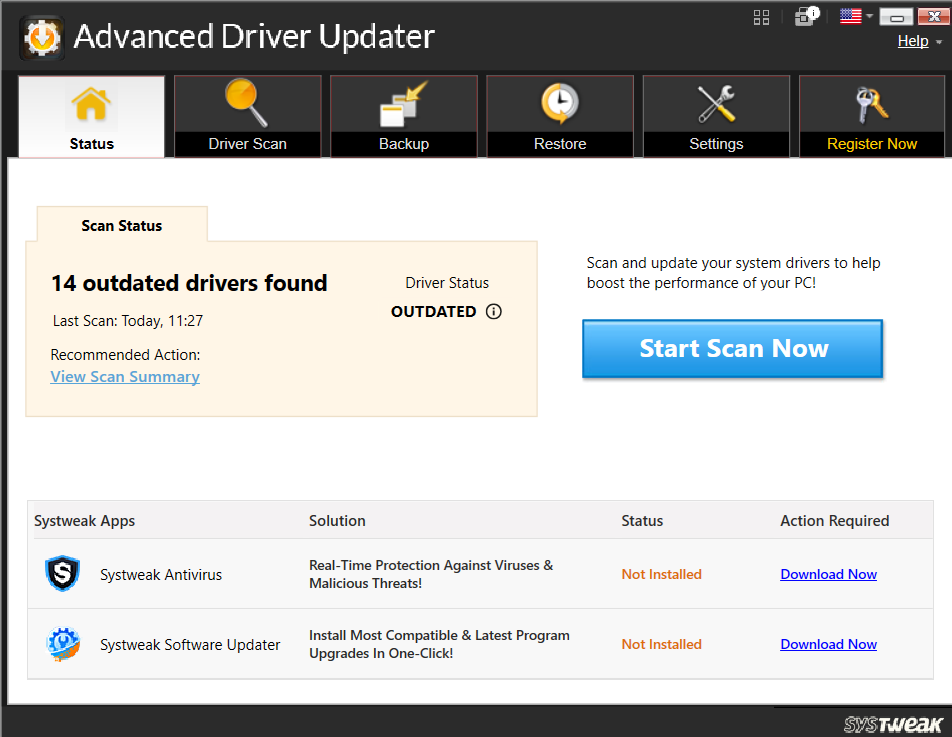
Outdated or missing drivers can usually cause this issue, because Windows needs correct drivers to communicate with an iPhone. So if these drivers are missing or outdated, the PC may fail to recognise your iPhone, and you’ll not be able to connect it.
What You Can Do
- Restart your PC and reconnect the iPhone
- Let Windows try to install drivers automatically
- Check if drivers need updating
For users who can’t keep track of drives can use third party softwares like Advanced Driver Updater. It scans your system, finds outdated or missing drivers, and updates them in one go. This can help avoid connection issues caused by driver problems, especially if the issue keeps coming back.
You don’t need to be technical to use it, which makes it helpful for everyday users.
6. Old Software on iPhone or PC
Outdated software can cause connection issues.
Check These
- iPhone iOS version
- Windows updates
Keeping both updated helps avoid compatibility problems.
7. Computer Security or Restrictions
In rare cases, PC security settings or restrictions can block device detection.
Try This
- Temporarily disable security software
- Restart the computer
- Connect again
This helps rule out system-level blocking.
8. Restart Both iPhone and PC
This may sound simple, but it works more often than people expect.
Why It Helps
- Clears temporary glitches
- Refreshes system services
- Resets USB communication
Restart your iPhone first, then your PC, and try again.
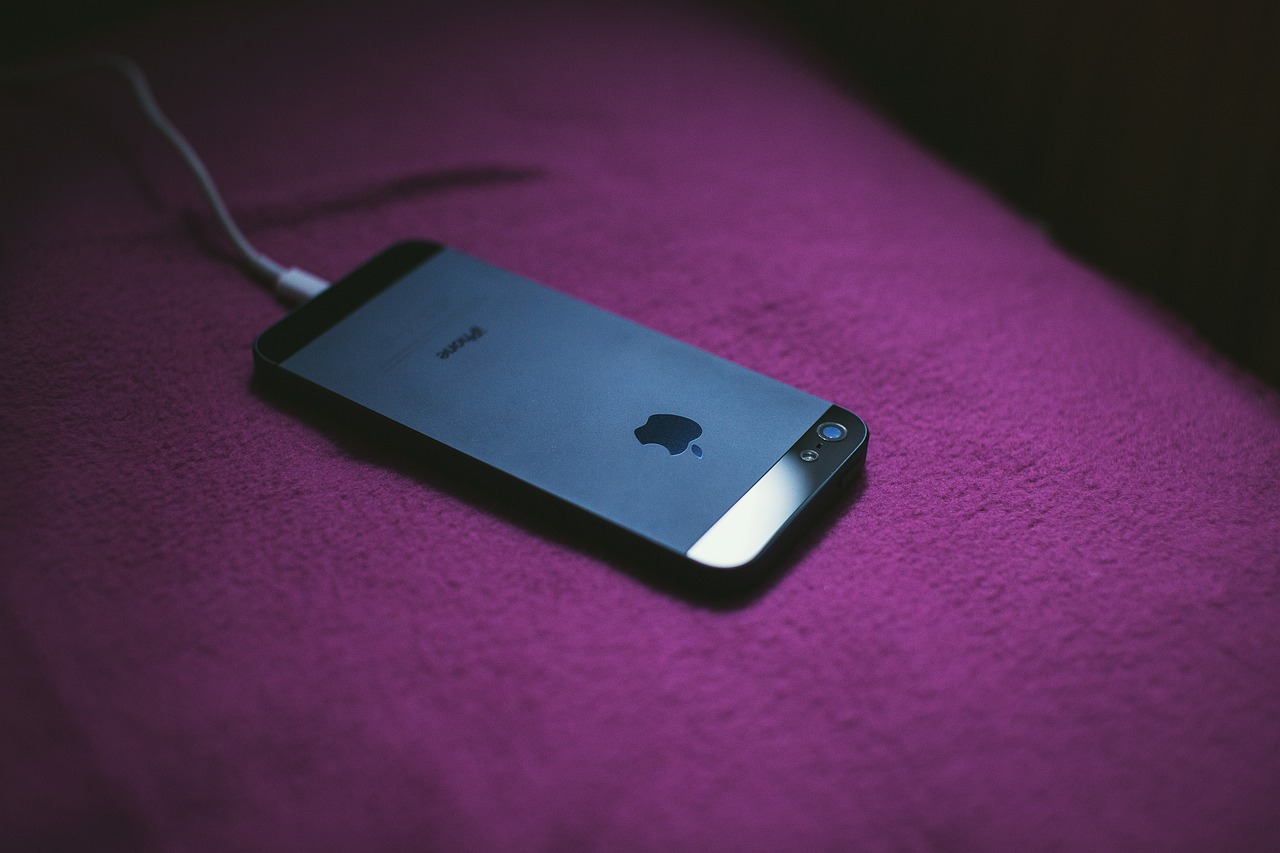
Quick Checklist: PC Not Detecting iPhone Through USB
If you want a quick summary, check these:
- Use a working data cable
- Unlock iPhone before connecting
- Tap Trust This Computer
- Try a different USB port
- Restart both devices
- Update software
Most cases of the iPhone not connecting to PC only charging are fixed using these steps.
Final Thoughts
Your iPhone not connecting to your PC is usually because of some small issues, not a serious problem. And the fixes are simple and very quick, so just follow these steps mentioned above according to your problem and get it working properly.
You just need a little patience and your PC will recognise your iPhone again, and you’ll be able to transfer files without any trouble.
INTERESTING POSTS
About the Author:

Daniel Segun is the Founder and CEO of SecureBlitz Cybersecurity Media, with a background in Computer Science and Digital Marketing. When not writing, he's probably busy designing graphics or developing websites.



