


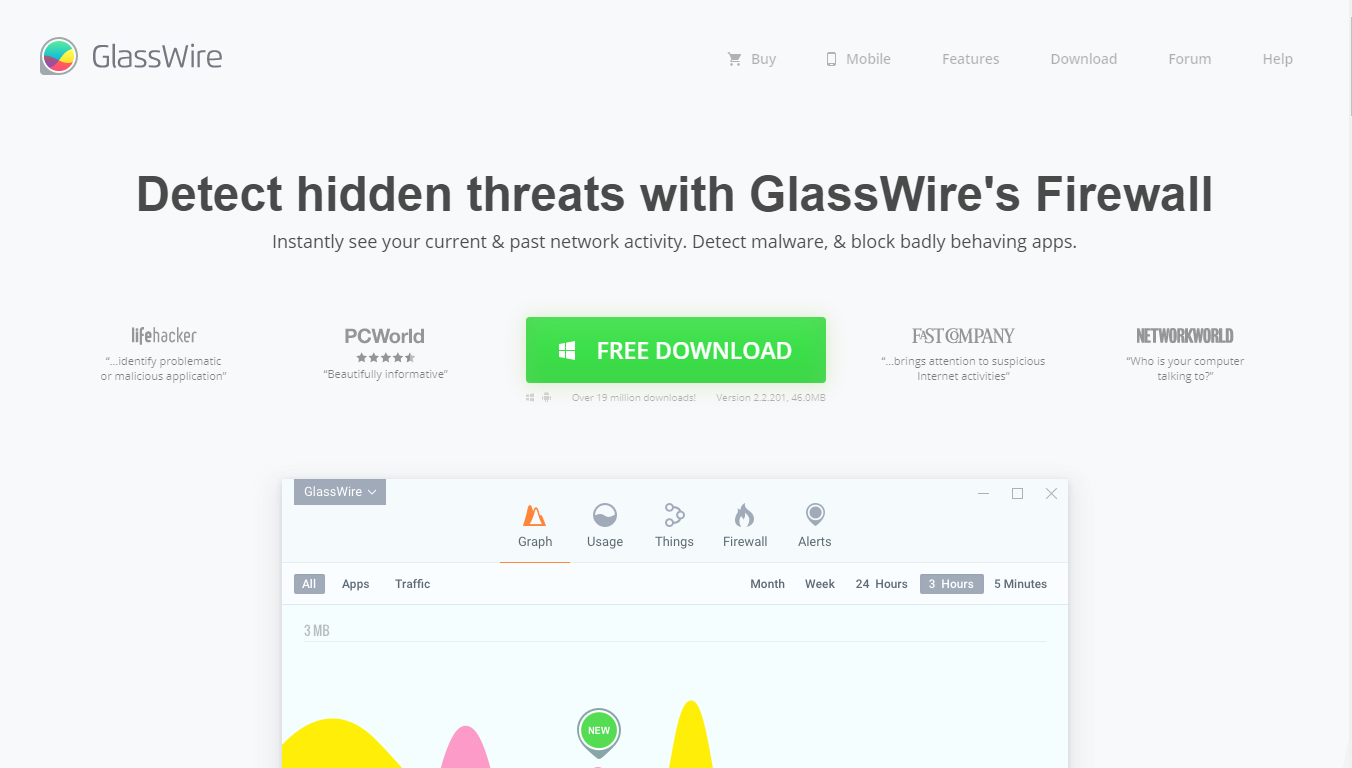

In this post, we will review GlassWire Firewall software, a powerful network monitoring tool for securing your PCs.
In a world where cyber threats are becoming more creative, more subtle, and more persistent, users are increasingly looking for tools that provide real visibility into what their devices are doing behind the scenes.
This is where GlassWire Firewall stands out — not just as a firewall, but as a network visualization and intrusion-awareness system for everyday users, businesses, and power users who want to see and control every data connection happening on their devices.
The modern internet environment is noisy: silent background connections, hidden apps phoning home, suspicious spikes in bandwidth use, and unknown programs reaching external servers without asking for permission.
GlassWire solves this problem by giving users a live, graphical view of their network activity and empowering them to block what shouldn’t be running.
In this GlassWire Firewall review, we’ll explore:
- What is GlassWire Firewall?
- How it works
- Installation and platform support
- Full features breakdown
- Pricing and plans
- Pros & cons
- Alternatives
- FAQs
- And our final verdict (with affiliate CTA spots included)
Let’s dive in. 🔥
Table of Contents
What Is GlassWire Firewall?
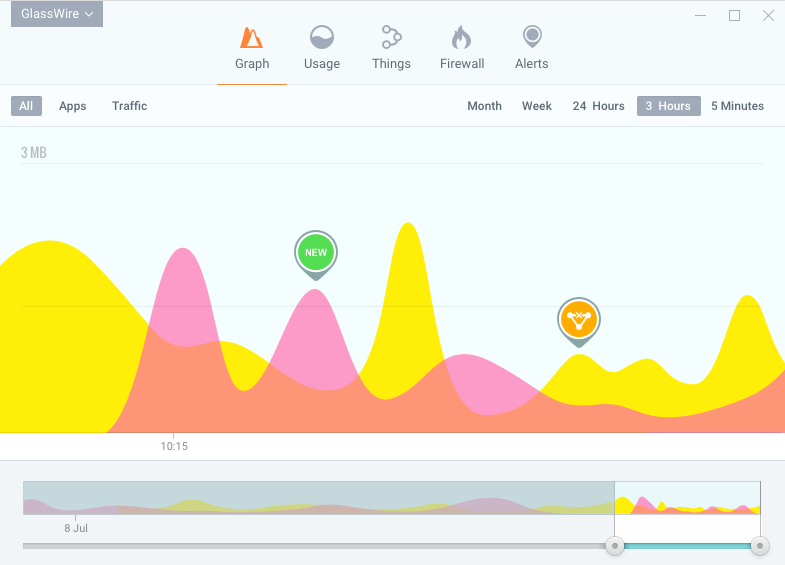
GlassWire Firewall is a network security and monitoring application designed for Windows and Android.
Launched by the company SecureMix LLC, GlassWire combines classic firewall controls with real-time traffic visualization to help users see exactly which applications are connecting to the internet, how much bandwidth they’re using, and whether any suspicious behavior is occurring.
It functions as a front-end interface that enhances Windows Firewall capabilities while adding extra intelligence, notifications, and powerful blocking features.
You can think of it as:
- A network activity radar
- A bandwidth usage tracker
- A connection-monitoring dashboard
- A firewall controller
- A behavior-detection tool
All wrapped in a clean, visual interface.
GlassWire differentiates itself through:
- Beautiful real-time network graphing
- Automatic detection of new connections
- Alerts on suspicious changes in network behavior
- Micro-level per-app bandwidth tracking
- Easy firewall toggles (“Ask to connect,” “Block all,” etc.)

READ ALSO: Network Firewalls: Comprehensive Guide For Non-Tech-Savvy PeopleHere we go. 😎🔥
How Does GlassWire Firewall Work?
GlassWire runs a local service that listens to your system’s network activity. Every active connection — inbound or outbound — is analyzed, logged, and displayed as a visual graph or table.
Here’s its basic flow:
- Monitoring:
GlassWire monitors all TCP/IP traffic on the device. It identifies which app or service creates the connection. - Analysis:
Each connection is analyzed for:- Destination country
- Hostname / IP
- Bandwidth consumed
- Process responsible
- History of behavior
- Visualization:
The traffic is displayed in a simple timeline graph showing spikes, data usage, and categories (apps, traffic type, hosts). - Firewall Control:
You can block or unblock apps instantly using GlassWire’s firewall tab. GlassWire utilizes Windows Firewall rules and enhances them with a more user-friendly interface. - Alerts System:
You are notified when:- A new application connects for the first time
- High bandwidth usage occurs
- Your network changes
- Suspicious host connections happen
Simple Step Diagram
Device Activity → GlassWire Service → Traffic Analysis → Graph / Alerts → User Action (Allow/Block)
This makes GlassWire both proactive and reactive, depending on how you configure it.
How to Download, Install, and Use GlassWire Firewall
GlassWire is available on:
- Windows (primary platform)
- Android
- Some features differ per platform
Installation Steps (Windows)
- Visit the official GlassWire website
- Download the installer
- Run the setup file and follow prompts
- Choose your basic settings
- The real-time graph begins immediately after installation
- Open the Firewall tab to start blocking apps or enabling “Ask to Connect”
Installation Tips
- If another firewall is installed (e.g., Kaspersky, Bitdefender), disable its conflicting firewall components.
- To prevent false positives, allow known Windows services.
- For minimal RAM usage, disable extensive logging.
Availability of Free Trial
GlassWire offers:
- A free version with limited features
- Premium/Paid plans with advanced monitoring and firewall modes
GlassWire Firewall Features

GlassWire’s features can be grouped into categories:
1. Security & Privacy Features
🔥 Real-Time Threat Monitoring
Shows live incoming and outgoing connections in a graph format.
Benefit: You immediately spot unusual spikes or unknown apps connecting secretly.
🔥 Firewall Management
Block apps with one click.
Modes include:
- Ask to Connect
- Block All
- Click-to-Block for apps
Benefit: Prevents spyware, hidden malware, and unwanted apps from accessing the internet.
🔥 Suspicious Host Detection
Alerts you when an app connects to an IP flagged for malware or suspicious behavior.
🔥 Network Intrusion Alerts
GlassWire detects when new devices join your WiFi network.
Perfect if you suspect neighbors or unknown devices are piggybacking.
2. Performance & Convenience Features
⚡ Bandwidth Usage Monitoring
Check exactly how much data each app consumes daily, weekly, or monthly.
Example:
If a cloud backup app is using up your limited data plan, GlassWire reveals it instantly.
⚡ User-Friendly Interface
GlassWire is known for its clean graphs, colors, and layouts that simplify complex data.
⚡ Resource-Efficient Background Service
Designed to consume minimal CPU/RAM during normal operations.
3. Content / Media Features
📺 Streaming & Torrent Monitoring
Shows which apps stream or transfer large files, helping manage data caps.
📡 Host Detail Lookup
Click any connection to see:
- Server location
- Owner of the domain/server
- Reputation
- Time of access
4. Support Features
- Email support
- FAQ knowledgebase
- Installation guides
- Community forum
- Blog and tips
Support is generally responsive and designed for non-technical users.
5. Extra Features
⭐ Mini Graph
Shows small floating network usage in real-time on your desktop.
⭐ Multiple Profiles
Manage firewall rules depending on location (home, office, public WiFi).
⭐ Incognito Mode
Temporarily pause logging of usage if you need privacy.
Customer Support & Resources

GlassWire provides:
- Email Support: Typically responds in 24–48 hours
- FAQs & Documentation: Covers installation, troubleshooting, and firewall basics
- Tutorial Articles: Step-by-step guides
- Community Feedback: Public discussions help solve common issues
Support quality:
- Clear answers
- Friendly responses
- Not 24/7, but consistent in business hours
Pricing & Plans

GlassWire usually offers several plan tiers:
Free Version
- Basic network graph
- Basic usage stats
- Firewall is manual only
Premium Plans (Examples)
| Plan | Devices | Features |
|---|---|---|
| Basic | 1 PC | Network graph, firewall, usage stats |
| Pro | 3 PCs | Advanced alerts, multiple profiles, security features |
| Elite | 5–10 PCs | Full functionality + linked device monitoring |
Common paid features include:
- Ask to Connect
- Detailed alerts
- Multiple device support
- Long-term usage history
Refund policy: 30-day money-back guarantee in most regions.
🔗 See GlassWire’s latest pricing and discounts here.
Review Ratings
| Category | Rating / 5 | Reasoning |
|---|---|---|
| Features | 4.6 | Strong visualization, alerts, and firewall tools |
| Usability | 4.9 | One of the easiest firewalls to use |
| Pricing | 4.2 | Competitive but not the cheapest |
| Customer Service | 4.0 | Good responses, but no live chat |
Pros & Cons
Pros
- ✔ Stunning real-time network graphs
- ✔ Excellent for detecting hidden background connections
- ✔ Easy-to-use firewall
- ✔ Alerts for suspicious hosts
- ✔ Tracks bandwidth accurately
- ✔ Good for beginners and professionals
- ✔ Works with existing antivirus software
Cons
- ❌ No native macOS or iOS version
- ❌ Free version is limited
- ❌ No built-in VPN
- ❌ Support is not 24/7
- ❌ Heavy long-term logs can increase storage usage
Frequently Asked Questions
Is GlassWire Firewall safe?
Yes. It uses secure local monitoring and does not upload your personal data to the cloud.
Does GlassWire keep logs?
Logs are stored only on your device and can be cleared at any time.
Is GlassWire free?
There is a free version with limited features, but the true power is in the paid tiers.
Can authorities or ISPs track usage?
GlassWire is not a VPN, so it doesn’t hide your identity; it only shows and controls traffic.
Is GlassWire good for streaming/torrenting?
Yes — the bandwidth and traffic visualization make monitoring extremely easy.
Is GlassWire suitable for business?
Yes, especially for small businesses that need visibility without hiring an IT admin.
Alternatives & Competitors
1. TinyWall
- Lightweight
- Enhances Windows Firewall
- Free
- Less user-friendly than GlassWire
2. Comodo Firewall
- Strong protection
- More technical
- Includes sandboxing
- Not as visually appealing
3. ZoneAlarm
- Classic firewall suite
- Includes antivirus options
- Heavier and less modern UI
4. NetLimiter
- Strong bandwidth throttling tools
- No security or threat detection
- Better for traffic control, not protection
GlassWire shines due to its visual design and simplicity.
Wrapping Up: Should You Use GlassWire Firewall in 2026?
GlassWire Firewall remains one of the most user-friendly and visually attractive network security tools available today. Its ability to transform invisible network activity into clear charts makes it priceless for anyone who wants transparency and control.
If you’re:
- A beginner who wants security
- A professional managing multiple apps
- A gamer monitoring data spikes
- Someone concerned about intrusive apps
— then GlassWire is absolutely worth it.
==>> Get GlassWire Firewall Software
RELATED POSTS
- How To Secure Your Computer Against Cyber Threats Like 007
- Dos And Don’ts Of Using A Public Wi-Fi [Ultimate Guide]
- Network Firewalls: Comprehensive Guide For Non-Tech-Savvy People
- What Are Network Firewalls?
- How To Spy On Your Kid’s Online Activity And Monitor It
- How to Detect Fake Social Media Profiles
- Tor+VPN Guide: How to Combine Tor Browser With VPN
- 3 Most Secure Operating Systems
- Full Review of ZoneAlarm Extreme Security
About the Author:

Christian Schmitz is a professional journalist and editor at SecureBlitz.com. He has a keen eye for the ever-changing cybersecurity industry and is passionate about spreading awareness of the industry's latest trends. Before joining SecureBlitz, Christian worked as a journalist for a local community newspaper in Nuremberg. Through his years of experience, Christian has developed a sharp eye for detail, an acute understanding of the cybersecurity industry, and an unwavering commitment to delivering accurate and up-to-date information.



