

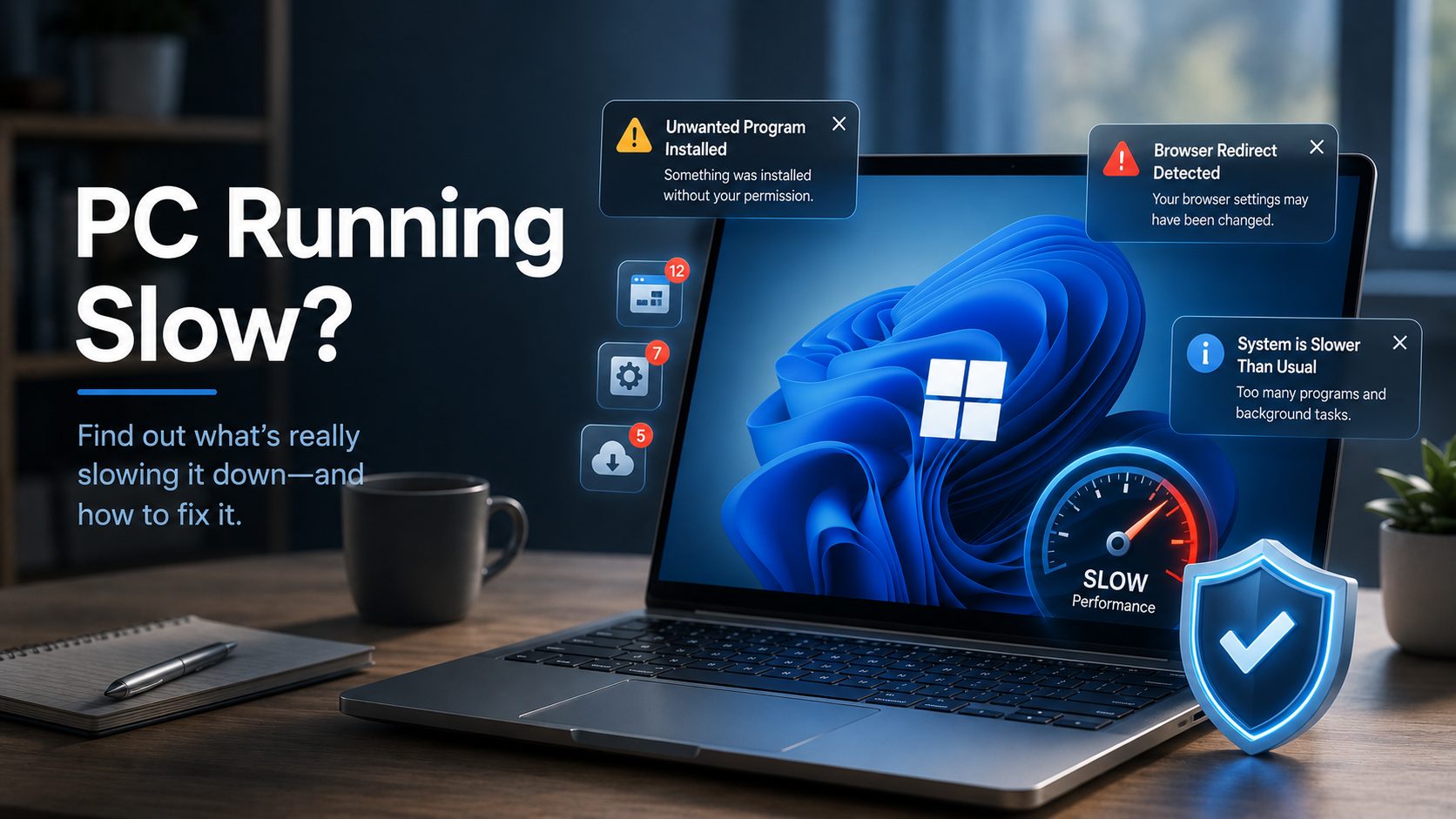
In this post, I will talk about why your PC feels slower and sketchier than it did two years ago.
You didn’t do anything different. You haven’t changed how you use your computer. But somewhere along the way, things got worse. It takes longer to start up. Popups appear from applications you don’t remember installing. Your browser occasionally redirects you somewhere you didn’t ask to go. Searches that used to be instant now have a noticeable lag.
Most people notice this and assume it’s just what happens to computers over time — a kind of inevitable decay. Some of it is. But a lot of it isn’t, and the causes are more specific than “it’s getting old.”
Understanding what’s actually happening is the first step to fixing it.
Table of Contents
What’s Actually Going On
There are a few distinct things that tend to accumulate on a Windows PC over time, each with a different cause and a different fix.
Startup programs that weren’t there before. Every application you install asks, somewhere in the process, whether it can start automatically when your computer turns on. Most people click through installation screens without reading them, and the default answer is usually yes. Over a year or two of installing software, the list of programs launching at startup grows — each one consuming memory and processing power before you’ve opened a single window. A computer that used to be ready in thirty seconds now takes two minutes, and you’re not sure why.
Software you don’t remember installing. Free software often comes bundled with things you didn’t explicitly choose. A PDF reader comes with a browser toolbar. A video player comes with a “system optimiser.” A game launcher comes with an update manager that runs in the background indefinitely. These aren’t viruses in the traditional sense, but they’re not things you wanted either — and they add up.
Actual malware. Sometimes something genuinely harmful gets through. Drive-by downloads from sites that serve malicious ads, fake update prompts that install something when you click them, email attachments that looked plausible. Modern malware is often designed to be invisible — it’s not trying to crash your computer, it’s trying to run quietly in the background, using your connection or your processor for purposes you’re unaware of, while everything on the surface looks normal. You’d only know it was there if you looked deliberately.
Browser behaviour changes. If your default search engine changed without you changing it, if new toolbars appeared, if pages load with more ads than they used to — these are signs that something has been modifying your browser settings. This is one of the more visible symptoms, which is why people notice it but often don’t know what caused it.
Why It’s Hard to Notice Until It’s Bad
The frustrating thing about most of these problems is that they accumulate gradually. No single installation makes your computer noticeably slower. The startup program list grows by one. Then another. Then another. By the time the slowdown is obvious, it’s been building for months, and there’s no single moment you can point to.
This is why most people don’t catch these things early. There’s no alert, no warning, no moment where the computer says “you now have fourteen programs starting automatically.” It just gets slower, and you adjust.
The same is true for malware. By the time you notice something is wrong, it’s often been running for weeks.
Why One Tool That Does All Three Makes Sense
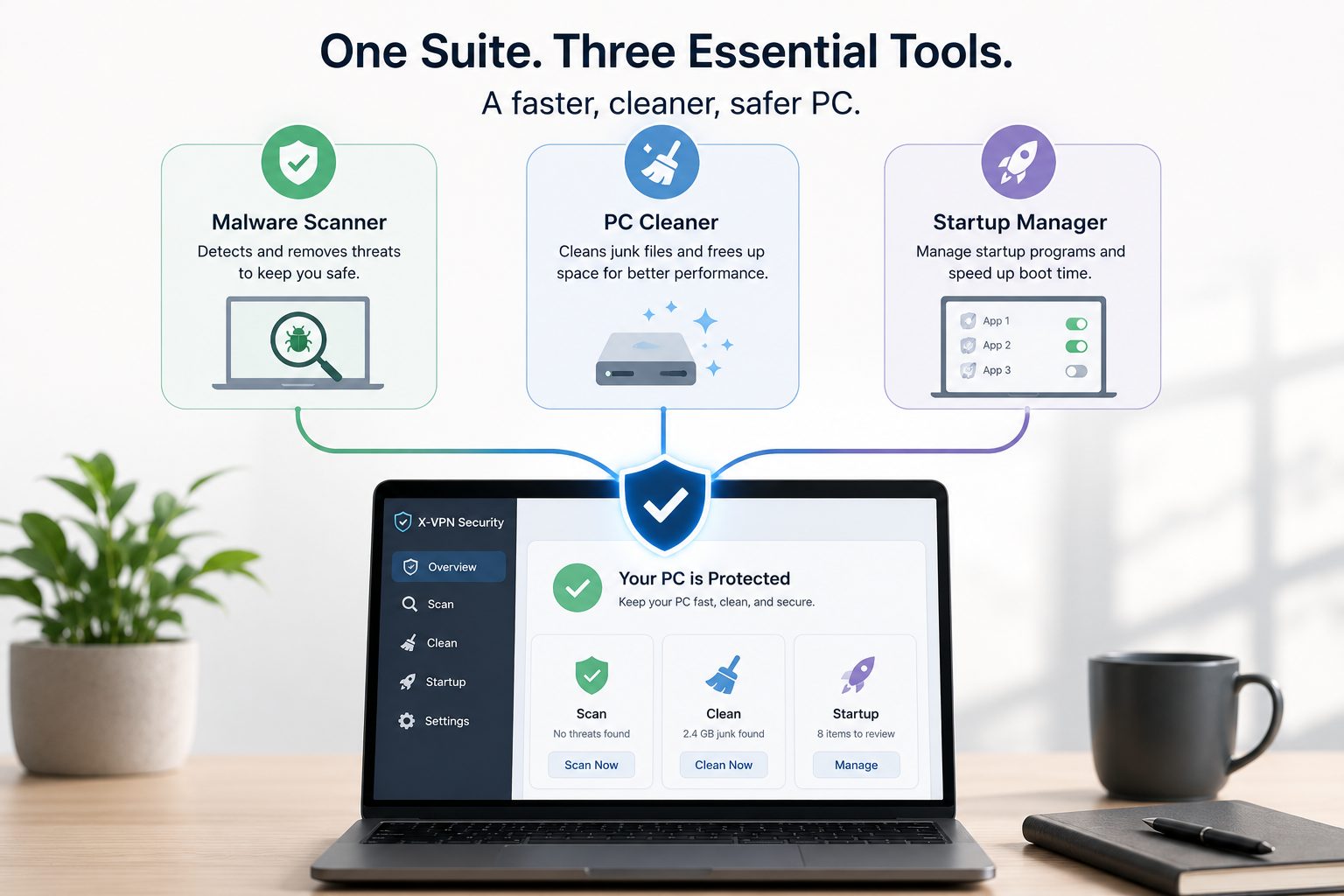
Addressing these problems properly involves three distinct tasks, which is why people often end up with three separate tools: an antivirus for malware, a system cleaner for accumulated junk, and a startup manager to see and control what’s launching automatically.
A computer security suite brings these together. X-VPN’s desktop security offering bundles a malware scanner, a PC cleaner, and a startup manager alongside the VPN — which means the things most likely to be causing your computer’s problems can be addressed from one place, without downloading and managing three separate applications.
For most home users and small business owners without dedicated IT support, having these tools in one place is more than a convenience. It simplifies a process that would otherwise involve researching which tools to trust, finding them, and keeping them updated separately.
Where to Download It: The Case for the Microsoft Store
There’s a practical reason to care about where you download security software. Search for “PC cleaner” or “malware scanner” and you’ll find a mix of legitimate tools and convincing fakes — and the difference isn’t always obvious from a website or an ad. Fake “system optimiser” downloads are, in fact, one of the more common ways malware ends up on computers in the first place.
Installing from the Microsoft Store removes most of that uncertainty. Apps in the Store go through a review process, are associated with verified publisher accounts, and can’t request the kind of system access that would make a malicious app dangerous. For someone who isn’t sure which download source to trust, it’s the lowest-risk route.
X-VPN’s full security suite — including the VPN, malware scanner, and PC cleaning tools — is available on the Microsoft Store, which means the install process is the same as any other Store app: straightforward, verified, and without the need to judge the safety of a third-party download link.
The Practical Upshot
If your computer has been getting slower, producing unexpected popups, or behaving in ways you can’t explain, the cause is more likely software clutter or something running in the background than hardware failure. Running a proper scan and clearing out startup bloat typically makes a more noticeable difference than people expect — and it’s worth trying before assuming the situation is unfixable.
The problems described in this article are fixable. They just require the right tools, from a source you can trust.
INTERESTING POSTS
- How RNG Technology Ensures Fair and Transparent Online Casino Games
- Dechecker AI Checker: The Point Where I Realized “Clean Writing” Wasn’t Working Anymore
- Browser Extensions Pile Up, and Nobody Remembers Who Added Them
- How To Download And Install CyberGhost VPN On Your PC [Windows & Mac]
- VPN for PC: A Complete Guide to Security, Privacy, and Performance
- Do I Need Antivirus App On Android Phone?
- How to Access Windows Computer from a Mac PC
About the Author:

Gina Lynch is a VPN expert and online privacy advocate who stands for the right to online freedom. She is highly knowledgeable in the field of cybersecurity, with years of experience in researching and writing about the topic. Gina is a strong advocate of digital privacy and strives to educate the public on the importance of keeping their data secure and private. She has become a trusted expert in the field and continues to share her knowledge and advice to help others protect their online identities.