



Learn how to change location on Find My iPhone in this post.
Find My iPhone is designed to help users locate their devices and share location information with trusted contacts. In daily use, some users may want to change their displayed location for privacy reasons or for testing location-based functions.
As a result, many people ask how do I change my location on my iPhone, especially within the Find My app.
This article explains how to change location on Find My iPhone, outlines available methods, from simple ways to use professional iPhone location changer TunesKit Location Changer.
Table of Contents
Part 1. What Is Find My iPhone
Find My is an Apple service within the Find My app that helps users locate lost or misplaced Apple devices like iPhones, iPads on a map, play sounds, get directions, remotely lock/erase them, and even find them when offline using the Find My network. It determines location using several data sources:
- GPS signals
- Nearby Wi-Fi networks
- Bluetooth connections
- Cellular network data
The location is associated with the Apple ID and updated automatically. iOS does not provide a manual option to edit this location, which is why indirect methods are required to change Find My iPhone location.
Part 2. Why Change Find My iPhone Location
Our iPhones constantly report location data through Find My, which can sometimes feel limiting or unnecessary. Whether it’s for privacy, app access, or practical benefits, there are many everyday situations where adjusting your Find My iPhone location can be useful. Below are some of the most common reasons users choose to change their location.
- Protect privacy from family or friends.
Changing your Find My location can help keep your real whereabouts private, especially when you don’t want others to monitor your movements in real time.
- Unlock location-restricted apps or services.
Some apps or features may not work properly in certain regions. Modifying your location can help restore normal app functionality.
- Reduce the risk of location misuse.
Adjusting your location adds an extra layer of protection if you’re concerned about unauthorized access or tracking.
- Access better prices and regional deals.
Many online stores, travel platforms, and streaming services offer different prices based on location, making location changes financially beneficial.
Part 3. How to Change Location on Find My iPhone
If you are wondering how to change Find My iPhone location, Apple’s iOS does not allow you to manually edit GPS coordinates in settings. You will need to use alternative methods depending on your needs and technical ability. Here are some of the most common approaches:
Method 1: Change Find My iPhone Location Using Another Apple Device
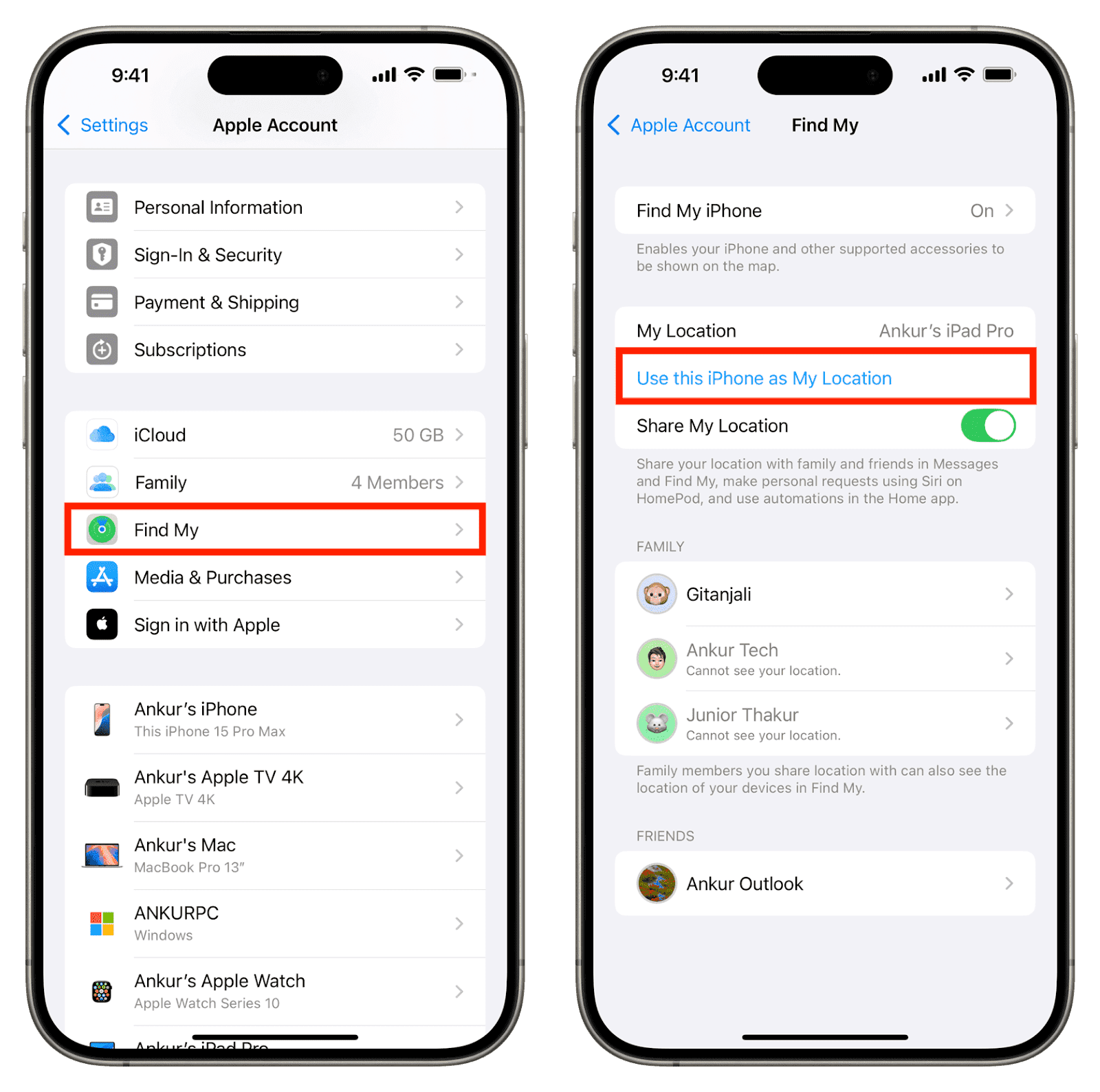
If you own multiple Apple devices signed in with the same Apple ID, you can select which device shares your location.
Steps:
- Sign in to the same Apple ID on both devices
- Open the Find My app on the secondary device
- Go to the Me section and choose “Use This iPhone as My Location”
Find My iPhone will now show the location of the selected device instead of your primary iPhone.
Limitations:
Requires an additional Apple device
Location is limited to the physical position of that device
Method 2: Change Location on Find My iPhone via VPN
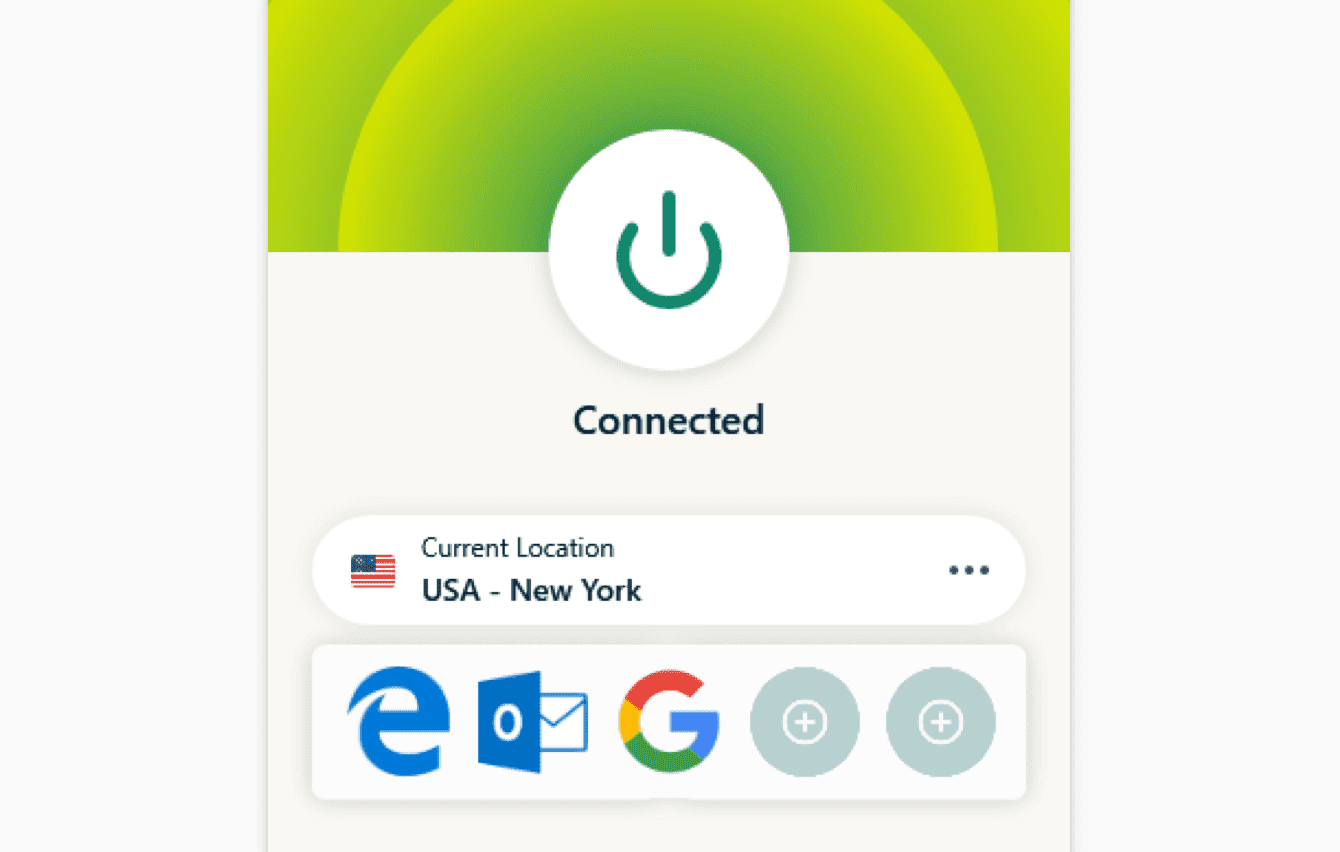
A VPN changes your device’s IP address to appear as if it is in another region. While a VPN does not modify your GPS location directly, some apps rely on IP information to display location-based content.
Steps:
- Download and install a trustworthy service such as ExpressVPN or NordVPN from the App Store.
- Choose a server located in your desired country or city. Then enable the VPN.
- Use an IP location website to ensure the address reflects the chosen region.
Limitations:
Find My iPhone primarily relies on GPS, not IP address.
VPNs do not change GPS coordinates.
Method 3: Use a Location Spoofer to Change Find My iPhone Location (Recommended)
A more flexible approach is to use an iPhone location changer. These tools modify the system GPS data so that Find My and other apps display a virtual location. This method is commonly used by users who need precise control over how to change Find My iPhone location without relying on additional devices.
After comprehensive testing and comparison, TunesKit Location Changer stands out among location spoofing tools for its high success rate, accuracy, and ease of use in changing location.
What Is TunesKit Location Changer
TunesKit Location Changer is a desktop-based utility that allows users to change and simulate their devices GPS location. It works at the system level and does not require jailbreaking the device. The tool is compatible with Find My iPhone and other location-dependent applications such as Pokémon Go, Snapchat and Tinder. Perfect for users who want to spoof location on iPhone.
Key Features of TunesKit Location Changer
- No jailbreak or root required: Safely change your phone’s location without altering system files.
- User-friendly interface: The map-based control makes setting a new location simple for anyone.
- Wide compatibility: Supports both iOS and Android devices, and works on wide system models including the latest iOS 26 and Android 16.
- Multiple modes: Supports 5 modes, which are Change Location, Two-Spot Movement, Multi-Spot Movement, Jump Teleport and Joystick Movement.
- Instant effect: Apps like Find My iPhone update to your new location within seconds.
How to Change Location on Find My iPhone with TunesKit Location Changer
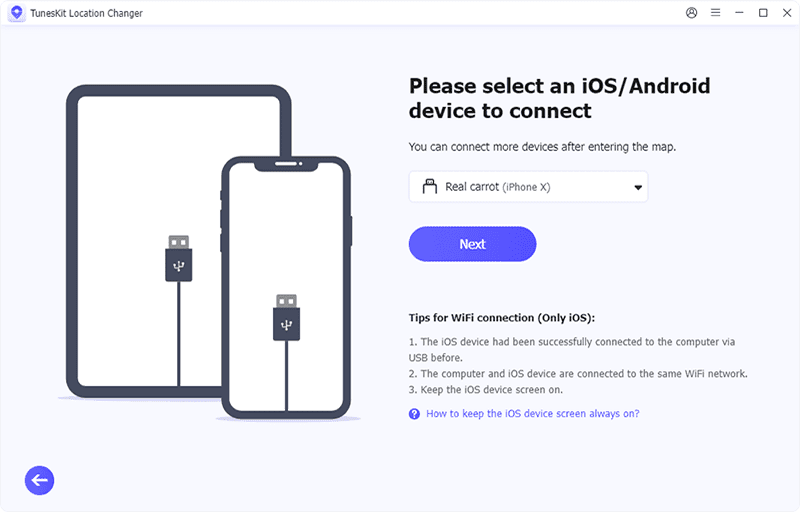
- Install the software on a computer, launch it and click Start. Connect the iPhone via a USB cable, click Next.

- Choose the General Mode for most location-based applications.

- Turn on Developer mode on iPhone according to the guide.
- Select a location you want to appear on the map screen, click Start Modifying. After the change, Find My iPhone will reflect the new GPS position.

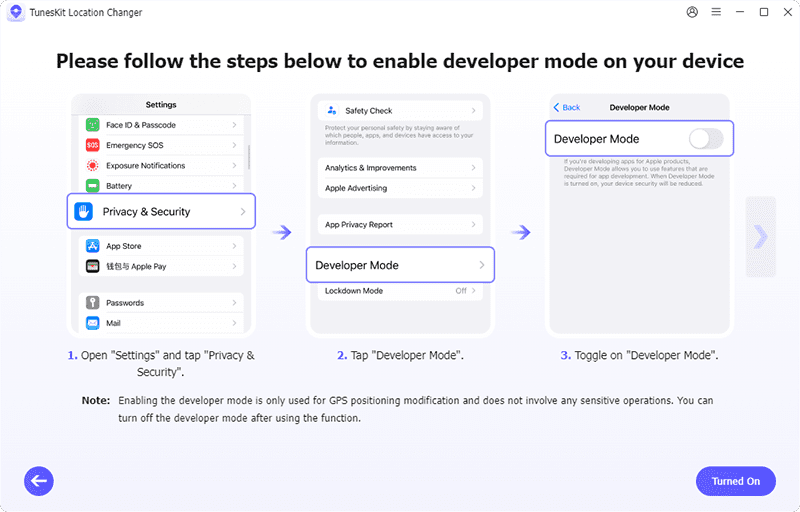
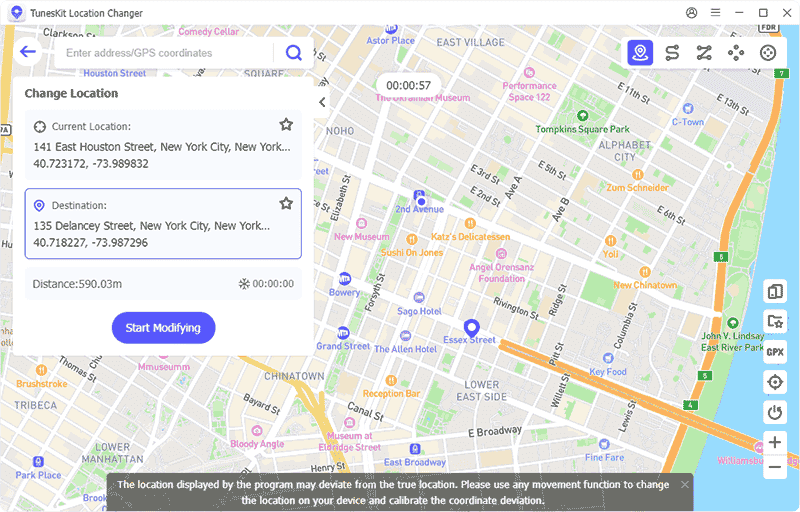
TunesKit Location Changer can do more than change the location on Find My iPhone. It also works with location-based games such as Pokémon Go and helps users learn how to send fake location on WhatsApp by modifying system GPS data across apps.
Part 4. FAQs About Changing Location on Find My iPhone
- Does Changing Find My iPhone Location Affect Other Apple Services?
Yes. All apps that rely on system GPS data, including Maps and Weather, will reflect the modified location.
- Do I need to jailbreak my iPhone to change Find My iPhone location?
No. Most iPhone location changers work without jailbreaking. They modify the system GPS data through a computer connection. Although jailbreaking can technically change Find My iPhone location, it is not recommended due to security and stability risks.
- How to return my real location after changing location?
In most cases, restarting the device will restore the real GPS location. To continue using a virtual location, the location change needs to be reapplied.
Final Thoughts
If you want to know how to change location on Find My iPhone, the most efficient method is using TunesKit Location Changer. It offers safe, fast, and precise GPS spoofing without jailbreak.
Other methods such as VPNs, or using other devices are available but more complex or limited in scope. For users who require precise control over how to change location on Find My iPhone, a dedicated iPhone location changer provides a practical technical approach.
INTERESTING POSTS
About the Author:

Gina Lynch is a VPN expert and online privacy advocate who stands for the right to online freedom. She is highly knowledgeable in the field of cybersecurity, with years of experience in researching and writing about the topic. Gina is a strong advocate of digital privacy and strives to educate the public on the importance of keeping their data secure and private. She has become a trusted expert in the field and continues to share her knowledge and advice to help others protect their online identities.



