



In this post, I will show you what to do in the first 24 hours for a hacked WordPress site.
It usually starts with a message. A customer says your site redirected them somewhere strange. Google shows “This site may be hacked” under your listing. Your host emails to say your account is sending spam.
The urge is to start deleting files right away. Don’t. Cleaning before you’ve contained the problem is how sites get reinfected a week later. Panic also destroys the evidence you need to find out how the attacker got in.
I’ve built WordPress websites since 2005 and worked in SEO for more than 18 years. Over that time I’ve cleaned up enough hacked WordPress sites to know that the order matters more than the tools. Here’s the order.
Table of Contents
First, confirm it’s really a hack
Not every strange problem is a hack. An expired domain, a broken plugin update or a full disk can look alarming too. These signs point to a real compromise:
| Sign | What it often means | First check |
|---|---|---|
| Google shows “This site may be hacked” or a red warning page | Google found spam pages, malware or phishing on the site | Search Console, Security issues report |
| Visitors are redirected to other sites, often only on mobile or from Google | Injected redirect code in files or the database | .htaccess, wp-config.php and theme files |
| Pages you didn’t create appear in Google | Spam pages added by the attacker | site:yourdomain.com search |
| Admin users you don’t recognize | The attacker created a way back in | Users screen in WordPress |
| Your host reports spam email or suspends the account | The site is being used to send spam | Host notice and server logs |
| Unfamiliar files, especially PHP files in uploads | A backdoor or web shell was installed | File manager or SFTP |
Table 1: Common signs of a hacked WordPress site.
A quick test: search Google for site:yourdomain.com and scroll through the results. Pages you didn’t create, especially in another language or about pills, replica goods or casinos, mean someone else is publishing on your site.
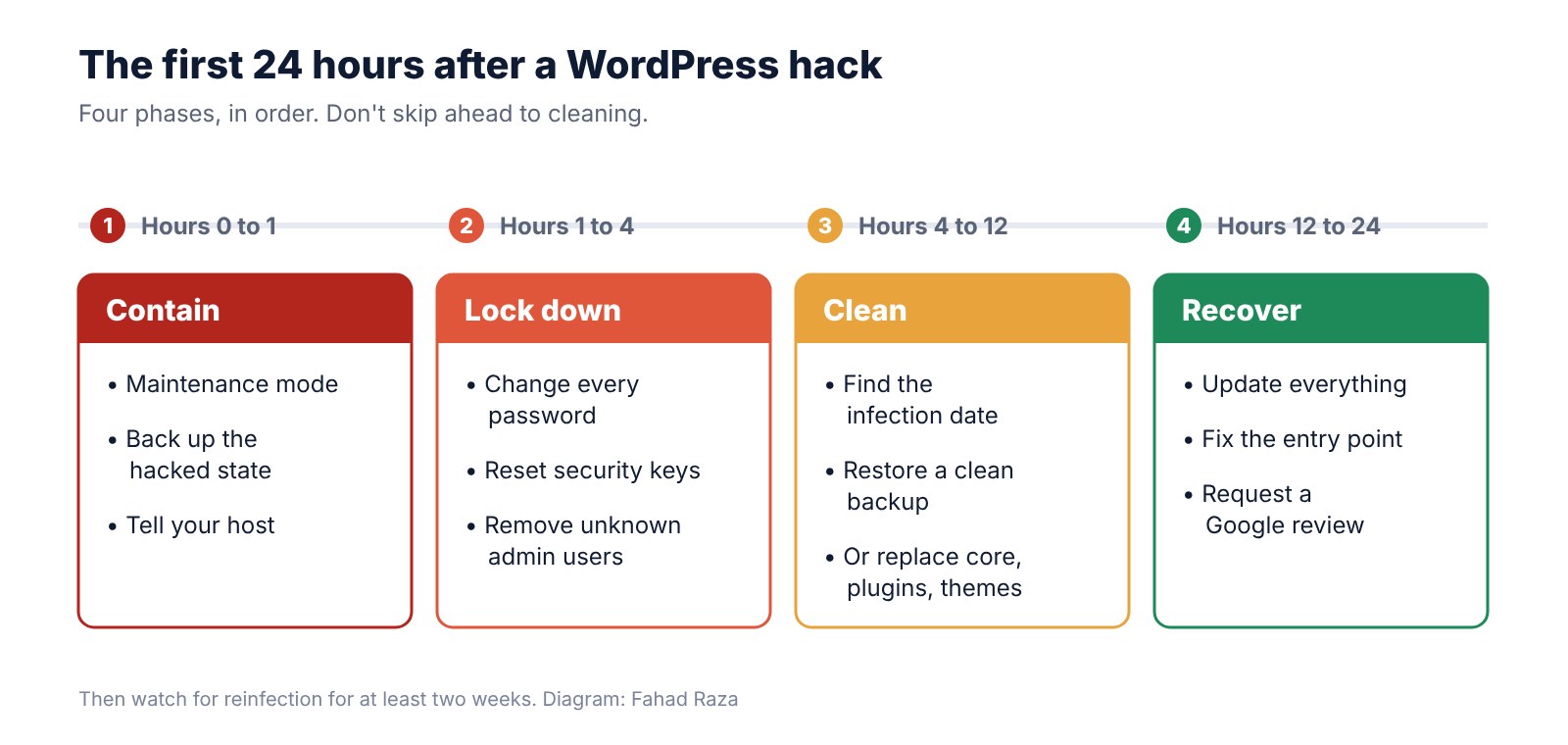
Hours 0 to 1: Contain the damage
The goal in the first hour is to stop the harm spreading to your visitors, and to keep a record of what happened.
Take the site offline for visitors
Put the site into maintenance mode, or ask your host to restrict access to your own IP address while you work. A hacked site can redirect visitors to scams or download malware onto their devices. Protecting them comes first.
Back up the hacked site
Take a full copy of the files and the database before you change anything. It sounds backward, but it’s important. That copy shows when files were modified and what was injected, and it’s what you’ll study to find the way in.
Tell your host
Most hosts have seen this before. They can check server logs, tell you whether other sites on your account are affected, and sometimes clean the infection for you. If your host has already suspended the account, they’ll explain what they need to restore it.
Hours 1 to 4: Lock down every way in
Assume the attacker has a password, a hidden admin account or both. Close every door before you clean, or they’ll walk straight back in.
- Change every password. That means your hosting account, SFTP or FTP, the database, every WordPress administrator and the email account tied to the site. Use a password manager and make each one unique.
- Reset the WordPress security keys. The keys and salts in wp-config.php sign everyone’s login cookies. Replacing them with fresh values from the official WordPress generator logs out every session, including the attacker’s.
- Check the user list. Go to Users and look for administrators you don’t recognize. Note the usernames and creation dates before you delete them, because they help date the attack.
- Turn on two-factor authentication for every admin account, if it isn’t on already.
Hours 4 to 12: Clean the site
This is the longest phase. There are two ways to do it, and the right one depends on your backups.
Option 1: Restore a clean backup
If you have a backup from before the infection, restoring it is usually the fastest and safest path. The hard part is knowing which backup is clean. Use the hacked copy you took earlier to find the oldest modified or injected file, then restore a backup from before that date.
One warning: a restore brings back whatever let the attacker in. If an outdated plugin caused the hack, the restored site has the same hole. That’s why the next phase matters.
Option 2: Clean in place
Without a clean backup, you rebuild the site from trusted parts. When a small business calls me as a Sydney WordPress developer after a hack, this is the route we usually end up on, because the backups either don’t exist or were taken after the infection.
Replace what you can
Delete and reinstall WordPress core, every plugin and every theme from their official sources. Don’t trust the existing copies, even if they look normal. If you have WP-CLI access, these commands compare your files against the official versions:
wp core verify-checksums
wp plugin verify-checksums –all
Check the places attackers hide
- PHP files inside wp-content/uploads. That folder should hold images and documents, not code.
- The .htaccess and wp-config.php files, for injected redirects or code.
- The database, for script tags inside posts, widgets and the site URL settings.
- Scheduled tasks, both WordPress cron events and the server’s own cron jobs.
A security scanner such as Wordfence, Sucuri or MalCare helps here. Treat its report as a starting point, though, not proof the site is clean.
Hours 12 to 24: Recover and close the hole
Find the entry point
Cleaning without knowing how they got in is guesswork. The usual causes are an outdated or abandoned plugin, a “nulled” premium plugin downloaded from an unofficial site, a reused password, or another compromised site on the same hosting account. Your server access logs, read alongside the dates from your hacked backup, often point straight to it.
Update and remove
Update WordPress, every plugin and every theme. Delete anything you don’t use, including inactive themes. Replace any plugin that hasn’t been updated in a year or more.
Ask Google to lift the warning
Open Google Search Console and check the Security issues report. Once the site is clean, request a review there. Reviews can take from a day to a few weeks. Spam pages the attacker created should return a 404 or 410 status, so Google drops them from its index over time.
Check whether customer data was exposed
If the site stored customer details, such as form entries, accounts or orders, work out whether they were accessed. Breach notification rules vary by location. Under the EU’s GDPR, for example, certain breaches must be reported to the regulator within 72 hours. If personal data may be involved, get proper advice quickly.
Five mistakes that make a hack worse
Most of the long, painful cleanups I’ve seen came from one of these.
- Restoring the latest backup without checking its date. If the infection is three weeks old, last night’s backup is infected too.
- Deleting the hacked files before copying them. You lose the trail that shows how the attacker got in, so you can’t close the hole.
- Changing only the WordPress password. Attackers often come back through hosting, SFTP or database access, which a WordPress password change doesn’t touch.
- Trusting one scanner’s “all clear”. Scanners miss custom backdoors. Check the uploads folder, the user list and the database yourself.
- Reinstalling the same nulled plugin. Pirated premium plugins are one of the most common ways malware gets onto WordPress sites. Buy the license or replace the plugin.
The next two weeks
A cleaned site isn’t finished on day one. Reinfection usually comes from a backdoor that was missed. For at least two weeks:
- Run a security scan every day.
- Check the user list and the uploads folder for anything new.
- Watch Search Console for new spam pages or security alerts.
- Keep daily backups going, and store copies away from the hosting account.
How to stop it happening again
Prevention is mostly routine. These five habits close most of the doors attackers use on small business sites:
- Update WordPress, plugins and themes at least weekly, and remove anything you don’t use.
- Give every person their own login, with a unique password and two-factor authentication.
- Keep daily backups stored away from your hosting account, and test a restore once a quarter.
- Use a firewall, either from your host, a security plugin or a service such as Cloudflare.
- Buy premium plugins and themes only from their official sources.
My take
Most hacked WordPress sites I see weren’t targeted. They were found. Automated tools scan the web for known plugin flaws, weak passwords and forgotten admin pages, and a small business site is as likely to be hit as a big one.
The good news is that the fix is routine work: updates, unique passwords, two-factor login and backups you’ve actually tested. None of it is glamorous. All of it is cheaper than spending the first 24 hours after a hack working through this list.
INTERESTING POSTS
About the Author:

Meet Angela Daniel, an esteemed cybersecurity expert and the Associate Editor at SecureBlitz. With a profound understanding of the digital security landscape, Angela is dedicated to sharing her wealth of knowledge with readers. Her insightful articles delve into the intricacies of cybersecurity, offering a beacon of understanding in the ever-evolving realm of online safety.
Angela's expertise is grounded in a passion for staying at the forefront of emerging threats and protective measures. Her commitment to empowering individuals and organizations with the tools and insights to safeguard their digital presence is unwavering.



