

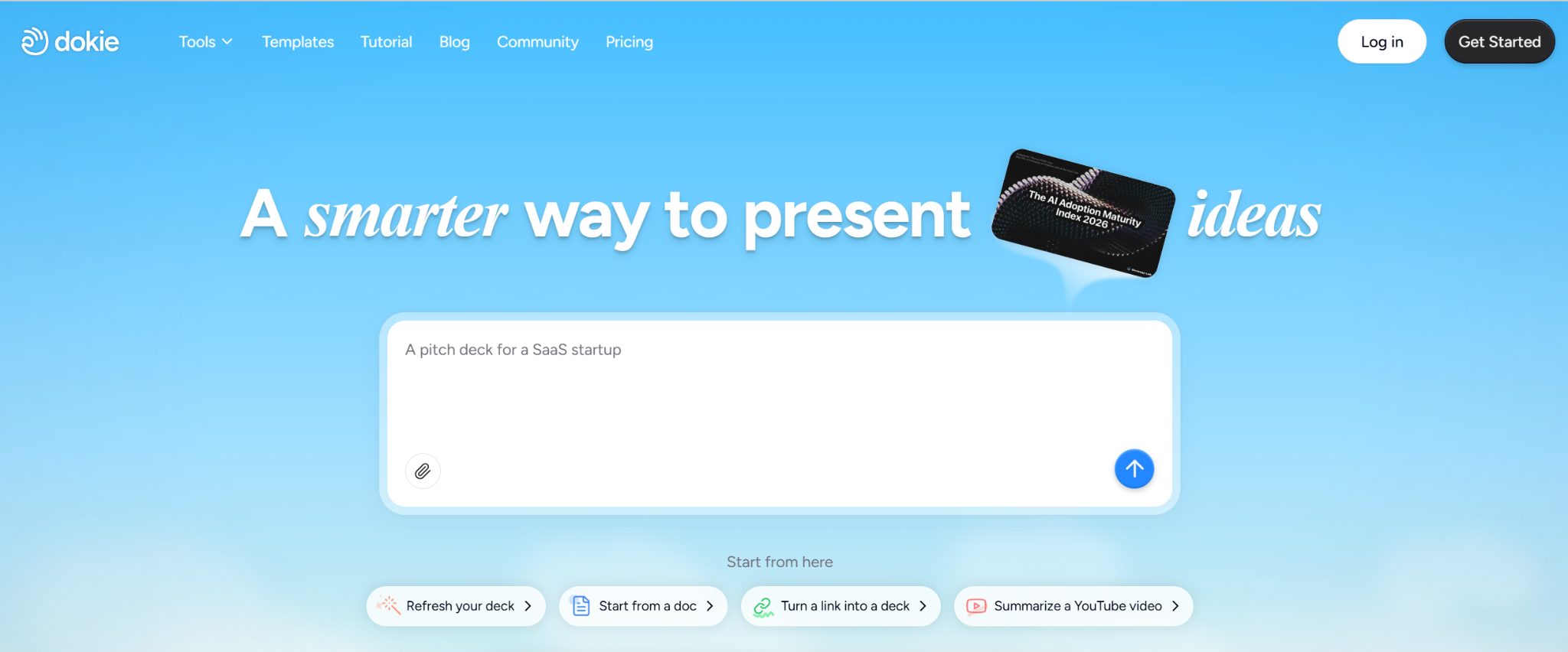
In this post, I will show you how to make AI presentations with Dokie AI.
Making a presentation from scratch can be time-consuming. You need to plan the structure, write the content, design the slides, arrange the layout, and make sure the final deck is easy to present.
Dokie AI makes this process easier. It is an AI presentation maker that helps users create structured, editable, and business-ready PPT slides faster. Instead of starting from a blank PowerPoint file, you can use Dokie AI to generate a first draft and then customize it based on your needs.
In this guide, you will learn how to make presentations with Dokie AI step by step.
Table of Contents
What Is Dokie AI?
Dokie AI is an AI PPT maker that helps users create presentations from prompts, topics, notes, documents, and existing content.
It is designed for people who need clear and practical presentations, not just beautiful slide images. Dokie AI focuses on helping users build decks with a logical structure, which is important for real business, education, and office workflows.
You can use Dokie AI to create:
- Business reports
- Weekly updates
- Monthly reviews
- Pitch decks
- Marketing plans
- Product presentations
- Client proposals
- Education slides
- Training materials
- Research presentations
- Personal portfolio decks
- Infographic-style slides
Dokie AI also offers many PPT templates and free PPT tools, which makes it useful for different presentation workflows.
Step 1: Decide the Purpose of Your Presentation
Before using Dokie AI, start by deciding what your presentation is for.
This step matters because different presentations need different structures. A pitch deck is not the same as a weekly report. A marketing plan is not the same as a classroom lesson.
Ask yourself:
What is the main goal of this presentation?
Who will read or watch it?
What should the audience understand after seeing it?
What action should they take next?
For example, if you are making a business report, your goal may be to show progress and next steps. If you are making a pitch deck, your goal may be to convince investors or partners. If you are making an education deck, your goal may be to explain a topic clearly.
Once you know the purpose, Dokie AI can help you create a better structure.
Step 2: Prepare Your Input
Dokie AI works better when your input is clear. You do not need a perfect outline, but you should give the AI enough direction.
You can start with a simple topic, such as:
“Create a presentation about social media marketing strategy for small businesses.”
You can also use a more detailed prompt, such as:
“Create a 10-slide business presentation about our Q2 marketing performance. Include campaign overview, traffic growth, conversion data, top-performing channels, main problems, and next steps.”
A better prompt usually creates a better first draft. Try to include:
The topic
The audience
The goal
The number of slides
The tone
The key points you want to include
For business presentations, you can also include numbers, key results, market insights, or project details. For education slides, you can include the grade level, lesson goal, and main concepts.
Step 3: Choose a PPT Template
Dokie AI offers many PPT templates, so you can choose a design style that fits your presentation.
The template library includes categories such as Business, Education, Marketing, Medical, Technology, Pitch Deck, About Me, and Infographics.
If you are creating a company report, the Business category is a good starting point. If you are preparing a startup fundraising deck, choose a Pitch Deck template. If you are making a lesson or training material, the Education category may work better. If you need to explain data, steps, timelines, or processes, Infographics templates can make the content easier to understand.
Choosing the right template helps your presentation feel more relevant from the beginning. It also saves time because you do not need to design every slide manually.
Step 4: Generate the First Draft
After you enter your prompt and choose a template, Dokie AI can generate a presentation draft.
This first draft usually gives you:
A slide structure
Suggested section order
Slide titles
Main content points
Basic visual layout
A presentation flow
This is useful because the first draft is often the hardest part of making slides. Dokie AI helps you move from a blank page to a working deck quickly.
For example, if you ask Dokie AI to create a marketing strategy deck, it may generate slides like:
Title
Agenda
Market background
Target audience
Channel strategy
Content plan
Budget plan
Timeline
Expected results
Next steps
You can then edit the deck based on your real situation.
Step 5: Review the Slide Structure
After Dokie AI generates the deck, do not only check whether the slides look good. First, review the structure.
A good presentation should have a clear beginning, middle, and end.
The beginning should introduce the topic and explain why it matters. The middle should present the main information, data, or ideas. The end should summarize the key points and explain the next step.
Check whether the slide order makes sense. Remove slides that feel unnecessary. Add slides if something important is missing. Move slides around if the story feels unclear.
For business decks, make sure the presentation answers:
What happened?
Why does it matter?
What are the key findings?
What should we do next?
For pitch decks, make sure it covers:
Problem
Solution
Product
Market
Business model
Traction
Team
Ask
Dokie AI gives you a strong first draft, but you should still shape the final story.
Step 6: Edit the Content
Next, edit the slide content.
AI-generated content is helpful, but it should not be treated as final. You should review the wording, facts, numbers, examples, and tone.
Replace generic points with your real information. Add your own data, customer examples, campaign results, product screenshots, research findings, or business insights.
For example, instead of keeping a generic bullet like “Social media traffic increased,” you can make it more specific:
“Social media traffic increased by 38% in Q2, mainly driven by TikTok and LinkedIn campaigns.”
Specific content makes the presentation more useful and credible.
Also, keep slides simple. Avoid long paragraphs. Use short points that are easy to scan. A slide should support your presentation, not replace your full speech.
Step 7: Improve the Design
After the content is clear, polish the design.
Dokie AI templates already give you a clean visual starting point, but you may still want to adjust the final look.
Check these details:
Are the slide titles clear?
Is the text easy to read?
Are the colors consistent?
Are the fonts clean?
Is there too much text on one slide?
Do the visuals support the message?
Are charts, icons, and images placed neatly?
For important presentations, such as investor decks, client proposals, or executive reports, spend extra time polishing the design. A clean design makes your message easier to understand and helps the deck look more professional.
Step 8: Add Your Own Data and Visuals
A strong presentation should include real details.
Dokie AI can help generate the structure, but you should add your own data, charts, screenshots, images, examples, and insights.
For business reports, add real metrics and performance data.
For marketing decks, add campaign results, channel data, audience insights, and creative examples.
For pitch decks, add market size, traction, product screenshots, financials, and team information.
For education decks, add examples, exercises, diagrams, and key takeaways.
For product decks, add feature screenshots, user flows, use cases, and roadmap details.
This step turns the AI-generated draft into a presentation that feels truly useful.
Step 9: Use Dokie AI’s Free PPT Tools
Dokie AI also provides free PPT tools that can help you turn existing content into slides.
These tools include PDF to PPT, Word to PPT, Text to PPT, Excel to PPT, JPG to PPT, PNG to PPT, HTML to PPT, and DOC to PPT.
This is useful when your presentation starts from an existing file.
For example, if you have a PDF report, you can use PDF to PPT to turn it into a presentation format. If you have a Word document, you can use Word to PPT. If you have data in Excel, you can use Excel to PPT. If you have a text outline, you can use Text to PPT.
These tools save time because you do not need to copy and paste everything manually.
Step 10: Export and Share Your Presentation
Once your slides are ready, export the final deck.
Dokie AI is useful for users who need traditional PPT-style presentations. This matters because many schools, companies, clients, and business teams still use PowerPoint as their main presentation format.
After exporting, review the deck one more time in your final presentation tool. Make sure the formatting looks correct, images load properly, and the slide order is right.
Then you can share the deck with your team, client, teacher, investor, or audience.
Tips for Getting Better Results With Dokie AI
Use a Specific Prompt
A detailed prompt usually gives you a better deck.
Instead of writing:
“Make a marketing presentation.”
Try:
“Create a 12-slide marketing strategy presentation for a SaaS product. Include target audience, positioning, SEO plan, paid ads plan, influencer strategy, content calendar, budget, KPIs, risks, and next steps.”
Choose the Right Template Category
Use Business templates for reports and strategy decks. Use Pitch Deck templates for startup presentations. Use Education templates for lessons and class slides. Use Infographics templates for timelines, workflows, and data summaries.
The right template can make your deck feel more professional from the start.
Edit Before You Export
Do not export the first draft without reviewing it. AI can help create the base, but you should still improve the wording, check the facts, and add your own details.
Keep Slides Simple
Avoid putting too much text on one slide. Use short points, clear titles, and simple visuals.
Add Real Examples
Real examples make your presentation stronger. Add customer stories, product screenshots, campaign results, research data, or project details when possible.
Best Use Cases for Dokie AI
Dokie AI is useful for many types of presentations.
For business users, it can help create weekly reports, monthly reports, project updates, strategy decks, and client presentations.
For marketers, it can help create campaign plans, SEO reports, influencer marketing decks, social media strategies, and launch presentations.
For founders, it can help create pitch decks, investor updates, product decks, and business proposals.
For teachers and students, it can help create lesson slides, class projects, training decks, and research presentations.
For consultants and agencies, it can help create audit reports, proposals, performance reviews, and client strategy decks.
For personal use, it can help create About Me decks, portfolios, resumes, and creator media kits.
Example Prompt for Dokie AI
Here is a simple prompt you can use:
“Create a 10-slide business presentation about our Q2 marketing performance. The audience is company leadership. Include an executive summary, traffic growth, registration growth, paid user conversion, best-performing channels, main problems, key learnings, and next steps. Use a professional tone and make the slides clear and easy to present.”
Here is another example for a pitch deck:
“Create a 12-slide startup pitch deck for an AI productivity tool. Include problem, solution, product demo, target users, market opportunity, business model, traction, competitors, go-to-market strategy, team, financial plan, and fundraising ask. Use a clear and investor-friendly tone.”
These prompts give Dokie AI enough context to create a more useful first draft.
Final Verdict
Dokie AI makes presentation creation much faster. It helps users move from a blank page to a structured first draft, choose a suitable template, edit the content, polish the design, and export a presentation-ready deck.
Its biggest strength is not only speed. It is structure. Dokie AI helps users create decks that are easier to present in real work, school, and business scenarios.
It is especially useful for business reports, pitch decks, marketing plans, education slides, client presentations, technology decks, and infographic-style slides.
You still need to review the content, add real data, and polish important slides. But Dokie AI can remove a lot of repetitive work and make the whole presentation process easier.
FAQs
1. Can Dokie AI create a full presentation?
Yes. Dokie AI can help create a full presentation from a topic, prompt, notes, document, or existing content.
2. Does Dokie AI offer PPT templates?
Yes. Dokie AI offers many PPT templates, including Business, Education, Marketing, Medical, Technology, Pitch Deck, About Me, and Infographics templates.
3. Can I use Dokie AI for business presentations?
Yes. Dokie AI is useful for business reports, weekly updates, monthly reviews, strategy decks, client presentations, and project updates.
4. Can Dokie AI help with pitch decks?
Yes. Dokie AI can help create pitch deck drafts with sections such as problem, solution, market, product, traction, business model, team, and ask.
5. Does Dokie AI support file-to-PPT workflows?
Yes. Dokie AI provides free PPT tools such as PDF to PPT, Word to PPT, Text to PPT, Excel to PPT, JPG to PPT, PNG to PPT, HTML to PPT, and DOC to PPT.
INTERESTING POSTS
- Where to Get Highly Rated PowerPoint Templates? Visit AiPPT.com!
- A Guide on Creating Engaging Presentations for Trade Show Visitors
- PDF Editors for Visual Storytelling: Crafting Engaging Presentations
- Exclusive Interview With Trent Rhodes From Fullstack Academy
- Top 4 Benefits Logo Templates Can Bring To Your Business
About the Author:

Marie Beaujolie is a computer network engineer and content writer from Paris. She is passionate about technology and exploring new ways to make people’s lives easier. Marie has been working in the IT industry for many years and has a wealth of knowledge about computer security and best practices. She is a regular contributor for SecureBlitz.com, where she writes about the latest trends and news in the cyber security industry. Marie is committed to helping people stay safe online and encouraging them to take the necessary steps to protect their data.