



Email security starts with proper authentication, and DMARC is a key part of protecting your domain from spoofing, phishing, and unauthorized email use. However, creating the correct DMARC DNS record manually can be confusing.
The best DMARC record generator simplifies the process by helping you configure the right policy, reporting options, and authentication settings. With a generated record, you can quickly publish DMARC in your DNS, validate the configuration, and strengthen your domain’s email security.
Table of Contents
What a DMARC Record Is and Why It Matters for Email Security
A DMARC record (Domain-based Message Authentication, Reporting, and Conformance) is a crucial component of modern email authentication protocols. Set as a DNS TXT record for your domain, DMARC builds upon existing protocols such as SPF (Sender Policy Framework) and DKIM (DomainKeys Identified Mail) to ensure that emails sent from your domain are both legitimate and authorized. The DMARC record tells receiving mail servers how to handle messages that fail authentication checks, providing policies that help protect against email spoofing, phishing, and Business Email Compromise (BEC).
The widespread adoption of DMARC is paramount for organizations, ranging from Individuals & Small Businesses to Enterprises, Government bodies, and critical sectors like Healthcare and Financial Services. Without a valid DMARC record, attackers can easily impersonate your domain—compromising email delivery and trust with recipients. Tools like dmarcian, MXToolBox, and other DMARC Management Platforms have made it easier to deploy this crucial DNS defense.
By publishing a DMARC record and enforcing DMARC policy, organizations gain visibility into their outbound email stream, leveraging sophisticated email reports (including aggregate reports, forensic reports, and failure reports) for improved email health and threat intelligence. This is an essential step in advancing your organization’s email security posture and maintaining compliance with industry standards.
How an Online DMARC Record Generator Simplifies Setup
The Need for Automation and Accuracy
Configuring a DMARC record involves specifying multiple parameters, from enforcement levels (policy) to email reporting endpoints, and alignment settings for both SPF and DKIM. For many administrators—whether in MSPs & IT agencies, Educational Services, or non-technical small business owners—manual setup can be error-prone and complicated.
An Online DMARC Record Generator or DMARC Record Wizard automates this process. These tools guide users through the steps needed to generate DMARC record entries tailored to their organization’s domain and subdomain structure. Advanced providers, such as dmarcian or MXToolBox, often bundle a DMARC Record Generator with additional services like SPF Record Generators, BIMI Tools, and diagnostic utilities (e.g., DMARC Inspector, DKIM Inspector, DMARC Domain Checker).
Streamlining DMARC Deployment
The advantages of utilizing an online DMARC Record Generator are clear:
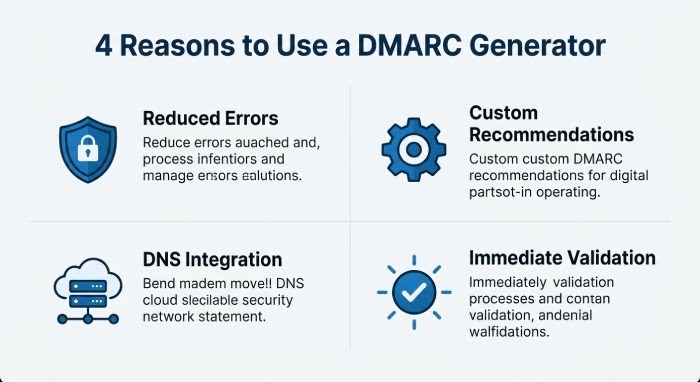
- Reduced Errors: All required and optional DMARC tags are included, preventing mistakes in syntax or logic.
- Custom Recommendations: Wizards may suggest best configuration settings for your industry or organization size.
- Integration with DNS Management: Some platforms offer DNS publishing or DNS Lookup integrations.
- Immediate Validation: Many generators run a DMARC check or syntax validation before you deploy the record, ensuring you always start with a valid DMARC record.
Key DMARC Tags to Configure: Policy, Reports, Alignment, and Subdomains
Core DMARC Record Parameters
A DMARC record is composed of a series of “tags”—each one specifying a critical aspect of email authentication policy for the domain:
The p Tag: DMARC Policy
The policy (p tag) determines how receiving servers treat emails failing DMARC checks:
- none: Monitor mode (no impact on email delivery)
- quarantine: Sends suspicious emails to the spam folder
- reject: Blocks unauthenticated emails outright
Selecting the right DMARC policy is central to balancing email security with uninterrupted communication, especially during initial DMARC onboarding or gradual shift to enforcement.
The rua and ruf Tags: Email Reports
- Aggregate reports (rua): Specify the destination email address (e.g., mailto:*dmarc*-reports@yourdomain.com) for summary XML-based aggregate reports of authentication results.
- Forensic reports (ruf): Specify the destination for individual failure reports detailing specific rejected or failing email streams.
DMARC Alignment: aspf and adkim
- aspf: Alignment for SPF (relaxed/strict)
- adkim: Alignment for DKIM (relaxed/strict)
Strong DMARC alignment ensures that only strictly authenticated emails pass, closing loopholes exploited by attackers.
Subdomain Policy: sp
- The sp tag allows special policy for subdomains, which is often necessary for organizations with delegated or complex domain structures.
Optional and Advanced Tags
Additional DMARC record parameters—such as fo (failure option), pct (percentage of email stream to enforce DMARC policy), and ri (reporting interval)—can be set via an advanced setup in most DMARC Record Generators.
Some platforms allow configurations for integrating with BIMI Tools (for brand indicators) and custom attributes for specialized data collection and handling.
Step-by-Step Guide to Generating and Publishing a DMARC Record
1. Gather Domain and Subdomain Details
Begin by identifying the primary domain and any relevant subdomains needing DMARC coverage. Use tools like DMARC Domain Checker, DNS Lookup, and MX Lookup utilities such as SuperTool to inspect your DNS and mail routing setup.
2. Launch a DMARC Record Wizard
Access an Online DMARC Record Generator (e.g., from dmarcian or MXToolBox). The generator will guide you through the following record parameters:
- Choose DMARC policy (none, quarantine, reject)
- Enter reporting addresses for aggregate and forensic reports
- Set alignment settings (SPF and DKIM)
- Choose policies for subdomains, if necessary
Many generators auto-populate fields and flag errors or omissions, ensuring a valid DMARC record structure.
3. Generate DMARC Record
Click to generate DMARC record. The output will appear as a DNS TXT string such as:
v=DMARC1; p=quarantine; rua=mailto:*dmarc*-reports@yourdomain.com; ruf=mailto:forensics@yourdomain.com; aspf=s; adkim=s; sp=reject; pct=100
4. Publish DMARC Record in DNS
Copy the generated string and publish the record at the correct DNS subdomain:
- The record is added as a TXT entry at _dmarc.yourdomain.com in your DNS provider’s settings.
- For advanced users, use combined tools like Detail Viewer, Source Viewer, or coordinate with your Delivery Center or IT department.
5. Confirm and Test Configuration
Use a DMARC check, DMARC Inspector, or validation tool to verify the published DMARC record. Platforms like Email Health or Diagnostic tools can help analyze headers and ensure correct email authentication.
If available, test additional infrastructure using DKIM Inspector, DKIM Validator, and SPF Record Generator for comprehensive authentication.
Best Practices for Testing, Monitoring, and Moving to Enforcement
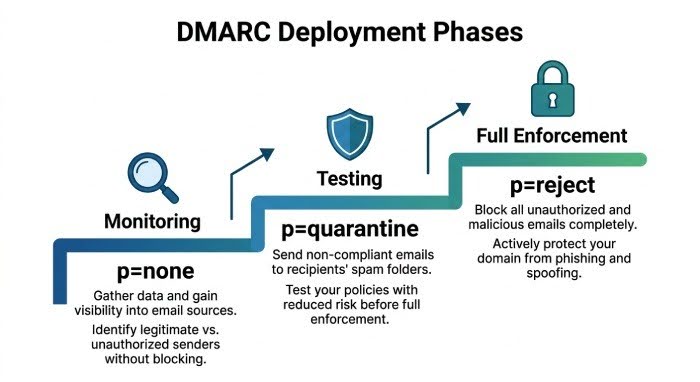
Start with a None Policy and Collect Reports
Initially, set your DMARC policy to none to monitor without affecting email delivery. This allows you to:
- Begin data collection via XML-based aggregate reports and failure reports
- Identify all legitimate email sources sending as your domain or subdomain
- Detect authentication gaps
Monitor your incoming DMARC reports using tools like Alert Central or your chosen DMARC Data Providers.
Analyze, Tune, and Advance Setup
Review aggregate and forensic reports:
- Use an XML-to-Human Converter for easier analysis
- Tune SPF and DKIM settings, update authorized senders, and remediate any authentication failures
- Consult with DMARC Support or a DMARC Consultation service if needed for advance setup and complex deployments
Move Gradually to Quarantine and Reject
Once confident in legitimate mail flows:
- Update your DMARC record to quarantine—monitor for unanticipated impact for several weeks
- Progress to reject after verifying that all authorized email is passing authentication
This phased approach, combined with continuous monitoring via your DMARC Management Platform and regular use of diagnostic tools, ensures robust email security without disrupting business communications.
Ongoing Monitoring and DMARC Management
Leverage reporting dashboards (e.g., Delivery Center) for ongoing review. Run regular DMARC checks, conduct audits with Blacklists and Domain Checker tools, and maintain up-to-date contact and reporting addresses. Proper maintenance and support during DMARC deployment and continuous DMARC onboarding are vital for evolving organizations, especially as new subdomains or third-party services are introduced.
By using a DMARC Record Generator and following these best practices, organizations of every type—Individuals, MSPs, Educational Services, Government, and more—can swiftly and confidently advance their email authentication and email health programs.
Frequently Asked Questions About DMARC Record Generators
What is a DMARC record generator?
A DMARC record generator is a tool that creates a properly formatted DMARC DNS TXT record based on the security policy and reporting options you select. Instead of manually writing DMARC syntax, you can choose settings such as p=none, p=quarantine, or p=reject, specify reporting addresses, configure SPF and DKIM alignment, and generate a record that can be published in your domain’s DNS.
Where do I add a DMARC record in DNS?
A DMARC record is published as a DNS TXT record at the _dmarc hostname for your domain. For example, if your domain is example.com, the DMARC record is published at _dmarc.example.com. The exact DNS interface varies depending on your DNS provider or domain registrar.
What does a basic DMARC record look like?
A simple monitoring record can look like this:
v=DMARC1; p=none; rua=mailto:dmarc@example.com;
The v=DMARC1 tag identifies the record as DMARC, p=none establishes a monitoring policy, and rua specifies where supported aggregate DMARC reports should be sent.
Should I use p=none, p=quarantine, or p=reject?
The appropriate policy depends on the state of your email authentication setup. p=none requests monitoring without asking receivers to quarantine or reject failing messages. p=quarantine requests that DMARC-failing messages be treated as suspicious, while p=reject requests rejection of messages that fail DMARC.
Organizations commonly begin by identifying legitimate email sources and correcting SPF and DKIM problems before progressing toward stronger enforcement.
Can I create a DMARC record without SPF and DKIM?
You can publish a DMARC record, but effective DMARC authentication depends on SPF or DKIM passing with the required domain alignment. Before moving to an enforcement policy, verify that legitimate services sending email on behalf of your domain are correctly authenticated and aligned.
How do I check whether my DMARC record is working?
Use a DMARC lookup or validation tool to query _dmarc.yourdomain.com and inspect the published TXT record. You should also review DMARC aggregate reports sent to the address specified by the rua tag. These reports can reveal which services are sending email for your domain and whether their messages are passing SPF, DKIM, and DMARC.
How long does it take for a new DMARC record to work?
A newly published or updated DMARC record becomes available according to DNS propagation and caching behavior. Some DNS resolvers may see the change quickly, while cached versions can remain until their TTL expires. You can use a DNS or DMARC lookup tool to check what record is currently visible publicly.
Can a domain have more than one DMARC record?
A domain should publish a single DMARC policy record at its applicable _dmarc location. Publishing multiple DMARC records can cause DMARC processing problems. If you need several reporting destinations or additional settings, they should generally be configured within the applicable DMARC record rather than by creating competing DMARC records.
What is the difference between rua and ruf in DMARC?
The rua tag specifies destinations for aggregate DMARC reports, which summarize authentication activity across email sources. The ruf tag specifies destinations for message-specific failure or forensic reports where supported. Availability and contents of failure reports vary among receiving email providers, and privacy considerations can affect whether they are generated.
Do I need a separate DMARC record for every subdomain?
Not necessarily. A DMARC policy published for an organizational domain can apply to its subdomains unless a different applicable DMARC record or subdomain policy changes that behavior. The sp tag can also be used to request a different policy for subdomains.
For organizations that send mail from multiple subdomains, reviewing each legitimate sending source before enforcing a restrictive policy is important.
What does pct=100 mean in a DMARC record?
The pct tag historically specifies the percentage of messages to which certain requested DMARC policy handling is applied. A value of pct=100 represents 100 percent. However, DMARC specifications and receiver behavior evolve, so administrators should follow the current DMARC specification and their email provider’s implementation guidance rather than relying on pct as a substitute for properly staged deployment.
What is SPF and DKIM alignment in DMARC?
DMARC alignment checks the relationship between the domain visible in the email’s From header and the authenticated domain used by SPF or DKIM. Relaxed alignment permits certain related subdomain relationships, while strict alignment requires a closer domain match.
The aspf tag controls SPF alignment mode, while adkim controls DKIM alignment mode.
Can a DMARC record improve email deliverability?
DMARC is primarily an authentication and domain-protection mechanism rather than a guarantee of inbox placement. Correctly configured SPF, DKIM, and DMARC can help receiving systems verify legitimate mail and protect a domain against certain forms of impersonation. Deliverability, however, also depends on factors such as sender reputation, message quality, complaint rates, recipient engagement, and the policies of individual mailbox providers.
What happens if my DMARC record is configured incorrectly?
An incorrect DMARC configuration can prevent the intended policy from working and, under an enforcement policy, may contribute to legitimate email being quarantined or rejected when authentication or alignment is not properly configured. Validate your DNS record and identify all authorized sending services before adopting an aggressive enforcement policy.
Is a DMARC record generator enough to secure my domain?
No. A generator simplifies creation of the DNS record, but DMARC deployment is a process rather than just a DNS change. You should also configure SPF and DKIM correctly, identify authorized senders, monitor DMARC reports, fix authentication failures, remove unauthorized sending sources, and gradually introduce enforcement where appropriate.
How often should I check my DMARC configuration?
Check the configuration after making DNS or email-provider changes and continue monitoring DMARC reports over time. It is particularly useful to review authentication when adding or removing marketing platforms, help desks, CRMs, transactional email providers, newsletter services, or other third-party systems that send email using your domain.
INTERESTING POSTS
- DMARC Generator Guide: Create, Check, And Publish DMARC Records
- Free DMARC Lookup: Record Checker With Results Explained And Quick Fixes
- Free Spf Checker: Troubleshoot Spf Configuration Issues Easily
- How An SPF Record Can Instantly Improve Your Email Deliverability
- How SPF Flattening Can Instantly Improve Your Email Deliverability
About the Author:

Daniel Segun is the Founder and CEO of SecureBlitz Cybersecurity Media, with a background in Computer Science and Digital Marketing. When not writing, he's probably busy designing graphics or developing websites.



