



In this post, I will give you the DMARC Generator Guide and show you how to create, check, and publish DMARC records.
Email security is no longer optional in today’s threat landscape, making DMARC an essential component of domain protection. This guide explains how to create, check, validate, and publish DMARC records using a DMARC generator.
Whether you’re new to email authentication or looking to strengthen existing protections, you’ll learn how DMARC policies, reporting options, alignment settings, and enforcement levels work together to prevent phishing, spoofing, and unauthorized email use while improving deliverability and domain reputation.
Table of Contents
What a DMARC Generator Is and Why It Matters
A DMARC generator tool is an essential solution designed to help organizations quickly and accurately create DMARC records for their domains. As email threats escalate, particularly phishing, Business Email Compromise (BEC), and domain spoofing, implementing a robust DMARC record is crucial for any business prioritizing email authentication and email security. By using a DMARC generator tool, organizations can simplify record creation, reduce configuration errors, and strengthen protection against email-based attacks.
By leveraging a DMARC record generator, security professionals and domain administrators can generate DMARC records with correct syntax and tailored policies—without requiring extensive technical knowledge. Solutions from providers like EasyDMARC, PowerDMARC, and MXToolbox simplify this process, making strong email authentication far more accessible for organizations ranging from Fortune 100 companies to mid-market enterprises.
The DMARC generator walks users through all the necessary tags and options needed to create an error-free DMARC record in the appropriate TXT record format for your DNS zone. This ensures not only basic compliance, but also safeguards your domain against impersonation attacks, ransom threats, and unwanted messages, which can severely damage business reputation and deliverability.
Key DMARC Record Tags Explained: Policy, Alignment, Reports, and Enforcement
DMARC records consist of several policy tags, each representing specific instructions and protocols for mail handling and reporting. Understanding each of these tags is vital when you generate a DMARC record—whether with a generator or manually.
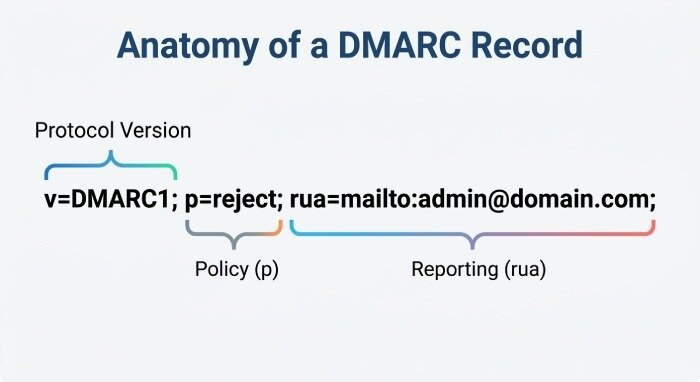
Policy Type (p=): none, quarantine, reject
The policy type is fundamental in any DMARC policy. It tells ISPs and mail receivers what to do with emails that fail DMARC authentication checks:
- none: Monitoring mode. Email messages failing DMARC are still delivered, but you receive reports to your aggregate address. Ideal for initial implementation and analysis.
- quarantine: Suspicious emails are routed to the recipient’s spam or junk folder.
- reject: The strongest setting, instructing receivers to block delivery of messages failing DMARC validation.
Subdomain Policy (sp=)
The subdomain policy specifies what happens to emails sent from subdomains of your primary domain:
- If omitted, the parent domain’s policy applies.
- Set as none, quarantine, or reject for tailored subdomain handling.
Alignment: SPF and DKIM (aspf=, adkim=)
Alignment tags dictate how strictly the system matches the authorized SPF domain and DKIM signature to the Header From domain (Parent Header From domain):
- SPF alignment (aspf=) and DKIM alignment (adkim=) can be set as relaxed or strict.
- relaxed: Allows minor domain mismatches (e.g., sub.example.com and example.com).
- strict: Requires an exact domain match.
Reporting Options: Aggregate and Failure (RUA, RUF)
Reporting allows you to monitor protocol outcome and fine-tune your DMARC settings:
- Aggregate report (RUA address / rua=): Receives DMARC XML summary reports from ISPs for statistical insights.
- Failure report (RUF address / ruf=): Receives forensic or instant DMARC failure reports (forensic report).
- Reporting interval (ri=): Determines how often aggregate reports are sent, generally in seconds (e.g., 86400 for daily).
Other Tags and Parameters
- Policy percentage (pct=): Applies the policy type to a specified percentage of your mail stream for gradual implementation.
- Record type: Always set as a TXT record in your DNS.
- Policy tags: Each tag (e.g., p, sp, adkim, aspf, rua, ruf, pct) contributes to clear, enforceable instructions.
DMARC Record Format
A valid DMARC record example looks like this:
v=DMARC1; p=quarantine; rua=mailto:dmarc-reports@yourdomain.com; ruf=mailto:forensics@yourdomain.com; adkim=strict; aspf=relaxed; sp=none; pct=100; ri=86400
READ ALSO: Online DMARC Record Generator For Fast Email Security Setup
How to Create a DMARC Record with a DMARC Generator
Deploying a DMARC record begins with properly crafting the record itself. Using a DMARC generator or DMARC record generator streamlines this process, guiding you through each mandatory and optional field.
Steps to Generate DMARC Record
1. Select Your Policy (none, quarantine, reject)
Start by identifying your intended DMARC policy type. New users often begin with none for monitoring, moving gradually to quarantine or reject as authentication improves.
2. Configure Alignment Options
Choose between relaxed and strict modes for SPF alignment and DKIM alignment. This directly affects the stringency of your authentication checks.
3. Input Reporting Details
Enter your RUA address and RUF address for receiving aggregate and forensic DMARC reports. These addresses must be valid mailboxes, ideally separate from main business operations for security.
4. Set Subdomain Policy and Policy Percent
Specify the subdomain policy if you want a different enforcement level for your subdomains. Adjust policy percentage as needed for phased rollouts.
5. Review Generated Syntax
A robust DMARC generator will generate DMARC record syntax and present a valid DMARC ready for DNS entry. Providers such as EasyDMARC, MXToolbox, and PowerDMARC offer intuitive interfaces and instant previews of your configuration.
6. Manual DMARC Record Option
Advanced users may wish to create a manual DMARC record, by following correct tag placement and formatting as described in RFC 7489. However, even experts benefit from generators to avoid common syntax errors.
How to Check, Validate, and Troubleshoot Your DMARC Record
After you generate DMARC record content, validation and troubleshooting are critical.
Using DMARC Checker Tools
Upload your DMARC record to a DMARC checker or record checker like EasyDMARC, MXToolbox, or SuperTool. These tools analyze for:
- Syntax and formatting problems
- Correct inclusion of essential policy tags (p, rua, etc.)
- Valid RUA/RUF reporting options
- Compatibility with your DNS zone and provider
Validating in Your DNS
Ensure the DMARC record is published as a TXT record on the _dmarc hostname (Host/Name) in your DNS:
- Example: _dmarc.yourdomain.com as the Name/Host.
- Confirm correct record format and ensure your DNS provider (such as GoDaddy) propagates updates quickly.
Troubleshooting Common Issues
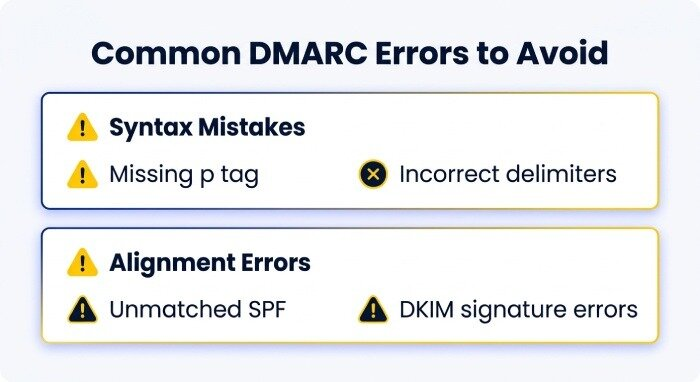
Syntax and Policy Mistakes
- Missing mandatory tags (such as p)
- Incorrect delimiter usage (all tags must end with semicolons)
- Malformed reporting addresses (RUA/RUF)
Authentication Alignment Errors
- Unmatched SPF identifier or DKIM signature
- Incorrect subdomain policy references
Achieving an Error-free DMARC Record
Iterate on your record format using both DMARC record generators and manual inspections. Seek out tools and certifications, referencing community reviews from G2 Crowd, Expert Insights, SourceForge, and BetterTracker for authoritative guidance.
How to Publish Your DMARC Record and Move Toward Enforcement
Proper publication of your DMARC policy is essential for full protection and improved deliverability.
Publishing in the DNS Zone
- Access your DNS provider’s management portal (e.g., GoDaddy).
- Add a new TXT record at the _dmarc subdomain of your chosen domain.
- Paste the content generated by your DMARC record generator as the Value/Data field.
- Allow for DNS propagation, which can take from a few minutes to 48 hours depending on your provider and DNS infrastructure.
Monitoring and Incremental Enforcement
Upon initial publication, set your policy type to none and review aggregate and failure DMARC reports. Analyze those reports using solutions like Delivery Center to track authentication checks, protocol outcomes, and sources of email traffic.
Gradually migrate from monitoring (none) to quarantine and then reject as your legitimate senders pass SPF and DKIM checks. Carefully review feedback on deliverability to ensure no valid mail is blocked during each phase.
Maintaining and Updating Your DMARC Policy
Regularly review your DMARC records as your email services, subdomains, or partners change. Adjust reporting options or subdomain policy to reflect operational updates, and always verify changes with a DMARC checker before applying them in production.
Taking these steps will ensure a valid, error-free DMARC implementation, maximizing email security, phishing protection, and corporate reputation.
INTERESTING POSTS
- Free DMARC Lookup: Record Checker With Results Explained And Quick Fixes
- Free Spf Checker: Troubleshoot Spf Configuration Issues Easily
- How SPF Flattening Can Instantly Improve Your Email Deliverability
- 11 Best Password Generators Of 2026
- Big Unlock: Buying Cheap Wildcard SSL Certificates in 2025
- How An SPF Record Can Instantly Improve Your Email Deliverability
About the Author:

Meet Angela Daniel, an esteemed cybersecurity expert and the Associate Editor at SecureBlitz. With a profound understanding of the digital security landscape, Angela is dedicated to sharing her wealth of knowledge with readers. Her insightful articles delve into the intricacies of cybersecurity, offering a beacon of understanding in the ever-evolving realm of online safety.
Angela's expertise is grounded in a passion for staying at the forefront of emerging threats and protective measures. Her commitment to empowering individuals and organizations with the tools and insights to safeguard their digital presence is unwavering.



